| Quick Fix Cheat Sheet (PROBLEMS) | Quick Fix |
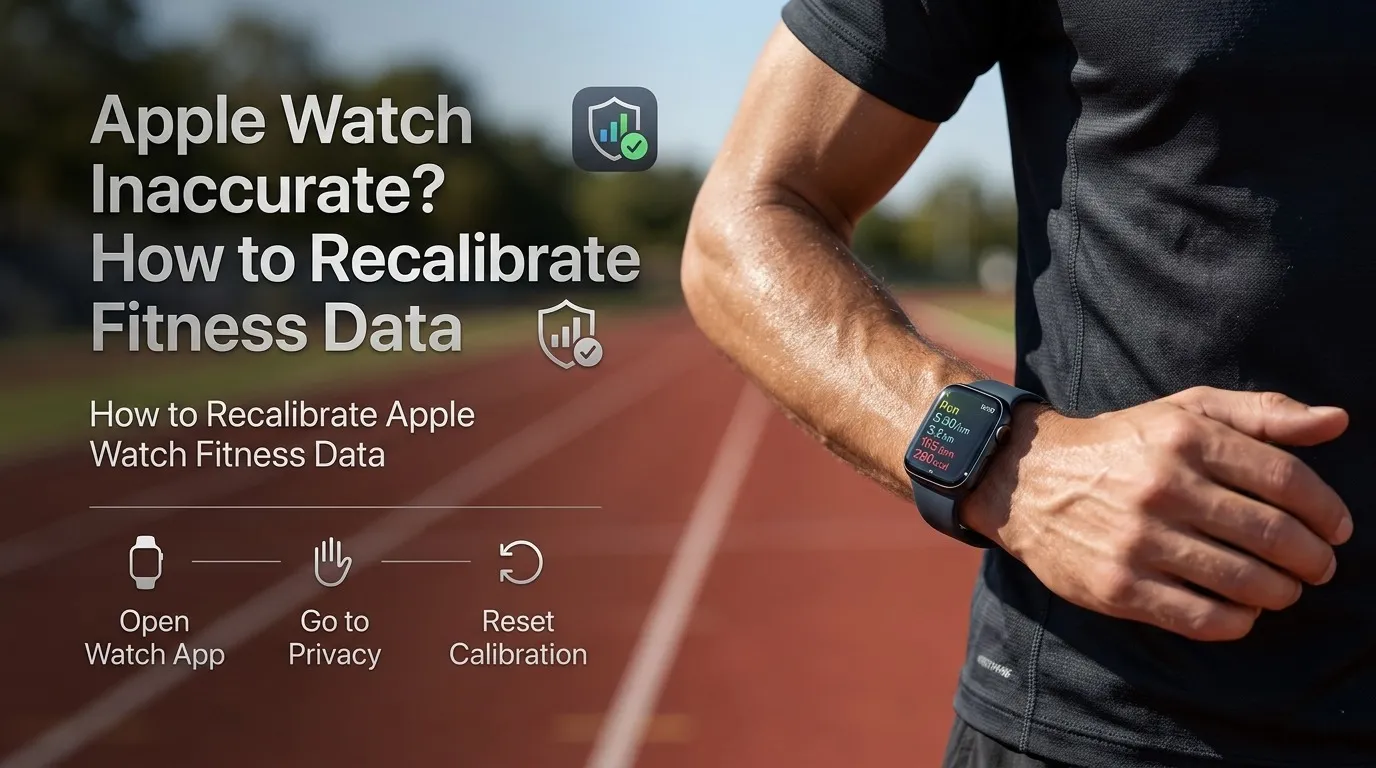
| Inaccurate distance/pace | Reset calibration data in Watch App > Privacy > Reset Fitness Calibration Data |
| Calories way off | Review age, weight, and height accuracy inside your Apple Health Profile |
| GPS not working | Enable: Settings > Privacy & Security > Location Services > Motion Calibration & Distance |
| Treadmill wildly wrong | Don’t hold handrails , pump arms freely and let accelerometer track movement |
| Still inaccurate after reset | Do a fresh 20 minute outdoor walk/run on flat ground with clear sky |
You ran 5 miles. Your Apple Watch says 3.5 miles. Sound familiar? If your Apple Watch fitness data is off, it doesn’t mean the device is broken ,it just means the calibration needs a reset. We’ve broken down the entire recalibration process into clear, practical steps that anyone can follow.
Whether you’re a casual walker or a serious runner, learning how to recalibrate Apple Watch fitness data correctly will make your stats , calories, distance, pace , far more reliable.
Why Your Apple Watch Fitness Data Gets Inaccurate (The Science)

Your Apple Watch does not just count steps blindly. It builds a personal model of your specific stride length and movement pattern over time. When something disrupts this model , a new watchOS update, a weight change, or a new device , the data goes haywire.
The Role of Accelerometer vs. GPS

The watch uses two systems together. The accelerometer tracks arm movement to estimate steps and distance indoors. The GPS (on your iPhone or built in) measures your actual ground distance outdoors. The watch then compares both to learn your stride length. If GPS signal is blocked or weak, this learning breaks down completely.
Why watchOS Updates Mess with Calibration

Major watchOS updates sometimes reset or corrupt the internal calibration cache , the stored data about your movement. Apple does this to improve algorithms, but it means your watch effectively forgets everything it learned about you. This is the most common reason people suddenly notice their Apple Watch fitness data becoming inaccurate overnight.
| Apple Watch Battery Diagnostic Tool |
| Worried your battery health might also be affecting performance? Use our free Apple Watch Battery Diagnostic Tool below to instantly check your battery status, health score, and get personalized tips to extend battery life. Hit the button below to evaluate your watch’s health score right now. |
Phase 1: Pre Calibration Settings (The Checklist Competitors Skimped On)

Before you reset anything, you need to make sure the foundations are correct. Skipping this phase is why most people recalibrate and still get bad data.
Turning on Location Services & Motion Calibration

On your iPhone, go to: Settings > Privacy & Security > Location Services > System Services > Motion Calibration & Distance. Make sure this toggle is turned ON. Without this, the Apple Watch cannot use GPS data to learn your stride ,the single most important input for accurate distance tracking.
Also confirm that Settings > Privacy & Security > Location Services > Apple Watch Workout is set to “While Using”. This allows GPS to run actively during your outdoor workouts.
Apple Health Personal Information Check

Open the Health app > tap your profile picture > Health Details. Verify your age, weight, and height are current and correct. The watch uses this data to calculate calorie burn. An outdated weight (even 5 to 10 lbs off) can throw calorie estimates off by hundreds of calories per workout.
If you recently switched from Kilograms to Pounds (or vice versa) in a third party app like Strava, double check that Apple Health is consistent. A unit mismatch here silently destroys your calorie math , more on this in Phase 3.
Phase 2: How to Reset and Recalibrate Apple Watch Fitness Data

Now you are ready to do the actual recalibration. This is the core process most guides describe, but most miss the critical details that make it actually work.
Step 1: Resetting Existing Calibration Data

On your iPhone, open the Watch app. Launch the iPhone Watch app, navigate to the My Watch tab, select Privacy, and tap Reset Fitness Calibration Data. Tap it and confirm. This clears all stored stride data and forces the watch to start learning fresh. It does not delete your past workouts, activity rings, or awards , it only wipes the movement model.
After resetting, give the watch a few minutes to sync. Then put it on your wrist and move to Step 2.
Step 2: The 20 Minute Outdoor Calibration Ritual (Proper Method)

This is the step that actually recalibrates Apple Watch fitness data. You need to do an outdoor walk or run for at least 20 minutes using the Workout app on the watch (not just carrying your phone). “To ensure absolute accuracy, make sure to execute the process like this:
- Location: Find a flat, open area , a park path, a quiet road, or a track. Avoid hills and tight turns.
- Sky visibility: Make sure you have a clear view of the sky for strong GPS signal. Do not do this near tall buildings or under dense tree cover.
- Natural arm swing: Walk or run at your normal, comfortable pace. Swing your arms naturally , do not hold your phone or water bottle in the same hand as the watch.
- Split sessions OK: The 20 minutes does not need to be one continuous session. Two 10 minute workouts will also work.
- Repeat for each speed: If you both walk and run regularly, do a 20 minute calibration at each speed separately. The watch builds different models for walking and running.
Phase 3: The Hidden Gaps Apple Support Doesn’t Tell You

This is where most calibration guides fail you. These are the advanced issues that cause Apple Watch fitness data to stay inaccurate even after following standard steps.
The watchOS Unit Mismatch Bug (KG vs. Lbs Conflict)

If you use a third party fitness app like Strava, MyFitnessPal, or Garmin Connect, these apps sometimes push your weight in Kilograms to Apple Health while your Health app is set to display Pounds. The result: Apple Health stores something like 80 kg, displays it as 80 lbs (instead of 176 lbs), and the calorie calculation becomes completely wrong.
To fix this: open Health app > Browse > Body Measurements > Body Weight. Check the unit shown. If it looks suspiciously low, tap the most recent entry, scroll to Show All Data, delete the bad entry, and manually re enter your correct weight in the right unit.
Speed Specific Calibration: The Walk vs. Jog Dilemma

Most people do not realise that when you recalibrate Apple Watch fitness data, the watch creates separate calibration profiles for walking speed and running speed. If you only do a walking calibration, your running data stays uncalibrated , and vice versa.
The fix is simple but often skipped: do one 20 minute calibration at your normal walking pace, and a separate 20 minute calibration at your normal jogging or running pace. This gives the watch two accurate stride models to work from.
How to Manually Force/Override Your Stride Length

If auto calibration keeps failing , perhaps due to an unusual gait, a prosthetic limb, or consistent GPS issues in your area , you can override the system manually.
Measure your stride length physically: walk 10 steps on flat ground, measure the total distance in centimetres, and divide by 10. Then go to Health app > Browse > Mobility > Walking Step Length and tap Add Data to enter your value. The watch will use this as a fixed override instead of trying to estimate it. This is a powerful last resort that most Apple Watch guides never mention.
| Useful Resource |
| If you also manage apps on your Apple Watch independently, check out our detailed guide: How to Install Apple Watch Apps Without iPhone ,it covers some handy tips for managing your watch setup that complement the calibration process. |
Phase 4: Troubleshooting Inaccurate Treadmill & Gym Workouts

Treadmill tracking is the most frustrating calibration problem Apple Watch users face. The core issue: indoors, there is no GPS. The watch relies entirely on the accelerometer in your wrist. This makes arm movement everything.
The ‘Handlebar’ Trap: Why Treadmill Distance Fails

Here is the number one reason treadmill data is wrong: you are holding onto the handrails. When your hands grip the bars, your wrist stops swinging. The accelerometer sees no movement and either freezes the distance count or severely undercounts it. Your legs can be running at full speed, but your Apple Watch sees almost nothing.
The fix: let go of the handrails. Use the safety clip if needed, but pump your arms naturally as you run or walk. It may feel different at first, but within a few sessions your balance adjusts. Your distance accuracy will improve dramatically.
Syncing with Apple GymKit Compatibility

If your gym has modern treadmills (NordicTrack, Life Fitness, Technogym, and others supporting Apple GymKit), you can pair your watch directly to the machine. The treadmill sends its own accurate speed and distance data directly to your Apple Watch, bypassing the accelerometer entirely. This gives near perfect accuracy for indoor workouts.
To use it: start a Workout on your Apple Watch, hold it near the treadmill’s NFC zone (usually on the console), and tap Connect when prompted. Your watch and the treadmill sync automatically.
How to Verify If Your Recalibration Was Successful

After you recalibrate Apple Watch fitness data, do not judge accuracy from a single workout. The watch needs at least 3 consecutive outdoor workouts to fully build its new stride model. Here is a simple check:
- Consistency test: Run or walk a known route (e.g., around a standard 400m track) for 3 sessions. If the reported distances are close to each other and close to 400m, calibration is working.
- Calorie sanity check: After a 30 minute moderate effort run, calories burned should be roughly 250 to 400 for most adults. If you see 700+ or under 100, your Health profile data (weight/age) likely needs updating.
- Pace check: Compare your watch pace to a phone based app like Google Maps or Strava on the same route. They should be within 5 to 10% of each other after recalibration.
FAQs: Common Apple Watch Calibration Problems
Does resetting fitness calibration delete my past workout history or awards?
No , not at all. Resetting calibration data only clears the movement algorithm the watch built about your stride. All your past workouts, Activity Rings history, and fitness awards stay completely intact in the Health app and on iCloud.
Why is my Apple Watch showing fewer calories after recalibration?
This is actually a good sign. It means the watch was previously overestimating your calorie burn, and now it is more accurate. Many users feel frustrated by this, but a lower, correct number is far more useful for health tracking than an inflated one. Give it a week , the new numbers will feel normal.
How often should I recalibrate my Apple Watch?
You should recalibrate Apple Watch fitness data in three situations: after a significant weight change (10+ lbs), after upgrading to a new Apple Watch model, or when you suddenly notice your pace or distance readings are significantly off. You do not need to do it on a regular schedule , only when accuracy drops.
Can I recalibrate Apple Watch fitness data without iPhone?
You need the iPhone Watch app to trigger the reset step. However, the actual outdoor calibration walk/run is done entirely on the Apple Watch using its Workout app , no phone required for that part.
Why does my Apple Watch say I burned more calories than my gym machine?
Gym machines are notoriously bad at calorie estimation , they use generic formulas and ignore your fitness level. Once you properly recalibrate Apple Watch fitness data, the watch’s personalised calculation (using your actual age, weight, heart rate, and movement) is generally considered more accurate than a treadmill or bike console.
| Final Takeaway |
| Knowing how to recalibrate Apple Watch fitness data properly , not just reset it , makes a real difference in the quality of your health tracking. Check your settings, reset the calibration, do the outdoor walk/run at both walking and running speeds, and verify over a few sessions. Your watch will reward the effort with stats you can actually trust. |