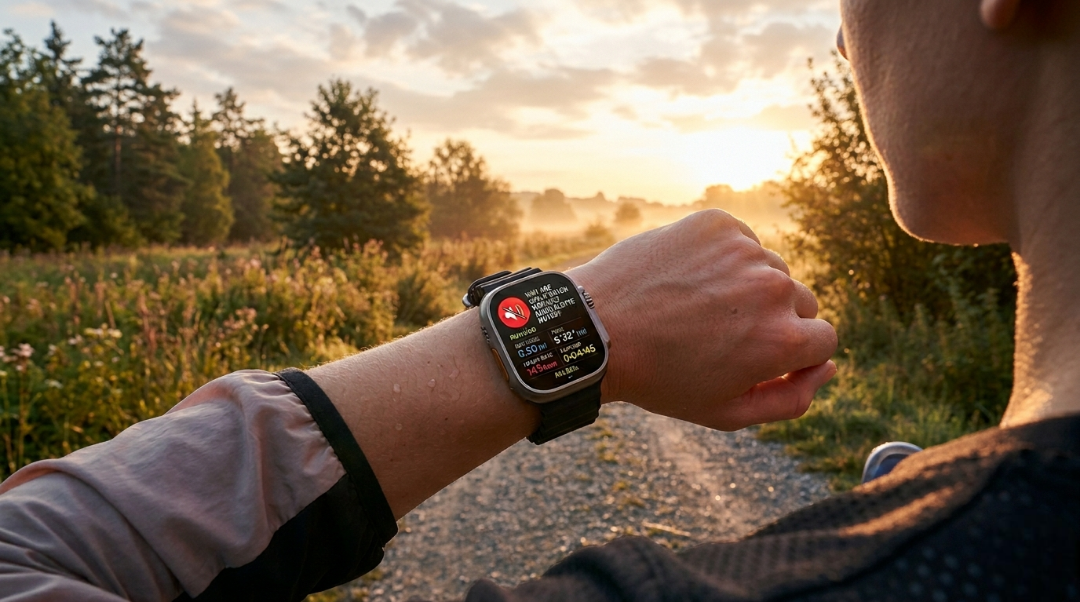
| Quick Answer Apple Watch workout audio alerts are muted most often due to one of four reasons: Voice Feedback is turned off in Workout settings, Silent Mode or Theater Mode is active in Control Center, the Siri volume is separately set to zero (even when system volume is loud), or a Focus Mode is blocking the Workout app’s audio. Check these four areas in order and your alerts will be back within 2 minutes. |
Why Are Apple Watch Workout Audio Alerts Muted?
You just started a run. You are halfway through your first mile and you hear nothing , no pace update, no heart rate callout, no voice feedback at all. Your Apple Watch workout audio alerts are muted again, and you have no idea why. This guide covers every real reason your Apple Watch workout audio alerts stop working, including four hidden causes that most articles never mention.
The Baseline Checklist: Standard Settings You Need to Check First

Before diving into advanced fixes, run through these two basic toggles. Most people who find their Apple Watch workout audio alerts muted can solve the problem right here in under 60 seconds.
| Free Apple Watch Battery Diagnostic Tool Not sure if a deeper hardware issue is affecting your watch? Run our free Apple Watch Battery Diagnostic Tool below to instantly check your watch’s health status. Click the button to get started. |
Toggle 1: The Core Voice Feedback Switch in watchOS

Voice Feedback is the master switch for all spoken workout announcements on your Apple Watch. If this is off, no audio alerts will fire , no matter what else you do. Here is how to check it:
- On your iPhone, open the Watch app.
- Tap Workout, then tap Voice Feedback.
- Make sure it is set to Always On or Only When Connected.
- Alternatively, on the watch: Settings → Workout → Voice Feedback.
If this toggle was off, that is your entire problem. Flip it on and your Apple Watch workout audio alerts will return immediately on the next workout.
Toggle 2: Checking the Control Center Silent & Theater Mode Overrides

Two Control Center shortcuts can silently kill all audio on your watch without you realizing it. Swipe up from the watch face to open Control Center and look for these:
- Bell with a line through it = Silent Mode is ON. Tap it to disable.
- Theater mask icon = Theater Mode is ON. This mutes everything and keeps the screen dark. Tap it to turn off.
Both of these are very easy to activate by accident during a workout. If either is on, your Apple Watch workout audio alerts will be completely silent even when every other setting looks correct.
The Hidden Culprits: 4 Content Gaps Your Competitors Missed

You checked Voice Feedback. You checked Silent Mode. Everything looks fine , but your Apple Watch workout audio alerts are still muted. Here are the four real culprits that almost no troubleshooting guide ever covers.
Gap 1: The Independent Siri Volume Cap (The #1 Culprit)

Here is something almost nobody knows: watchOS has two completely separate volume systems. Your main system volume can be at maximum, and your Siri voice volume can still be at zero. Since workout audio alerts are delivered through Siri’s voice engine, a zero Siri volume will mute all spoken feedback even when everything else is loud.
To fix this: On your Apple Watch, go to Settings → Siri → Siri Responses. You will see a speaker icon with a volume bar. If this bar is all the way down, slide it up. This is the exact reason why many users report their Apple Watch workout audio alerts are muted after a watchOS update , updates sometimes reset this secondary volume independently.
Gap 2: The Post watchOS Update Background Voice Pack Download Delay

After a major watchOS update, your watch needs to silently download updated voice packs in the background before spoken alerts can work again. Until this download finishes, watchOS falls back to simple chimes instead of voice ,making it seem like Apple Watch workout audio alerts are muted for no reason.
The fix is simple: connect your watch to its charger and to WiFi, then leave it overnight. By morning, the voice pack download will be complete and your spoken alerts will be fully restored. This is especially common after jumping from one major watchOS version to the next.
Gap 3: Audio Ducking Irregularities in AirPods During Bluetooth Routing.

When you wear AirPods during a workout, audio routing gets complicated. Your AirPods may be connected to your iPhone for music, but your Apple Watch is trying to push voice alerts through the same hardware. This firmware conflict causes workout audio alerts to drop silently , a well documented but rarely explained bug.
| Scenario | Result | Fix |
| AirPods connected to iPhone only | Audio alerts go to iPhone, not watch | Disconnect from iPhone; repair to watch |
| AirPods connected to both devices | Firmware conflict , alerts drop silently | Force disconnect from iPhone during workout |
| No AirPods (watch speaker only) | Alerts play normally if volume is on | No fix needed , check Silent Mode |
The cleanest fix: Before starting your workout, disconnect your AirPods from your iPhone completely and let only your Apple Watch control the Bluetooth connection.
Gap 4: Fitness Focus Mode Custom Permission Breakdown

Focus Modes ,including Do Not Disturb and the dedicated Fitness Focus , can block audio alerts from specific apps unless you manually whitelist them. If you have a Fitness Focus active, your workout app may not have permission to push audio through, which is why Apple Watch workout audio alerts appear muted only during certain times of day.
To fix this: On iPhone, go to Settings → Focus → Fitness (or whichever Focus is active). Open the Apps section and double check that the Workout app is turned on or approved. Also check Notifications → allowed notifications and confirm that workout alerts are not filtered out.
Step by Step Fix: How to Force Apple Watch Audio Alerts Back On

Follow these steps in order. For the vast majority of people, the first four steps will completely solve the issue.
- Open the Watch app on your iPhone → Workout → Voice Feedback → set to Always On.
- Swipe up on your watch face → disable Silent Mode and Theater Mode.
- On the watch: Settings → Siri → Siri Responses → turn Siri volume all the way up.
- Settings → Focus (on iPhone) → allow the Workout app in any active Focus Mode.
- Place watch on charger + Wi Fi overnight to complete any pending voice pack downloads.
- If using AirPods: disconnect them from iPhone before starting workout.
After completing these steps, start a test workout and walk for two minutes. You should hear a spoken time alert. Still can’t hear your Apple Watch workout alerts after completing the first six steps? Don’t worry,try the advanced fixes listed below.
Advanced Troubleshooting for Persistent Audio Dropouts
How to Force Restart Audio Daemons via Apple Watch

Background audio processes (daemons) on watchOS can get stuck after a crash or update, leaving Apple Watch workout audio alerts muted even with all settings correct. A force restart clears these frozen processes without erasing any data.
To force restart: Press and hold both the Side Button and the Digital Crown for 10 seconds Once you see the Apple logo, let go. Once the watch restarts, launch a workout and test your voice alerts immediately.
Resolving iCloud Sync Glitches Affecting Siri Voices

In rare cases, iCloud sync corruption causes Siri voice profile data to mismatch between your iPhone and Apple Watch. This makes watchOS unable to load the voice needed for workout alerts. The fix: on your iPhone, go to Settings → Apple ID → iCloud → turn off Siri sync, wait 30 seconds, then turn it back on. Your watch will resync Siri data cleanly. If you are also experiencing battery issues alongside this audio problem, check out our Apple Watch power guide , hardware health problems can sometimes cause audio daemon failures too.
Future Proof FAQ Tracker (Modular Block)
This FAQ section is updated as new watchOS versions introduce new causes. Bookmark this page if you want a single reference for whenever Apple Watch workout audio alerts are muted after a future update.
Q: Why are my Apple Watch workout audio alerts muted only when I use AirPods?
A: This is the Bluetooth routing conflict described in Gap 3 above. Disconnect your AirPods from your iPhone before starting any workout so only the watch controls audio routing.
Q: My Apple Watch workout audio alerts stopped working after a watchOS update. Is this a bug?
A: Yes, this is a known behavior. Updates reset the Siri volume independently (Gap 1) and trigger background voice pack downloads (Gap 2). Check both before assuming a deeper bug.
Q: Why do I hear a chime but no spoken words during workouts?
A: The chime means watchOS is trying to fire an alert but the voice engine is unavailable , usually because the voice pack has not finished downloading. Charge your watch on WiFi overnight.
Q: Can a Focus Mode cause Apple Watch workout audio alerts to be muted?
A: Absolutely. Any active Focus Mode that does not explicitly allow the Workout app will silently block all its audio output. Always check Focus permissions first if your alerts disappear at a specific time of day.
Q: Will watchOS 12 change how workout audio alerts work?
A: This block will be updated when watchOS 12 ships. If you find Apple Watch workout audio alerts are muted after updating to a new watchOS version, revisit Gap 1 (Siri Volume) and Gap 2 (Voice Pack Download) first , these are the most update sensitive settings.