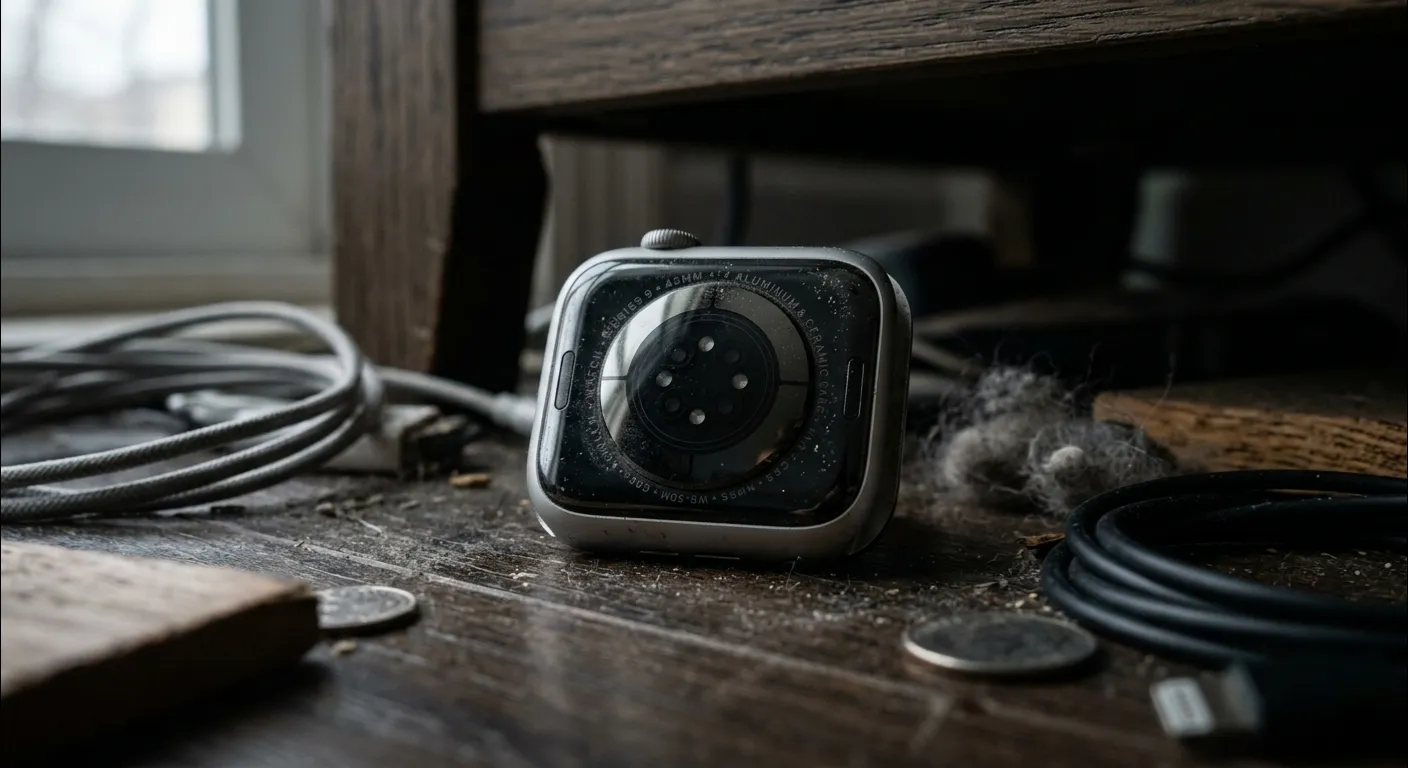
A complete, step by step guide on how to find a dead Apple Watch fast , including Family Setup, Activation Lock mechanics, and a status message comparison table for quick reference.
Quick Answer
To find a dead Apple Watch, open Find My or iCloud.com and check its Last Known Location. A dead Apple Watch cannot send a new signal, so the map shows only where it was before the battery died. Mark it as lost, remove Apple Pay cards, and use the last location plus simple search tricks to find it.
Introduction: The Reality Check
How to Find a Dead Apple Watch?

Most lost Apple Watches are recovered within hours, usually under a couch cushion, inside a gym bag, or in a jacket pocket. The critical fact to understand when you try to find a dead Apple Watch is the “Last Known Location” rule: Find My cannot track the watch live once the battery is empty.
Apple Watch stops sending location data once its battery runs out, since it needs power for Bluetooth, WiFi, or cellular signals. No power means no signal, and no signal means no live tracking. Every method in this guide works around that limitation by using the last confirmed position, timing clues, and short range detection instead of real time GPS.
This guide walks through how to read the Find My map correctly, lock down your data immediately, search physically using Bluetooth and timing clues, and handle a stolen watch using Activation Lock the right way.
Decoding the “Find My” Status: What “Offline” Really Means

Find My shows one of three status messages for a powered down Apple Watch: Offline, No Location Available, or Last Seen [time]. Each tells you something different about when the watch died and how reliable the map pin is, which determines how wide your physical search needs to be.
Before searching, it also helps to check your watch’s battery health. We built a simple Apple Watch Battery Diagnostic Tool for this , click the button below, answer a few quick questions, and it will tell you why your watch died fast and what to check before trying to find a dead Apple Watch again.
Status Message Comparison Table
| Status | What It Means | What To Do |
| Offline / Dead | The battery is empty or the watch is powered off. No signal is being sent of any kind. | Treat the last recorded pin as your search starting point. |
| No Location Available | Too much time has passed since the watch last joined a Bluetooth, WiFi, or cellular network. | Widen the search to every place visited in the last 24 hours. |
| Last Seen [Time] | The exact moment the watch sent its final location before going dark. | Use the timestamp to reconstruct where you were at that moment. |
If you see a timestamp like “Last seen 2 hours ago,” that is the exact moment your watch went offline. Use this time to think back: where were you two hours ago? This single clue is often the fastest way to find a dead Apple Watch.
Step by Step: Locating Your Dead Apple Watch

Three methods cover almost every situation: the Find My app on an iPhone or iPad, the iCloud.com browser dashboard, and Family Setup for a child’s watch. All three pull from the same Last Known Location data, so use whichever device is closest to hand.
Method 1: Using the Find My App (iPhone/iPad)

- Launch the Find My app on your iPhone or iPad.
- Tap the Devices tab at the bottom of the screen.
- Select your Apple Watch from the list.
- Look at the map. It will show the Last Known Location, even though the watch is dead.
- Tap Directions to get a route straight to that spot.
Method 2: Using iCloud.com (The Browser Shortcut)

No iPhone nearby? You can still find a dead Apple Watch using any computer or browser.
- Go to icloud.com/find on any web browser.
- Authenticate your account by entering your Apple ID credentials.
- Click All Devices, then choose your Apple Watch.
- The map will show the same Last Known Location as the Find My app.
Method 3: The Family Setup Scenario (Expanded)

Family Setup links a child’s Apple Watch directly to a parent’s Apple ID, even when the child does not own an iPhone of their own. Because the watch authenticates through the parent’s account rather than maintaining an independent iCloud login, the parent’s Find My app can locate, lock, ping, and message the watch exactly as if it were one of the parent’s own devices.
- Open Find My on the parent’s iPhone.
- Tap People, then select your child’s name.
- Their watch location will appear, with the same Last Known Location rule applying.
A Family Setup watch stays connected to the parent’s iPhone over cellular when the watch has its own plan, or through nearby WiFi and Bluetooth when it does not. Once the battery dies, the same rule applies as with any other Apple Watch: the map freezes on the final coordinates transmitted before the watch lost power, and the Last Seen timestamp becomes the most useful clue available.
This setup is especially useful for parents, since children often leave a watch charging at low battery before school, sports practice, or a sleepover. Checking the Last Seen timestamp under the child’s name shows whether the watch died during class, at practice, or at a friend’s house, which narrows the physical search dramatically before a parent even leaves the house.
Critical Security: Protecting Your Data (Don’t Skip This!)

Locating the watch is only half the task. Securing the data on it matters just as much, particularly if Apple Pay or personal information is stored on the device. Activating Mark as Lost and removing payment cards takes under two minutes and prevents financial or privacy damage before you ever recover the watch.
Activate “Mark as Lost”

Even if your watch is dead right now, turn on Mark as Lost in the Find My app. This locks the watch with your passcode the second it gets any power again, so nobody else can use it.
- Open Find My, select your watch, and tap Mark as Lost.
- Add a contact phone number so a finder can reach you.
- The watch stays locked until you enter your passcode.
Mark as Lost works alongside Activation Lock, a security layer tied to your Apple ID that survives a factory reset. Activation Lock turns on automatically the moment Find My is enabled on the watch, and it checks in with Apple’s servers before allowing any new setup to proceed. This means that even if someone wipes the watch completely, they still cannot pair it with a new iPhone or activate it as their own without your Apple ID password.
Remove Apple Pay Cards

If you stored Apple Pay on your watch, remove the cards right away to stop financial misuse.
- Go to appleid.apple.com and sign in.
- Scroll to Devices and select your Apple Watch.
- Tap Remove Cards under the Apple Pay section.
Physical Search Strategies: Beyond the Map

When the Last Known Location alone is not precise enough, two field techniques can close the gap: Bluetooth proximity scanning and using recent weather conditions to estimate when the battery actually died. Both work best when applied within hours of losing the watch, before the trail goes cold.
The Bluetooth Proximity Trick

Your iPhone’s Bluetooth signal can help you find a dead Apple Watch hiding nearby, such as in a couch or jacket pocket.
- Walk slowly around the last known area with your iPhone in hand.
- Open Find My and watch the connection attempt; closer range often improves signal strength.
- Check under cushions, bags, and car seats where Bluetooth range is short but real.
This trick only works if the watch still has a tiny bit of power left, so try it as soon as possible after it goes dark.
The Temperature and Battery Drain Insight

Cold weather drains batteries faster, and Low Power Mode changes how quickly a watch shuts down. If you were outside in the cold, your watch likely died sooner than you expect.
Use this insight to narrow your search window. A watch that died early from cold weather points to a location closer to where you started your day, not where you ended it.
What If It Was Stolen? (The Legal Workflow)

A stolen Apple Watch calls for a different process than a misplaced one: document the serial number, file a police report, and keep the watch linked to your Apple ID instead of removing it. That sequence preserves Activation Lock, which is what actually makes the watch worthless to a thief.
- Write down your Apple Watch’s serial number, found in Settings or on the original box.
- Report the serial number to your local police station, along with the date and location it was taken.
- Keep a copy of the police report for insurance or replacement purposes.
- Never remove the watch from your Apple ID account. Keeping it linked keeps Activation Lock turned on, which makes the watch useless to a thief even if they wipe it.
How Activation Lock Actually Works

Activation Lock ties the watch’s hardware identity to your Apple ID at the firmware level, not just through the Find My app’s software layer. Even if a thief pairs the watch with a different iPhone, performs an unpaired reset using the side button and Digital Crown, or attempts to restore it through Apple’s own firmware update tools, the watch will still display an Activation Lock screen requesting the original owner’s Apple ID and password before it can be used again.
Removing the watch from your account, or signing out of iCloud before reporting it stolen, deletes this protection permanently and makes the watch instantly resellable. For that reason, leaving the watch linked to your account is the single most important step in the entire stolen watch process , more important than the police report itself, since it is the technical barrier that actually stops resale.
Preventive Measures for 2026

The best way to avoid having to find a dead Apple Watch again is to set up two features now: a left behind alert and manual Power Reserve control.
Setting Up “Notify When Left Behind”

- Open the Find My app and select your Apple Watch.
- Turn on Notify When Left Behind.
- Your iPhone will alert you the moment you walk away without your watch.
Managing Power Reserve Settings

- Swipe up on your watch to open Control Center.
- Tap the battery icon to turn on Power Reserve manually when battery is low.
- This extends basic function and can buy you extra time before it goes fully dark.
Frequently Asked Questions (FAQ)
Quick, direct answers to the most common questions about a dead Apple Watch.
Can I track it if it has no cellular connection?
Yes, but only through the Last Known Location saved before it lost connection. Without cellular or WiFi, a dead Apple Watch cannot send a brand new location.
Does Find My drain my iPhone battery while searching?
No. Using Find My to search for your watch uses only a small amount of battery on your iPhone, similar to checking any regular app.
What if the thief charges it?
If Mark as Lost is active, the watch locks immediately with your passcode the moment it gets power. It also stays linked to your Apple ID, so Activation Lock keeps it from being used by anyone else.
Does Activation Lock work without a SIM or cellular plan?
Yes. Activation Lock is tied to your Apple ID and stored on the watch itself, so it functions even on WiFi only or GPS only models with no cellular plan at all.
Can a parent locate a child’s watch without Family Setup?
No. Without Family Setup, a child’s Apple Watch needs its own paired iPhone nearby to report a location. Family Setup is what allows the watch to report directly to the parent’s iPhone instead.
Final Thoughts
Learning how to find a dead Apple Watch does not have to be stressful. Check the map, lock your data, search smartly using Bluetooth and timing clues, and set up prevention so this never happens again.
If you are curious about how your Apple Watch works day to day, you might also enjoy our article on whether Apple Watches emit radiation, which answers another common question Apple Watch owners ask.
© 2026 , How to Find a Dead Apple Watch Guide