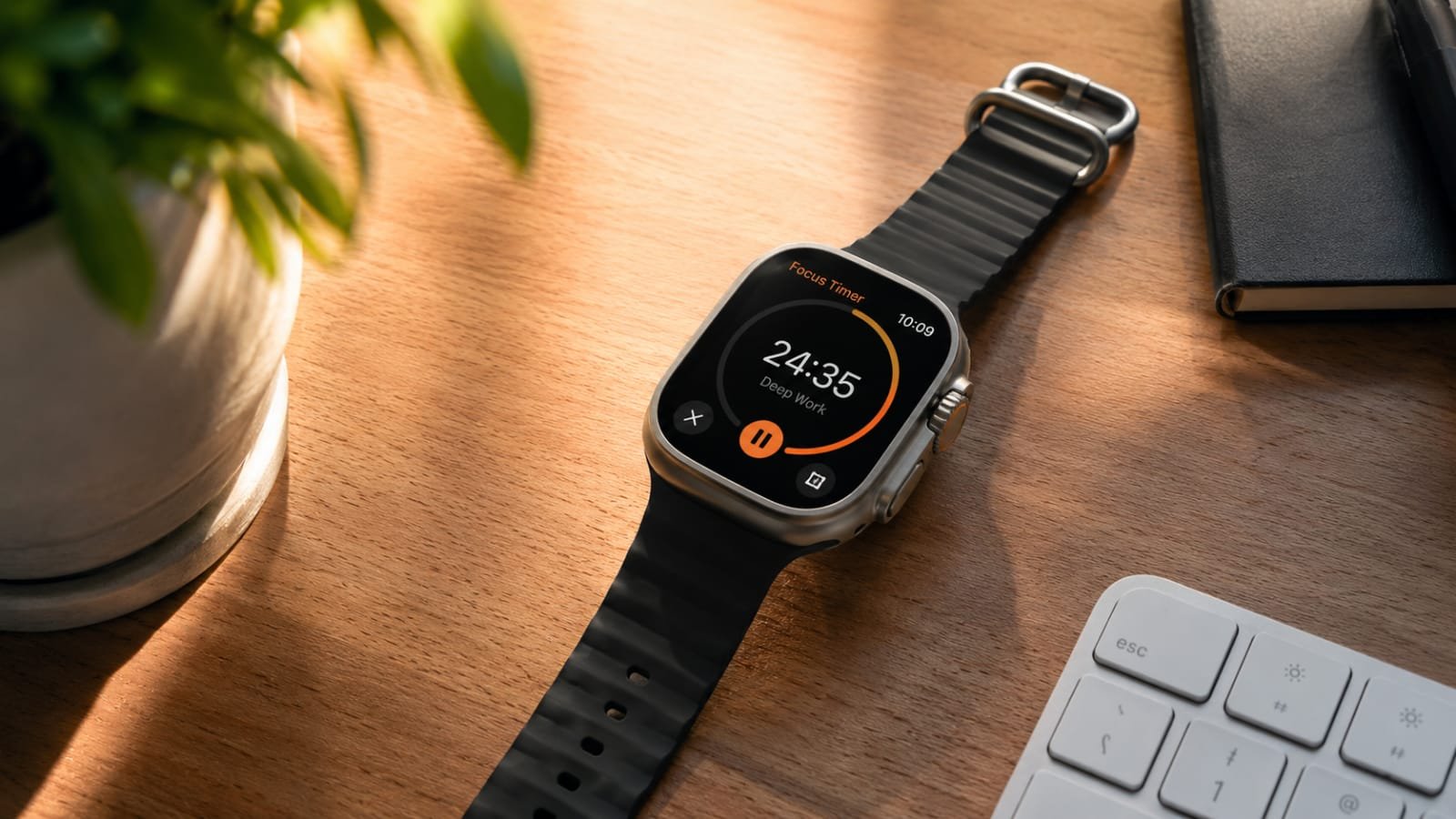
Quick Answer: The Apple Watch is really helpful for people, with ADHD. It has a system that uses the watchs vibrations extra features and shortcuts to make it easier to turn your thoughts into actions. This means you do not just get a reminder you actually start doing the task.
Stop trying to use tools that are made for people who think differently. You do not need another reminder that gets lost in a list. The Apple Watch ADHD workflow is what you need. It helps you build your personal digital brain using the Apple Watch.You need a system that removes friction the moment an idea appears.
That is exactly what a good Apple Watch ADHD Workflow does. Your Apple Watch can be really helpful because it is always with you and reminds you to do things.The thing about Apple Watch and ADHD is of strange. Your Apple Watch can be your friend or it can be a big distraction.
The problem with Apple Watch for people with ADHD is that the same thing that reminds you to start something can also make you want to check your messages.. The same screen that shows you what you have to do that day can show you too much stuff at the same time.
This makes something that a lot of people, with ADHD call the Overwhelm/Underwhelm loop happen with their Apple Watch. Too many notifications feel like noise you tune out completely, while too few leave you forgetting things that actually matter for your Apple Watch ADHD Workflow to work.
Try It Yourself: We built a free Apple Watch Battery Diagnostic Tool you can run right here on the page. Below, you’ll also find the exact self check version if you’d rather run it manually right now.
Manual Battery & Focus Self Check

You can do a check yourself before you use any tool. This will only take a couple of minutes. First you need to open the Watch app on your iPhone. Then you tap Battery. Look at how each app has used the battery over the last 24 hours.
- If you see an app that has used than 10 percent of your iPhone battery and you do not know what it is then you should look into it first.
- You should also check the settings on your iPhone. Go to Settings, General and then Background App Refresh. Turn off anything that you do not really need.
- Take a look at how long your screen has been on. If your screen has been on for a time then you are probably getting a lot of notifications and that is distracting you. The iPhone battery is used more when your screen is, on.
Pro Tip: Screenshot your battery usage list once a week. Comparing it over a month shows exactly which new app quietly started draining focus and battery together.
The Notification Audit: Why Default Settings Sabotage You

Apple’s default notification settings are built for average users, not ADHD brains. Every app is allowed to buzz you the moment it wants, which trains your brain to ignore vibrations entirely, defeating the entire purpose of your Apple Watch ADHD Workflow.
A cluttered notification panel can quickly ruin your trust in your system. When every beep feels just as important your brain stops taking any of them seriously. The system then slowly starts to fall
Pro Tip: Open the Watch app on your iPhone, go to Notification , Turn off Mirror iPhone for notifications that’re not tasks, messages or calendar events, This simple five minute check can greatly reduce distractions.
The “Zero Friction” Capture System (Brain Dumping)

When you have an idea you need to write it down fast. You can use the Action Button on your Apple Watch Ultra. Just tap a complication to record your thought. This way your idea does not get lost.
For people with ADHD if you do not write down your thought away it is probably gone for good. This is the thing that makes using an Apple Watch for ADHD work in the long run. Apple Watch ADHD Workflow is, about doing this one simple thing.
Post Capture Workflow: From Watch Note to Actionable Task

Capturing a thought is the beginning. To make it work ,create a weekly habit. Review each note, from your watch every week. Then decide what to do with it. You have three choices:
- When a thought pops up use Siri or the Action Button to quickly say it out loud.
- Let it land in a single ‘Inbox’ list, not scattered across apps.
- Review the inbox once daily and sort each item in under two minutes.
Designing Your “Digital Cortex” on Apple Watch

A digital cortex is a deliberately minimal Apple Watch setup, meaning only the complications, faces, and haptic cues you actually use are visible, so your watch face itself doesn’t become another source of overwhelm.
Minimalist Complications for Focus

Fewer complications mean less visual noise every time you glance at your wrist. Keep only two or three: your next task, the time, and one health metric. Everything else adds decision fatigue to your Apple Watch ADHD Workflow.
A watch face that is really messy is a lot like a desk that’s really messy. It tells you that things are crazy even before you look at the things you need to do which makes you feel not so calm.
Haptic Anchoring: Vibration, as a Physical Cue

This thing called Haptic Anchoring is when you assign a kind of vibration to a specific thing you do like when you double tap your watch and it buzzes in a certain way to mean it is time to start doing something and when it buzzes for a long time it means you should stop what you are doing and switch to something else.
After a while your body will react to the vibration before you even think about what it means. That is really cool. Haptic Anchoring is an useful tool and Haptic Anchoring can help you get things done more easily.
Pro Tip: Set a distinct haptic alert just for your daily Focus Start shortcut. After two weeks, that vibration alone will start triggering the habit automatically.
Battery & Sustainability: The “ADHD Charge Routine”

A dead watch mid afternoon breaks your entire Apple Watch ADHD Workflow at the worst possible moment. Build a fixed charging window into an existing habit, like charging during your morning shower, so it never depends on memory alone.
If your battery seems to drain faster than it should even with a good routine, our detailed guide on Apple Watch Background Battery Drain walks through exactly which background processes are the usual culprits.
Automating Your ADHD Workflow (The “Apple Shortcuts” Secret)

Using Apple Shortcuts to automate your ADHD workflow is a help. Apple Shortcuts lets you do lots of things at the time like turning on Do Not Disturb, starting a timer and opening the app where you keep your tasks. This means you do not have to remember to do each thing one by one.
You can make a shortcut called “Focus Start” that does a few things for you. It can turn on Do Not Disturb start a 25 minute timer and open the app where you keep your tasks all with one tap.
This one shortcut is an important part of making your Apple Watch work well with your ADHD workflow. Apple Shortcuts automation is very useful for people, with ADHD.
Building Your “Focus Start” Shortcut: Step by Step

Here is how you can set it up on your iPhone and it will automatically sync to your Apple Watch. It only takes around five minutes to do it the time and it saves you from having to do the same steps over and over again
- Open the Shortcuts app on your iPhone. Tap the plus icon to make a new shortcut.
- Tap ‘Add Action’ search for ‘Set Focus choose Do Not Disturb and set it to turn on.
- Tap ‘Add Action’ again search for ‘Start Timer’. Set it to 25 minutes for a Pomodoro session.
- Add a third action by searching for your task app (Reminders or your preferred app) and choose ‘Open App’.
- Tap the shortcut’s settings icon, rename it ‘Focus Start’, and choose an icon and color you’ll recognize instantly.
- Under ‘Add to Siri’, record a short phrase like ‘Focus Start’ so you can trigger it by voice from your watch.
- Open the Watch app. Go to the Shortcuts section. You should see ‘Focus Start’ on your watch now.
- Put ‘Focus Start’ on your main watch face so you can get to it with one tap. This way it is not hidden in a list of apps.
Pro Tip: Make a copy of this shortcut. Name it ‘Focus End’. Give it the actions, like turning off Do Not Disturb and stopping the timer. This makes it easy to end a session just like it is easy to start one with the Focus Start shortcut, on your watch.
Automated Context Switching with Focus Filters

Focus Filters are really helpful because they make your watch face and notifications change on their own based on the time of day. For example your Focus Filters will show your Work Mode face at 9am. Your Wind Down face at 8pm. You do not have to do anything to make this happen.
This is especially useful for people with ADHD. People with ADHD often forget to change their settings when they move from one thing to another. Focus Filters change these settings automatically. This makes using an Apple Watch with ADHD easier. You can just set up your Apple Watch. Let it work on its own. You do not have to think about it all the time.
Troubleshooting Common Sync Failures

Sometimes your Apple Watch and iPhone do not sync properly. This means that something you do on your iPhone does not show up on your Apple Watch or the way around. This usually happens because of problems with iCloud. Because your background refresh is turned off. It can also happen because of a problem with how your devices talk to each other.
When your Apple Watch and iPhone do not sync it can be a problem. This is because it can be hard to tell if you forgot to do something or if it just did not sync. This can break your Apple Watch routine even if you set it up really well. Focus Filters and syncing are important for making your Apple Watch work, with ADHD.
The table below covers the most frequent issues and quick fixes.
| Symptom | Likely Cause | Fix |
| Tasks appear on iPhone but not watch | Watch app background refresh disabled | Enable Background App Refresh for Reminders on watch |
| Duplicate tasks after sync | Two accounts syncing the same list | Check iCloud and any third party account under the same list |
| If your Apple Watch Reminders are frozen or delayed you should try a things | First check the Bluetooth and WiFi connection between your devices it might be weak. | Try toggling Airplane Mode on your Apple Watch for 10 seconds. Then check again to see if that fixes the Reminders issue with your Apple Watch. |
| If you notice that completed tasks are showing up again on your Apple Watch | it is probably because of an iCloud sync conflict from edits you made while you were offline. | To fix this you need to sign out of iCloud on your Apple Watch restart your Apple Watch and sign back in to iCloud on your Apple Watch. |
Pro Tip: One more thing you can try is this: if none of these fixes work for your Apple Watch and iPhone restart both your iPhone and Apple Watch at the time. Restarting your iPhone and Apple Watch together usually fixes Bluetooth handoff issues, between your iPhone and Apple Watch.
Managing Executive Dysfunction: When You Ignore Your Watch

Executive dysfunction, in this context, is the gap between knowing what to do and actually starting it, which happens even with a perfect Apple Watch ADHD Workflow in place. The goal is not to close this gap but to make it smaller.
When you get caught up in something and start scrolling instead of working do not try to resist it using only your self control. Use your haptic anchor as an external interrupt, and physically stand up before returning to the task.
The “Hard Reset” Strategy: Monthly System Audit

Once a month, review your entire setup honestly. Which specific complications do you typically monitor?”
Which shortcuts do you skip? A system that doesn’t get reviewed slowly becomes clutter again, quietly working against your Apple Watch ADHD Workflow.
- Remove any complication you haven’t used in two weeks.
- Rebuild one shortcut that feels outdated or too complicated.
- Re audit notifications, since new apps quietly add themselves back in.
The “Seasonal Audit” Checklist

Beyond the monthly check, do a deeper seasonal audit every three months, since routines, apps, and daily schedules shift enough over a season to quietly break parts of your system without you noticing.
- Re test your Focus Start and Focus End shortcuts to confirm all actions still work after any iOS update.
- Take a look at the things your watch face shows you. Think about how they fit with what you do every day now not what you were doing a few months back.
- Go to Settings. Then Battery to see how healthy your battery is. If it is, under 80% healthy you might need to change how you charge your watch every day.
- Clear out your capture ‘Inbox’ list completely and start the season with zero backlog.
- Re evaluate your haptic anchors; if you’ve stopped noticing them, the pattern may need to change.
Comparison: The Best Tools for Your Digital Brain

The table below compares three common tools used inside an Apple Watch ADHD Workflow, so you can pick based on what you actually need rather than what’s trending.
| Tool | Best For | Limitation |
| Jot | Instant voice to text brain dumps | Needs a companion app on iPhone |
| Native Reminders | Simple, free, syncs across Apple devices | Slower to capture mid thought |
| Apple Shortcuts | Automating routines like Focus Start | Requires initial setup time |
The Tool Agnostic Philosophy

No single app fixes executive dysfunction. The methodology is more significant than the specific tool employed. Whether you use Jot, Native Reminders or nothing but Shortcuts the real win is having an Apple Watch ADHD Workflow that you actually follow every day.
Frequently Asked Questions:
How do I stop feeling overwhelmed by notifications, on my Apple Watch?
Disable ‘Mirror iPhone’ notifications for all apps, except for Tasks, Messages, and Calendar. Review your notification list monthly, since new apps quietly re enable alerts and slowly rebuild the same fatigue.
Is Apple Watch overkill for simple task management?
No, for ADHD users the watch removes the extra step of unlocking a phone, which is often the exact friction point where a task gets forgotten. The speed is the entire point.
How do I keep my watch battery alive all day?
Build charging into an existing daily habit, lower always on brightness slightly, and check background app refresh settings regularly, since forgotten apps are usually the biggest hidden battery drain.
Building a working Apple Watch ADHD Workflow doesn’t happen overnight, but small, consistent adjustments compound fast. Start with one habit this week, whether it’s the Notification Audit or your first Focus Start shortcut, and build from there.