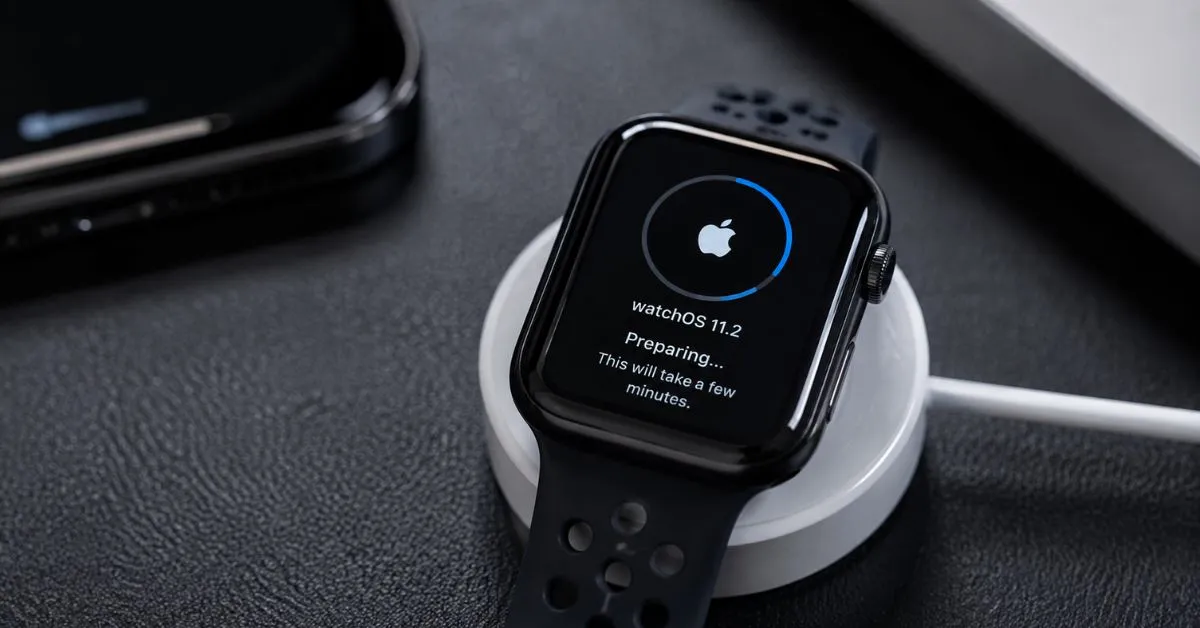
Quick Answer: An update stuck on “Preparing” usually means the installation file is corrupted or the connection froze. First, verify your Apple Watch is actively charging and near your WiFi connected iPhone. If it remains stuck after 60 minutes, delete the update file (General > Storage), restart both devices, and retry.
An Apple Watch update stuck on Preparing can be frustrating, especially when the progress bar barely moves or the estimated time suddenly changes from minutes to several hours. A watchOS update can take longer than an iPhone update, but a display that remains unchanged for an unusually long time deserves troubleshooting.
Apple says a normal Apple Watch update can take several minutes to an hour, depending on the situation. The company also recommends keeping the watch on its charger, keeping the iPhone nearby, using WiFi, and avoiding interruptions while the update is running.
There is another complication: recent Apple Watch owners have reported unusually long update times in 2026, including updates that appeared stuck at “Preparing,” estimates of several hours, and situations where changing the Bluetooth connection appeared to alter transfer speed. Those reports are useful clues, but community workarounds should not be treated as official Apple fixes.
This guide walks through the safest troubleshooting sequence, starting with the checks that are least likely to interrupt the update.
Is It Normal for an Apple Watch Update to Take Hours?
Sometimes, yes,but there is a difference between a slow update and a genuinely stalled update.
Apple currently says an update may take several minutes to an hour. It recommends updating when you have time available and keeping the Apple Watch on its charger throughout the process.
In practice, some users have reported much longer times, particularly during large updates or first time setup. For example, recent reports describe estimates of five to ten hours, updates that stayed on “Preparing” for around an hour, and even cases where the process eventually continued after a long pause.
That means you should not automatically restart the watch simply because the progress bar looks slow.
A useful distinction is:
- The time estimate changes occasionally: the update may simply be progressing slowly.
- The progress indicator moves eventually: give it more time.
- The same screen remains unchanged for a very long period and repeatedly fails at the same point: start troubleshooting.
- The update repeatedly downloads and gets stuck at the same stage: the downloaded update file, connection path, storage, or software state may need attention.
The safest approach is to troubleshoot without interrupting an update that is clearly still progressing.
1. Put the Apple Watch on Its Charger
Start with the simplest check.
Make sure the Apple Watch is correctly positioned on its charger and actually charging. Apple specifically recommends confirming that the watch is connecting properly to the charger before retrying a failed update.Explore more on our blog Apple Watch battery draining fast.
During an update, the watch needs enough power to complete the installation process. Apple also recommends having the watch at least 50 percent charged before beginning an update.
Check the following:
- The charging icon appears normally.
- The charger is connected securely.
- The watch is sitting correctly on the charging puck.
- The charging accessory is not intermittently disconnecting.
- The watch is not becoming unusually hot.
Leave the watch on the charger while the update completes.
If it is already charging correctly and the update has clearly stalled, move to the next step rather than repeatedly reconnecting the charger.
2. Keep the iPhone Nearby and Connected to WiFi
The Apple Watch and iPhone work together during many update scenarios, so distance and connectivity can matter.
Apple recommends that the iPhone be connected to WiFi and remain near the Apple Watch during the update.
Keep both devices together rather than leaving the iPhone in another room.Explore more on our blog How to unpair apple watch from old phone.
Also check that the iPhone has a stable internet connection. A fast internet plan does not automatically guarantee that an update will transfer quickly, because the update process involves communication between multiple Apple devices and stages of installation.
What about Bluetooth?
This is where recent user reports become interesting.
Several Apple Watch owners reported that disabling Bluetooth on the iPhone appeared to make extremely slow updates move faster, apparently encouraging the watch to use WiFi rather than relying on a slower transfer path. Users described estimates dropping dramatically after changing Bluetooth connectivity.
However, this should be treated as a community reported workaround, not an Apple documented requirement.
Apple explains that the Apple Watch normally uses Bluetooth when the iPhone is nearby and can switch to WiFi when Bluetooth is unavailable.
Because the update process can vary by model, software version, and setup state, do not assume that turning Bluetooth off will always help. In fact, people doing a first time setup have reported mixed results, including cases where disabling Bluetooth appeared to halt communication entirely.
For an ordinary update that is already progressing, keeping the normal Apple recommended connection setup is the safer default.
3. Give “Preparing” More Time Before Interrupting It
The word Preparing can make the watch appear frozen even though work is still happening in the background.
A 2026 report described an Apple Watch Series 10 remaining on “Preparing” for about an hour before advancing, while another user reported an update that eventually moved from the preparation stage into verification and installation.
This is why immediately restarting the devices is not always the best first move.
Before interrupting the process, ask:
Has the watch actually been stuck, or is it simply taking a long time?
If the estimated time keeps changing, the progress indicator occasionally advances, or the watch eventually moves to another stage, patience may be the correct fix.
By contrast, if it consistently reaches the same point and stays there for a prolonged period every time you retry, move to the next troubleshooting step.
4. Restart Both the Apple Watch and iPhone
If the update has genuinely stopped progressing, restart both devices.
Apple’s own troubleshooting sequence recommends restarting the Apple Watch, restarting the paired iPhone, and then attempting the update again.
Restarting can clear a temporary communication problem or software process that has become stuck.Explore more on our blog How to restart an Apple Watch.
The order is simple:
- Finish waiting if the update still appears to be actively progressing.
- Restart the Apple Watch.
- Restart the paired iPhone.
- Reconnect the devices normally.
- Open the Apple Watch app on the iPhone.
- Go to General > Software Update.
- Try the update again.
Do not repeatedly force restart the watch during an active installation unless the device has become completely unresponsive and normal troubleshooting is impossible.
5. Delete the Downloaded WatchOS Update File

This is one of the most useful fixes when the same update keeps getting stuck.
Apple explicitly recommends deleting the update file if the update will not start. On the iPhone, open the Apple Watch app, go to General > Storage, locate the downloaded update, delete it, and then try the update again.
Why can this help?
An update download is not necessarily the same thing as a successful installation. If the downloaded package becomes unusable or the update process gets into an inconsistent state, repeatedly trying to install the same file may reproduce the same failure.
Deleting the download forces the process to obtain the update package again.
This is particularly worth trying when:
- The update repeatedly stops around the same percentage.
- You have already restarted both devices.
- The watch has enough free storage.
- The update appears to download successfully but never moves into installation.
- The same update fails more than once.
Recent Apple Watch users have also reported success with deleting the update from storage and retrying, including cases involving watchOS 26.2 and later updates. That evidence comes from community experience rather than Apple’s formal troubleshooting documentation.
6. Check Apple Watch Storage

Insufficient storage can prevent a watchOS update from installing correctly.
Apple provides a dedicated storage troubleshooting procedure and says you can check available storage directly on the watch under Settings > General > Storage. Music, synchronized photos, and installed apps can consume space.
This matters because an Apple Watch can still function normally while having too little free space for a larger software update.
Before deleting anything important, check what is using the storage.
You may be able to free space by removing:
- Unused apps
- Downloaded music
- Synced photos
After freeing space, restart the watch if necessary and try the update again.
Do not assume that an update problem is caused by storage simply because the update is taking a long time. Storage is one possible cause, not a universal explanation.
7. Make Sure Your iPhone and Apple Watch Meet the Software Requirements
Compatibility issues can create confusing update situations, especially when pairing an older watch with a newer iPhone.
Apple currently lists watchOS 26 compatibility for:
- Apple Watch SE 2 and later
- Apple Watch Series 6 and later
- Apple Watch Ultra and later
Apple also says watchOS 26 requires an iPhone 11 or later or iPhone SE (3rd generation) or later running iOS 26.
If the watch is much older or has been sitting unused for a long time, check compatibility before repeatedly attempting the update.
This is particularly relevant when buying a used Apple Watch.
A recent 2026 report involved a previously unused watch that had been sitting for about a year and became stuck around an “about 2 hours remaining” estimate during updating.
Used Apple Watch? Check the old owner’s setup
A second hand Apple Watch may have another complication: the previous owner’s pairing and account state.
When moving a watch to a new iPhone, Apple recommends properly transferring the watch from the old iPhone and ensuring the required Apple Account information is available.
If you received the watch from someone else, make sure it has been properly unpaired from the previous iPhone rather than assuming a simple reset has completed every transfer step.
8. Try Updating Directly on the Apple Watch

For compatible watches running watchOS 6 or later, Apple supports updating directly from the watch.
On the Apple Watch:
Settings > General > Software Update
Then follow the instructions shown on the screen. Apple says the watch should be connected to WiFi and left on its charger during the update.
This can be a useful troubleshooting branch when the iPhone based update process repeatedly fails.
It is especially useful to test whether the problem is associated with the iPhone mediated update path rather than the watch itself.
The result can help narrow the problem:
- If the watch updates successfully on its own, the earlier problem may have involved the paired iPhone or transfer process.
- If the watch still fails at the same stage, storage, software state, connectivity, compatibility, or hardware becomes more relevant.
9. Check for Beta Software
Beta software can complicate updates.
Apple says that if you have installed iOS or watchOS beta software, you may need to remove the beta profile before updating to the next major software version. Apple provides specific instructions for removing the profile and recommends restarting the affected devices afterward.
This is an easy detail to overlook if you previously enrolled in a developer or public beta program and forgot that the profile remained installed.
Check the software configuration before repeatedly deleting update files or resetting the watch.
A beta related update problem should not automatically be treated as a hardware failure.
What If the Apple Watch Still Says “Preparing” After All These Steps?
At this point, look for a pattern rather than trying random fixes.
If the update:
Gets stuck at roughly the same percentage every time:
The downloaded update package, storage, software state, or communication path deserves closer attention.
Takes several hours but eventually progresses:
The watch may simply be processing an unusually slow update. Recent community reports show that some watchOS updates have taken several hours, particularly during larger or first time updates.
Fails during a new setup:
Check the iPhone’s software version, compatibility, WiFi connection, previous pairing state, and account requirements.
Shows a red exclamation mark:
Do not treat this as an ordinary slow update. Apple provides a specific recovery procedure, and continued failure can require service.
Cannot update even after removing the update file, restarting, checking storage, and trying again:
The next step may be Apple Support rather than an endless cycle of resets.
Common Mistakes to Avoid During a WatchOS Update
One of the easiest ways to make troubleshooting harder is to change several things at once.
Avoid these mistakes:
Restarting repeatedly while the update is progressing
If the progress indicator is moving, even slowly, interruption may be unnecessary.
Apple specifically says not to restart the iPhone or Apple Watch while an update is completing.
Assuming the time estimate is exact
A display showing several hours does not necessarily mean the update will actually take that long. Recent user reports show estimates changing dramatically during the same update.
Treating every slow update as a Bluetooth fault
Bluetooth related workarounds have helped some users, but they are not universally successful and are not presented by Apple as a required update procedure.
Factory resetting too early
A reset can create additional setup work and is not the appropriate first response to a slow update.
Try Apple’s simpler troubleshooting steps first.
When Should You Contact Apple Support?

Contact Apple Support or seek authorized service when the watch repeatedly fails to update after you’ve worked through the normal troubleshooting sequence.
This is particularly appropriate if:
- The watch repeatedly fails at the same point.
- You see a red exclamation mark.
- The watch becomes unusually hot.
- The device starts restarting unexpectedly.
- The display becomes unresponsive.
- The watch cannot complete recovery procedures.
- A suspected hardware problem is present.
Apple’s support guidance includes restarting, retrying the update, deleting the update file, and checking storage before escalating the issue.
Do not keep experimenting with unofficial recovery procedures when the watch is displaying a serious error state.
Frequently Asked Questions
How long should an Apple Watch update take?
Apple says an update can take several minutes to an hour, although real world reports show that some updates can take substantially longer. Large updates, first time setup, device age, connection conditions, and the software state can all affect the experience.
Why is my Apple Watch update stuck on Preparing?
A long “Preparing” stage does not automatically mean the watch is broken. Possible factors include the update package, available storage, charging state, connectivity, device setup, or a temporary software issue. Apple recommends checking charging, restarting both devices, and deleting the update file if the update will not start.
Should I turn off Bluetooth when updating Apple Watch?
Some users report that disabling Bluetooth on the iPhone speeds up unusually slow update transfers, but this is a community reported workaround rather than Apple’s standard recommendation. Apple says the Watch normally uses Bluetooth with a nearby iPhone and can switch to WiFi when Bluetooth is unavailable.
Can low Apple Watch storage stop an update?
Yes. Apple specifically documents insufficient storage as a reason an update may not install. You can check storage under Settings > General > Storage and remove unnecessary apps, music, or synced photos.
Should I factory reset my Apple Watch if the update is stuck?
Not as your first step. Start with charging checks, a stable WiFi connection, restarting both devices, checking storage, and deleting the downloaded update file. A reset can erase device data and create additional setup work, so it should be considered only when appropriate for the specific situation.
Conclusion
A slow Apple Watch update does not always mean something is seriously wrong. Apple says updates can take several minutes to an hour, while recent users have reported much longer watchOS update times, including unusually long “Preparing” stages and multi hour estimates.
Start by keeping the watch properly charged, leaving the iPhone nearby on WiFi, and giving a slow but progressing update enough time to finish. If the process is genuinely stuck, restart both devices, check storage, remove the downloaded update file, verify compatibility, and retry.
The key is to distinguish slow from stalled. That one distinction can prevent an unnecessary reset and help you reach the right fix much faster.