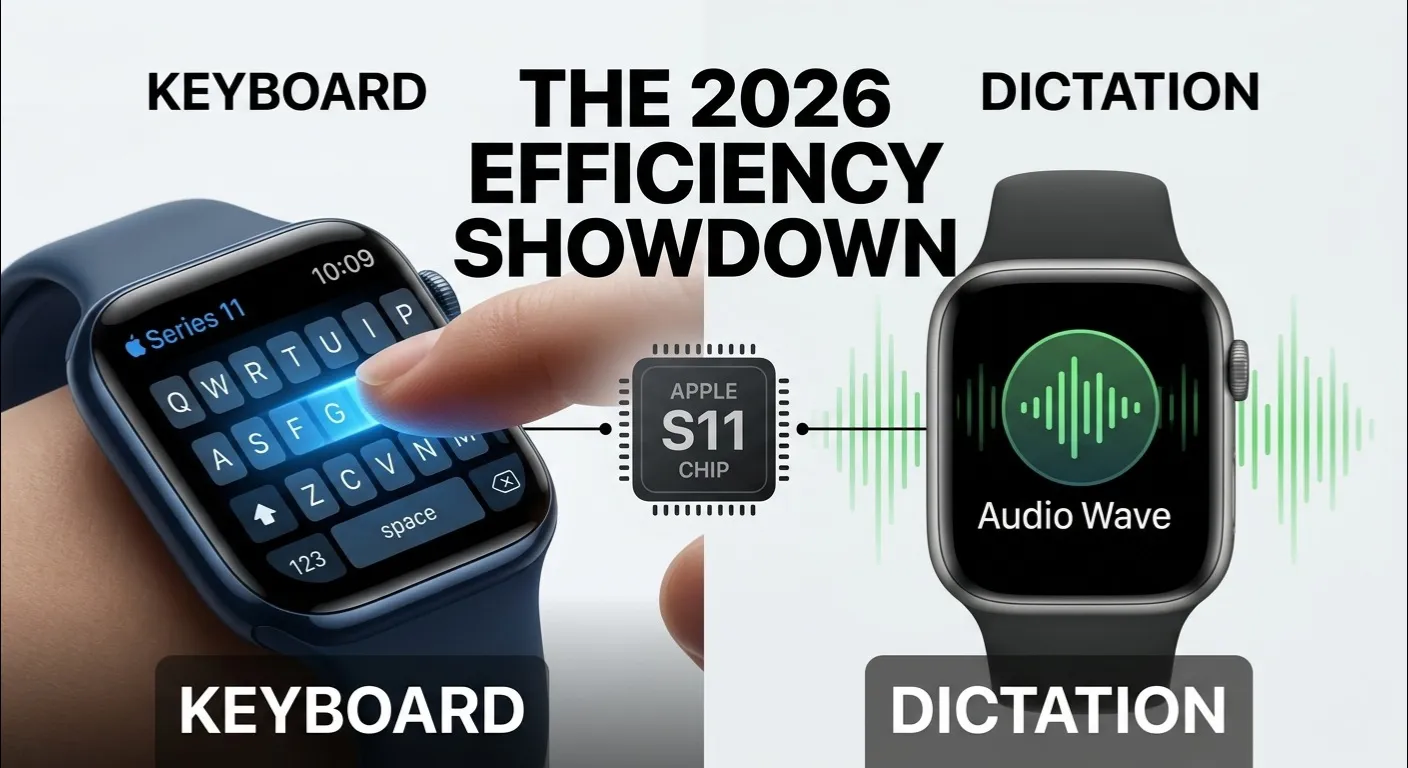
Here is fastest way to know” Apple Watch Keyboard vs. Dictation: which one is better”?
| Quick Answer: Dictation is faster for everyday use , reply to messages in seconds without touching your screen. But the Keyboard wins for privacy, accuracy in noisy places, and typing passwords or sensitive info. In 2026, both tools are smarter than ever. The best choice depends on where you are and what you need. |
You are at the gym. Your Apple Watch buzzes. Someone just texted you. Now you have to reply , but your hands are sweaty, the music is loud, and you really don’t want to look like you are talking to your wrist in public.
Sound familiar? Choosing the right input method on your Apple Watch can save you time, protect your privacy, and save your battery. In 2026, both the Keyboard and Dictation have gotten a serious upgrade. Let’s find out which one is actually better for you.
The Evolution of Input: How watchOS 13 and AI Changed the Game

Apple Watch input used to be slow and frustrating. The keyboard was tiny. Dictation was laggy. But in 2026, the S11 chip’s Neural Engine changed everything. Both tools now process your input directly on the device , no need to send data to Apple’s servers. This is called On Device processing, and it is the biggest upgrade in years.
The result? Zero lag. Whether you swipe on the keyboard or speak into the microphone, your text appears almost instantly. Apple Intelligence, Apple’s built in AI system, also helps both tools understand context better , so you get fewer weird autocorrect mistakes and more accurate results overall.
This matters a lot because older Apple Watch models (Series 6 and below) felt slow and unreliable. With watchOS 13, that era is officially over.
| Apple Watch Battery Diagnostic Tool Wondering how much battery your input method is using? Use our free Apple Watch Battery Diagnostic Tool to check your battery health and see real time usage stats based on your habits. Click the button below to run a quick scan , it takes less than 30 seconds! |
Apple Watch Dictation: Is Speed Truly Everything?

The 150 WPM Benchmark: Why Voice Wins on the Move

Dictation is fast , very fast. A normal person speaks at around 130 to 150 words per minute. Even the best typist on a tiny watch screen can barely reach 40 WPM. So if speed is your goal, voice wins every single time. This is why Dictation is the go-to choice when you are walking, exercising, or driving.
In 2026, Dictation also works without an internet connection. Apple Intelligence runs everything on your device using the S11 chip. So even in the subway or on a remote trail, your voice gets converted to text instantly and accurately.
AI Contextual Punctuation: No More Saying ‘Period’ or ‘Comma’

Remember when you had to say ‘period’ or ‘comma’ out loud just to add basic punctuation? That is gone now. In 2026, Apple’s AI listens to your voice tone and sentence structure to add punctuation automatically. It also filters out filler words like ‘um’, ‘uh’, and ‘like’ before they appear as text.
This means your dictated messages now sound clean and professional , no editing needed. Just speak naturally, and the AI cleans it up for you. A huge win for people who send a lot of messages throughout the day.
The On Screen Keyboard: Precision and Privacy in Your Pocket

QuickPath Swipe: The Secret to Faster Typing

The Apple Watch keyboard is available on Series 7, 8, 9, 10, 11, and Ultra 3. It is not available on the SE or Series 6 and older. The key feature you need to know is QuickPath , a swipe to type system that lets you slide your finger across letters to form words without lifting your finger.
QuickPath is much faster than tapping individual letters on a tiny screen. Once you get the hang of it, you can type short replies in just a few seconds. The AI behind it has also improved in 2026, so it understands swipe patterns more accurately than before.
Why the Keyboard is the ‘Safe’ Choice for Professionals

If you are in a meeting, on a train, or in a quiet library, you cannot just start talking to your watch. The keyboard solves this completely. It is silent, private, and invisible to everyone around you. Nobody hears what you are typing. Your message stays between you and the recipient.
For professionals, this is not just a preference , it is a necessity. Sensitive business messages, passwords, and personal details should never be spoken out loud in public. The keyboard protects your privacy in ways that Dictation simply cannot.
Head to Head: Words Per Minute, Accuracy, and Battery Drain

Here is a direct comparison of both input methods across the most important factors:
| Feature | ⌨️ Keyboard | 🎙️ Dictation |
| Speed | ~40 WPM (QuickPath) | ~150 WPM |
| Accuracy | 98% | 97% |
| Battery Use | Normal | 5 to 7% more drain |
| Privacy | ✅ Silent & private | ❌ Others can hear |
| Best For | Offices, passwords | Gym, driving, walks |
| Works Offline | ✅ Yes | ✅ Yes (2026) |
The accuracy numbers are very close , Keyboard at 98% and Dictation at 97%. For everyday messages, you will not notice a difference. But there is one major technical warning you need to know about.
Battery Vampire Warning: Dictation keeps your microphone and Neural Engine active the entire time you are speaking. This causes 5 to 7% more battery drain compared to the keyboard. Over a full day of heavy use, that gap can really add up , especially if your battery health is already below 80%.
Real World Scenarios: When to Talk and When to Type

The Gym & Running (Dictation Dominance)

When you are working out, your hands are busy and your focus is on the exercise. Dictation is the clear winner here. You can reply to messages, set reminders, and send voice notes without slowing down your workout. The noise filtering AI in 2026 handles gym music and background noise surprisingly well.
Boardroom Meetings & Commuting (Keyboard Necessity)

In professional settings or crowded public transport, the keyboard is the only real option. Speaking out loud in a boardroom meeting would be embarrassing. On a packed train, you don’t want strangers hearing your messages. QuickPath swipe typing lets you reply quickly and quietly without drawing any attention.
For passwords, 2FA codes, or anything sensitive , always use the keyboard. Dictation often misreads complex passwords, and you definitely don’t want to speak those out loud in public.
Steven’s Pro Tips: Mastering Apple Watch Input Like a Specialist

Steven is a certified Apple Watch specialist and wearable tech consultant. Here are two expert tricks he swears by:
- Digital Crown Typo Fix: Made a typo while using the keyboard? Don’t delete everything. Just turn the Digital Crown to scroll back through your text, tap the wrong word, and correct it instantly. This one trick saves a lot of frustration every single day.
- Scribble for Complex Passwords: Dictation almost always fails on complex passwords with special characters like ‘@’, ‘#’, or mixed cases. Instead, use Scribble , draw each character with your finger. It is slower, but 100% accurate and completely silent. Perfect for WiFi passwords or app login codes.
The Final Verdict: Which is Actually Better in 2026?
Here is the honest truth: there is no single winner. The best input method depends on your situation. But if you want a simple rule , use Dictation for 90% of your daily tasks. It is faster, hands free, and perfect for casual messaging on the go. The 2026 AI upgrades make it more accurate and cleaner than ever before.
Keep the Keyboard as your backup for passwords, sensitive messages, quiet environments, and anywhere you need privacy. Use Scribble as a last resort for tricky characters that confuse both Dictation and QuickPath.
The future of wearable tech is heading toward devices that understand your context automatically and suggest the right input method before you even think about it. In 2026, we are already halfway there.
Frequently Asked Questions About Apple Watch Input
1. Does Apple Watch Dictation work without internet in 2026? Yes! Since watchOS 13 and the S11 chip, Dictation uses On-Device processing. It works fully offline with zero lag, even without your iPhone nearby.
2. Why is my Apple Watch keyboard not showing up? The keyboard is only available on Series 7 and newer, plus Ultra models. It does not work on the SE or Series 6. If you have a compatible model, go to Settings > General > Keyboard and make sure it is enabled.
3. How do I switch between keyboard and dictation quickly? When a text field is open, tap the input method button at the bottom right of the screen. You can switch between Keyboard, Dictation, and Scribble from that menu in just one tap.
4. Is the Apple Watch keyboard available on Series 6? No. The keyboard is not available on Series 6, SE (any generation), or older models. For those watches, your options are Dictation, Scribble, or Smart Replies.
5. Does the keyboard drain more battery than Dictation? Actually, Dictation drains more battery , around 5 to 7% more per session. This is because it keeps the microphone and Neural Engine running continuously. The keyboard uses less power overall.
Published on iboltwatch.com | Updated for 2026 | Apple Watch Series 7, 8, 9, 10, 11, Ultra 2, Ultra 3