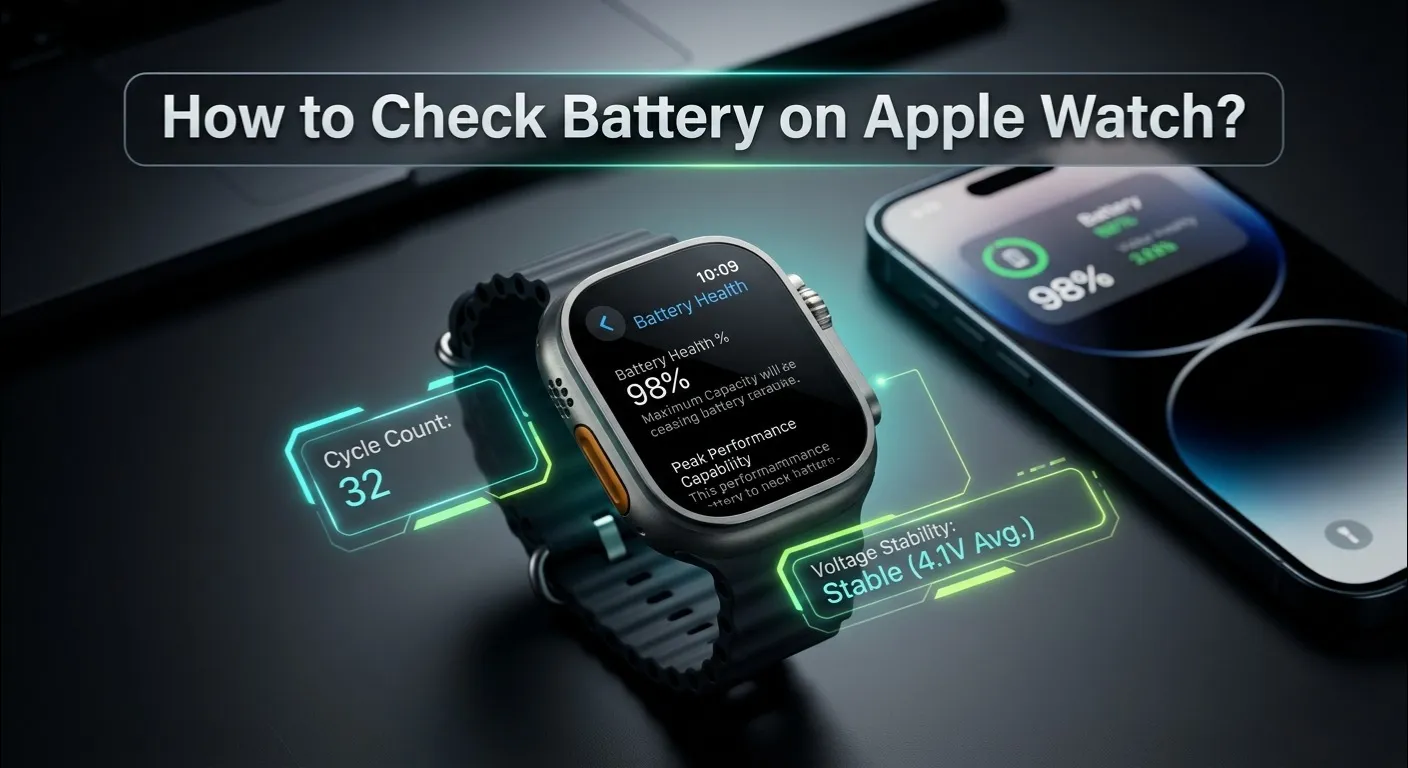
Here is fastest way to know How to Check Battery on Apple Watch?
| Quick Answer: How to Check Battery on Apple Watch Three fast methods: 1. Swipe up on your watch face → Control Center → battery % shown instantly. 2. Add a battery complication to your watch face for always visible monitoring. 3. On iPhone: swipe right on Home Screen → Batteries widget → shows Apple Watch %. |
Your Apple Watch is doing great , until it dies at 6 PM. Sound familiar? Before you blame your device, the very first step is to properly check your Apple Watch battery. Knowing your battery level is not just about seeing a percentage , it is the foundation of keeping your watch alive longer.
In this guide, you will learn every method to check battery on Apple Watch, from a 3 second glance to deep health diagnostics that Apple does not openly advertise It’s time to take control and extend your wearable’s power endurance starting right now.
Got a specific battery problem? Use our Apple Watch Battery Diagnostic Tool to get a personalized battery health report in seconds. Just answer a few questions and get instant guidance.
[Quick Fix] 3 Seconds to Check Your Battery Level
![How to Check Battery on Apple Watch?[Quick Fix]](https://lh3.googleusercontent.com/pw/AP1GczMnQycBo-sjMPOvobTjO6szpBkDmlmf51Q412TWcr64gnLoKi8P8tVOBjDOGlWEJFZFge4V9DdHaujZySPVRdfWwOm3oqmY1SU4CegFbSdLGKo9IOA=w1920-h1080-rw-nu-e365)
No need to dig through menus. You can see your Apple Watch battery in three different ways, depending on what is convenient for you at the moment.
On the Watch Face: Add a Battery Complication

A “complication” is just Apple’s word for a small widget on your watch face. You can add a battery complication so the percentage is always visible , no swiping needed.
Long-press your watch face → tap Edit → swipe to Complications → tap any slot → scroll to find Battery. Once set, your Apple Watch battery percentage will show every time you glance at your wrist.
Best watch faces for battery complication: Modular, Infograph, and California.
The Control Center Method: Instant Swipe

This is the fastest way. To access your quick settings, simply perform an upward flick starting from the base of the watch display. You will see a green battery icon with the exact percentage right at the top. This works on all Apple Watch models running watchOS 7 or later.
Remote Checking via iPhone: Batteries Widget

Did you leave your watch charging in the bedroom? You can still check Apple Watch battery from your iPhone. Swipe right on your iPhone Home Screen to open the Today View. Scroll down and tap “Edit.” Add the “Batteries” widget. It will now show your Apple Watch, AirPods, and iPhone battery levels all in one place , even when your watch is in another room.
Deep Health Check: Maximum Capacity vs. Real World Performance

Checking the current battery level is one thing. But understanding the long term health of your Apple Watch battery is a completely different game. This is where most users fall short.
Accessing Battery Health Settings: Step by Step

On your Apple Watch, go to: Settings → Battery → Battery Health. You will see your Maximum Capacity percentage. This tells you how much charge your battery can hold compared to when it was brand new.
Decoding the “Maximum Capacity” Percentage

Here is something most people do not know: 85% battery health on an Apple Watch hurts more than 85% on an iPhone. Why? Because the Apple Watch already has a smaller battery , around 300 to 400 mAh. Every percentage point lost has a bigger real world impact on your day.
| Maximum Capacity | Typical Real World Battery Life | Action Needed? |
| 100% to 90% | Full day (16 to 18 hrs) | ✅ No action needed |
| 89% to 80% | 10 to 14 hours | ⚠️ Monitor closely |
| 79% and below | Under 10 hours | ❌ Consider replacement |
Optimized Battery Charging: Keep This ON

In your Battery Health settings, you will also find “Optimized Battery Charging.” Make sure this is turned ON. This feature uses machine learning to slow down charging above 80% until just before you typically wake up. In 2026, with constant AI features running in the background, this setting prevents unnecessary hardware fatigue and keeps your Apple Watch battery healthier for longer.
Turning off Optimized Charging to hit 100% faster actually damages your battery over time. Leave it ON.
The “Steven” Special: Finding Your Secret Cycle Count

This is the section most websites skip entirely. Apple does not show you your charge cycle count in a normal menu , but it is hidden in your iPhone’s analytics data, and it tells you more about your Apple Watch battery health than any percentage ever could.
Why Cycles Matter More Than Percentage

A charge cycle is one full 0 to 100% charge. Apple rates the Apple Watch battery for approximately 1,000 cycles before it degrades to 80% capacity. So if your battery health is dropping fast, the cycle count tells you exactly why , and whether a replacement is actually needed.
Reading the Analytics Logs: Step by Step

Here is how to find the hidden data like a senior technician:
- On your iPhone, go to: Settings → Privacy & Security → Analytics & Improvements → Analytics Data.
- Tap on any file that starts with “Analytics” followed by today’s date.
- After accessing the log, select the share button located in the upper-right corner to export the data into your Notes app or a preferred text viewer.
- Use the search/find function and type: last value CycleCount
- The number next to it is your Apple Watch’s total charge cycles.
Compare that number against the 1,000 cycle limit. If you are at 700+ cycles with 85% health, your battery is aging faster than normal. If you are at 200 cycles and already at 88%, something else , like heat exposure or overcharging , is the culprit.
This data is usually 24 hours old. For the freshest reading, check the most recent analytics file available.
Troubleshooting the “Battery Vampires” (2026 Update)

Sometimes your Apple Watch battery drains fast even though the health percentage looks fine. The problem is usually a hidden power hungry process running in the background.
Identifying Power Hungry Apps

On your iPhone, open the Watch app → tap “Battery” → you will see a “Battery Usage” section showing which apps consumed the most power in the last 24 hours or 7 days. Any app above 15 to 20% usage when you barely used it is a vampire. Common culprits: Heart Rate monitors set to frequent readings, Workout apps left running by accident, and third party weather apps that constantly ping your location.
Struggling with unexpected vibrations draining your battery? Check out our guide on why your Apple Watch vibrates but shows no notifications , it covers a common issue that silently drains your battery.
The Impact of Apple Intelligence in 2026

Apple Intelligence , Apple’s on device AI , now processes Siri requests, photo analysis, and notification summaries directly on your Apple Watch Series 10 and Ultra 2. This is a major shift from previous years when AI tasks were offloaded to iPhone.
The result? On device AI processing can add an extra 10 to 15% daily battery drain on heavy usage days. If you upgraded to a 2025 to 2026 model and notice faster drain, this is likely the reason. Reducing AI driven features like Live Translation or AI powered workout coaching can reclaim up to 2 hours of battery life per day.
Maintenance Hacks to Extend Your Watch’s Lifespan

Knowing how to check battery on Apple Watch is step one. Protecting that battery is step two. These are practical, proven habits that make a real difference.
Low Power Mode vs. Bare Bones Watch Faces

Low Power Mode (watchOS 9+) turns off the always on display, heart rate monitoring, and background app refresh. It can double your battery life on a rough day. Bare bones watch faces , like “Simple” or a custom face with zero complications , reduce screen rendering load. Use Low Power Mode for long travel days, and a minimal face for everyday wear if your battery health is below 80%.
Interactive Tools & FAQs
Apple Watch Battery Diagnostic Tool
Not sure if your battery readings are normal for your model and usage? Use our free Apple Watch Battery Diagnostic Tool at iboltwatch.com. Answer a few simple questions about your model, usage patterns, and current health readings and get a personalized verdict on whether your battery is healthy, aging, or needs replacement.
Common FAQs
Why is my Apple Watch battery health stuck at 100%?
This usually happens with brand-new watches or after a battery replacement. Apple Watch battery health recalibrates over the first 50 to100 charge cycles. If it stays at 100% for months with heavy use, it may indicate a calibration error. Try fully draining and charging the watch twice to trigger recalibration.
Can I replace just the battery on my Apple Watch?
Yes. Apple offers official battery replacement service for all Apple Watch models for a flat fee (check apple.com/support for current pricing in your region). Third-party repairs are cheaper but risk water resistance damage. After any replacement, your Maximum Capacity reading should reset to 100% within 1 to 2 charge cycles.
Why did my battery health drop from 100% to 90% in under 6 months?
This is more common than Apple admits. Two causes: First, “Recalibration” , when watchOS updates refine the battery algorithm, it can show a more accurate (lower) number than before. Second, “Voltage Sag” , if you regularly drain your watch to 0% or keep it at 100% on the charger overnight without Optimized Charging, voltage stress physically degrades cells faster. The fix: never let it die below 10% and keep Optimized Charging ON.
Final Thoughts
Learning how to check battery on Apple Watch is not just about a single percentage number. It is about understanding your watch from the inside out , the capacity, the cycle count, the apps draining it, and the habits killing it. With the methods and tools in this guide, you now have everything you need to diagnose, protect, and extend the life of your Apple Watch battery well into 2026 and beyond.
Bookmark this page, run the diagnostic tool, and check your cycle count today. Your watch will thank you.