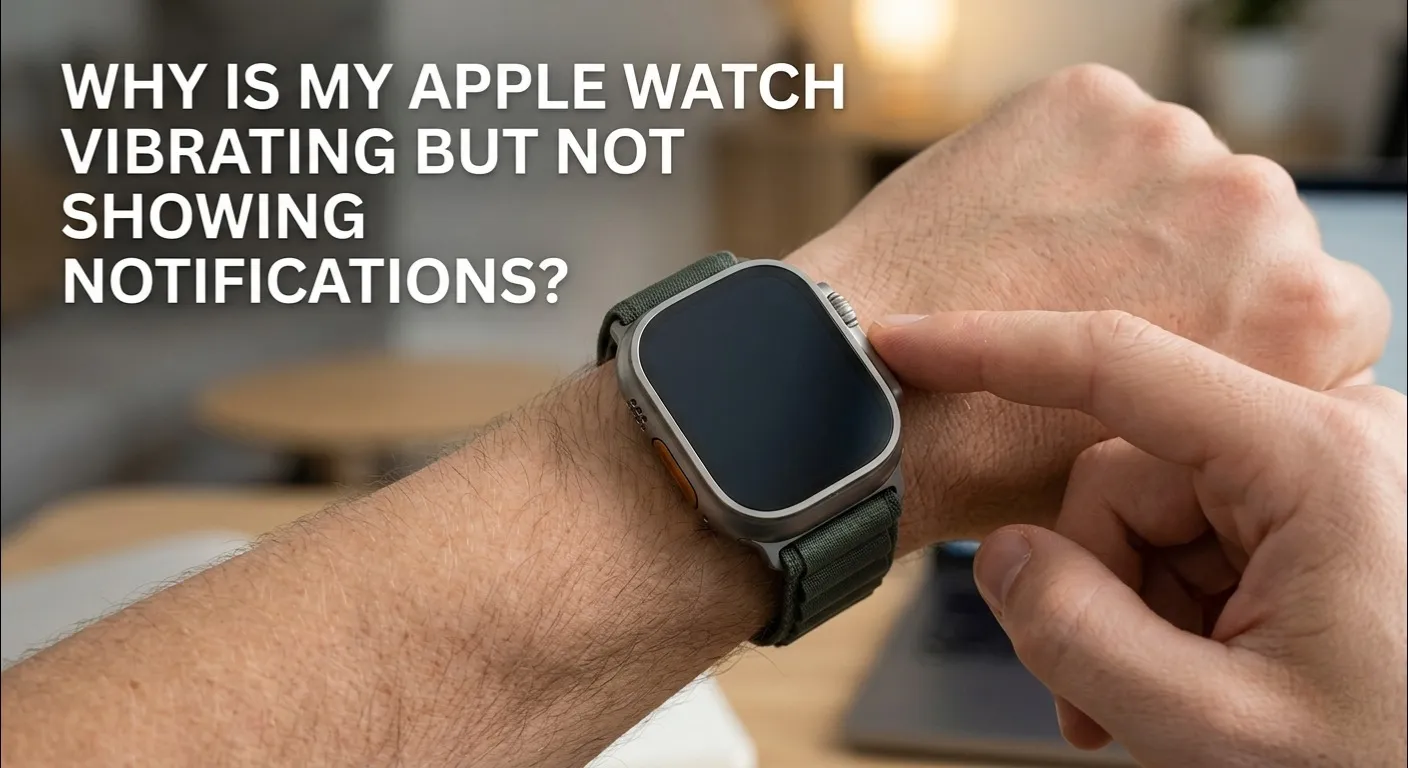
Quick Answer: How to Fix Apple Watch Ghost Vibrations
Here is quick answer to know ” My Apple Watch Vibrating But Not Showing Notifications”?
If your Apple Watch buzzes but shows nothing on screen, try these fixes right now:
- Tighten the band If the band is too loose, the biometric sensors lose contact, causing the watch to misidentify itself as “off-wrist” and hide incoming notifications.
- Disable Cover to Mute: Go to Settings > Sounds & Haptics and turn off Cover to Mute.
- Check App Notification Settings: On your iPhone, go to Watch app > Notifications > select the app > turn off Show Summary.
- Toggle Bluetooth and WiFi: Turn both off and back on to reset the sync connection between your iPhone and Watch.
- Restart both devices: A simple restart clears most temporary sync errors.
You feel the buzz on your wrist. You glance down. The screen is dark , no message, no alert, nothing. This is the “Ghost Vibration” problem, and it is more common than you think. You are not imagining it.
This guide goes beyond the basic tips you have already tried. In 2026, most Ghost Vibration cases are caused by watchOS 12 and 13 sync lags, Apple Intelligence summarization delays, or subtle hardware software conflicts that Apple Support rarely mentions. We will walk through all of them, step by step, in plain and simple language.
You can also use our free Apple Watch Battery Diagnostic Tool below to check if your watch has any underlying hardware health issues that may be causing notification problems. Just tap the button and follow the quick steps ,it only takes a minute.
The Information Gap: 4 Reasons Your Watch Buzzes With No Notification

Most articles online give you the same three tips. Here are the real causes that most guides completely miss.
1. Apple Intelligence Summarization Lag (2026 Update)

In watchOS 12 and 13, Apple Intelligence reads your incoming notifications and creates a short summary before showing them on screen. This is useful , but it causes a 1 to 2 second delay.
Here is what happens: the haptic buzz fires the moment the notification arrives. But the visual display waits for Apple Intelligence to finish summarizing. If the process is slow (which happens often on older chips), your wrist buzzes before the screen ever lights up.
To fix this: go to Settings > Apple Intelligence > Notification Summaries and either turn it off or limit it to specific apps only.
2. Micro Disconnections in Wrist Detection

Your Apple Watch uses a wrist detection sensor to know when it is being worn. If the band is loose, sweaty, or your wrist has tattoos, the sensor can lose contact for just a split second. During that moment, the watch locks the screen , so the notification buzz happens, but the visual alert never shows.
Tattoos with dense black or red ink are especially known to interfere with wrist detection sensors. Try wearing the watch slightly higher on your wrist, away from any ink.
| Quick Tip: Go to Settings > Passcode and make sure Wrist Detection is turned ON. If it keeps disconnecting, try tightening the band by one notch. |
3. Haptic Feedback vs. Actual Notifications

Not every buzz on your Apple Watch is a notification. Your watch also uses haptics for system alerts, activity reminders, breathe prompts, and workout cues. These feel exactly like a notification buzz but they do not show any app content on screen.
If you buzz but see only a blank screen, check your Notification Center by swiping down from the top. If nothing is there, the buzz was probably a system chime , not an app notification at all.
4. The Always On Display Refresh Rate Bug

On Apple Watch Series 8, Ultra 2, and Ultra 3, there is a known bug where the Always On Display gets stuck at a very low refresh rate. When a notification arrives, the screen tries to wake up, but the stuck refresh rate keeps it looking dim or completely dark , even though the notification is technically there.
To fix this: turn off Always On Display in Settings > Display & Brightness, wait 30 seconds, and turn it back on. If the problem keeps coming back, a full restart usually clears it.
Deep Dive Troubleshooting: The Technical Details

Checking Focus Filters , Not Just Do Not Disturb

Most people check Do Not Disturb when notifications stop working. But in watchOS 12, the real culprit is often a Focus Filter. Focus Filters are more advanced than Do Not Disturb , they can block the screen wake trigger while still allowing haptics to pass through.
This means your watch will buzz, but the screen will never light up. To check: on your iPhone, go to Settings > Focus > select any active Focus > Filters, and look for any filter that says Hide Notifications or Dim Display.
The Cover to Mute Accidental Trigger

Cover to Mute is a feature that silences calls and alerts when you place your palm over the watch face. The problem is that long sleeves, a tight jacket cuff, or even resting your wrist on a table can accidentally trigger it.
When it triggers mid-notification, the haptic already fired but the screen gets muted. You feel the buzz, but the display never lights up. Turning off Cover to Mute (Settings > Sounds & Haptics) is one of the fastest fixes for ghost vibrations.
App Specific Notification Mirroring: WhatsApp, Telegram, and Others

Some apps behave differently than iMessage because they use their own notification systems. WhatsApp, Telegram, Slack, and Instagram all have separate notification settings inside the Apple Watch app on your iPhone.
Here is what to check for each app:
- WhatsApp: iPhone Watch app > Notifications > WhatsApp. Switch from Mirror my iPhone to Custom, and make sure Show on Apple Watch is enabled.
- Telegram: Same path. Telegram sometimes defaults to banner-only, which buzzes the watch but does not show full screen content.
- Slack: Slack has its own notification schedule settings inside the Slack app. Make sure Apple Watch notifications are not on Pause.
- Instagram: Instagram direct messages often only mirror, and may show haptics without screen wake depending on your iPhone notification style.
- Mail: Go to Watch app > Mail > Mirror my iPhone. If your iPhone Mail alerts are set to Banners, the watch may buzz silently.
Hardware vs. Software: Is It a Taptic Engine Problem?

Sometimes the issue is not a setting at all , it is a physical problem with the Taptic Engine, which is the motor inside your Apple Watch that creates vibrations. Here is how to tell the difference.
A software vibration feels clean, precise, and consistent. A Taptic Engine hardware problem usually comes with a faint rattle, grinding, or the buzz feeling loose and weak. If you shake your watch gently and hear a subtle rattling sound, the Taptic Engine motor may be loose or damaged.
You can check the overall health of your watch using the Apple Watch Diagnostics tool. On your iPhone, go to Settings > Privacy > Analytics & Improvements > Analytics Data, and look for any files starting with “Watch” , these contain health logs. Alternatively, Apple Stores can run a full diagnostic in about 10 minutes during a Genius Bar visit.
If you recently reset your device and are now having issues, this guide on how to reset Apple Watch Series 3 without a passcode may also be helpful for troubleshooting related reset problems.
The 2026 Compatibility Matrix

Not all watches and watchOS versions handle notifications the same way. Use this table to understand what to expect from your specific setup:
| watchOS Version | Series 7 | Series 9 / Ultra 2 | Ultra 3 (2026) |
| watchOS 11 | Basic haptics, no AI delay. Ghost vibration rare. | Stable. AOD bug not present. | N/A |
| watchOS 12 | AI summarization lag common. Focus Filters introduced. | AI lag occasional. AOD refresh bug may appear. | Full AI features. AOD bug confirmed. |
| watchOS 13 | AI lag reduced. Wrist Detection improved. | Most stable. Minor app mirroring quirks. | Best performance. Some Cover to Mute edge cases. |
FAQs: Community-Sourced Solutions
Why does my Apple Watch buzz when it is charging but not show anything?
When your watch is on its charger, it enters a special charging display mode. Notifications still vibrate the watch, but the screen shows the charging icon instead of the notification. This is normal behavior , check your iPhone to see the actual notification.
What is Phantom Vibration Syndrome?
Phantom Vibration Syndrome is a well-documented psychological experience where you feel your device vibrate even when it has not. It is most common among people who wear their Apple Watch all day. If you are feeling buzzes with no source even after trying all fixes, the sensation may be coming from habit and muscle memory rather than the watch itself.
Why does the Red Dot appear on my Apple Watch without a buzz?
The Red Dot indicator at the top of your watch face means you have unread notifications , but it does not always trigger a haptic buzz. This usually happens when a notification arrives while your wrist is down (wrist detection is off), your phone is unlocked and showing the notification directly, or the notification is set to Deliver Quietly.
| Pro Tip: If you want every notification to buzz no matter what, go to Watch app > Notifications > turn off Mirror my iPhone for important apps, then set a Custom alert with Sounds and Haptics both enabled. |
Final Word
The Apple Watch Ghost Vibration problem is frustrating because it feels random. But almost every case has a clear cause , and a clear fix. Start with the Quick Answer steps at the top of this article, then work through the deeper settings if the problem continues.
The most important thing to know is that in 2026, Apple Intelligence and Focus Filters are the two biggest new culprits. A quick check of those settings will solve the problem for most users within a few minutes.