Quick Answer: To set an alarm on Apple Watch, open the Alarms app, tap the plus button, select your time, name it, and tap Save. You can also hold the digital crown and tell Siri the time. Alarms work with or without your iPhone nearby.
Learning how to set an alarm on Apple Watch is one of the first things users want to master. Whether you need a morning wake up call or a reminder for medication, your Apple Watch makes it simple and convenient.
This complete guide shows you every method to set alarms on your watch, manage them easily, sync with iPhone, and fix common problems. Read on to become an alarm expert.
Quick Setup: How to Set an Alarm on Apple Watch
Understanding how to set an alarm on Apple Watch starts with knowing the two main methods: using the app directly or using voice commands. Both are equally simple once you understand the steps.
| Method | Steps | Best For |
| Alarms App | Launch Alarms ➔ Hit Add Icon ➔ Rotate Crown for Time ➔ Checkmark to Confirm | Detailed setup |
| Siri Voice Command | Hold digital crown, say alarm time | Quick setup |
| iPhone Sync | Set on iPhone, appears on watch | Backup method |
Method 1: Using the Alarms App Directly

This is the most detailed way to learn how to set an alarm on Apple Watch. First, open the Alarms app on your watch home screen. Look for the clock icon with a bell.
Next, tap the plus button (+) at the bottom of the screen. This opens the alarm creation menu where you can set everything. Use the digital crown to scroll through times and select your preferred wake up time.
After selecting the time, you can name your alarm by tapping the text field. Type ‘Morning,’ ‘Work,’ or any label that helps you remember. Finally, tap Save and your alarm is ready.
Method 2: Using Siri Voice Commands

The fastest way to learn how to set an alarm on Apple Watch is through Siri. Simply press and hold the digital crown until Siri appears, then say ‘Set an alarm for 6 AM’ or any specific time.
Siri instantly creates the alarm without any screen tapping. This voice first method is perfect when you are driving, cooking, or have your hands full. You can also ask Siri to ‘Set a 15 minute timer’ if you need quick timing instead of a full alarm.
Check Your Apple Watch Battery Life
Before setting multiple alarms, it is helpful to know your watch battery status. We created a diagnostic tool that shows exact battery health and performance metrics.
This tool helps you understand if your watch battery can handle frequent alarms throughout the day. Knowing battery status ensures your alarms always work when you need them most.
Managing Your Alarms: Editing, Snoozing, and Deleting

Once you understand how to set an alarm on Apple Watch, the next step is managing them. Your alarms are easy to edit, snooze, or delete whenever your schedule changes.
How to Edit an Existing Alarm

To change a time or label after creating your alarm, open the Alarms app and tap the specific alarm you want to modify. The edit screen appears showing the current time and name. Use the digital crown to adjust the time, then tap Save.
This flexibility is why knowing how to set an alarm on Apple Watch matters. You can change alarms instantly without deleting and recreating them, saving you time every day.
How to Delete an Alarm

Simply open the Alarms app, swipe left on any alarm you want to remove, and tap Delete. The alarm is immediately removed from your watch. If you synced this alarm with your iPhone, deleting it on the watch also removes it from your phone.
The Apple Ecosystem: Syncing Alarms Between iPhone and Watch

Understanding how alarms work across your Apple devices is crucial when learning how to set an alarm on Apple Watch. Your watch and iPhone work together seamlessly through iCloud sync.
How to See the Same Alarms on Both Devices

When you set how to set an alarm on Apple Watch using the Alarms app, it automatically syncs to your iPhone if you are signed into the same iCloud account. This means you can manage alarms on either device, and they stay synchronized.
If you prefer to disable syncing, open the Watch app on your iPhone, go to Clock settings, and turn off Sync Alarms from iPhone. This gives you complete control over which alarms appear where.
Stopping the Double Ringing Problem

Some users experience both their watch and iPhone ringing at the same time, which is annoying. To fix this after learning how to set an alarm on Apple Watch, go to your iPhone Watch app, find Clock settings, and disable Push Alerts from iPhone.
This setting prevents your iPhone from sending duplicate notifications to your watch. Now when you set an alarm on either device, it rings only where it was created, not on both simultaneously.
Advanced Customization: Silent and Haptic Only Alarms

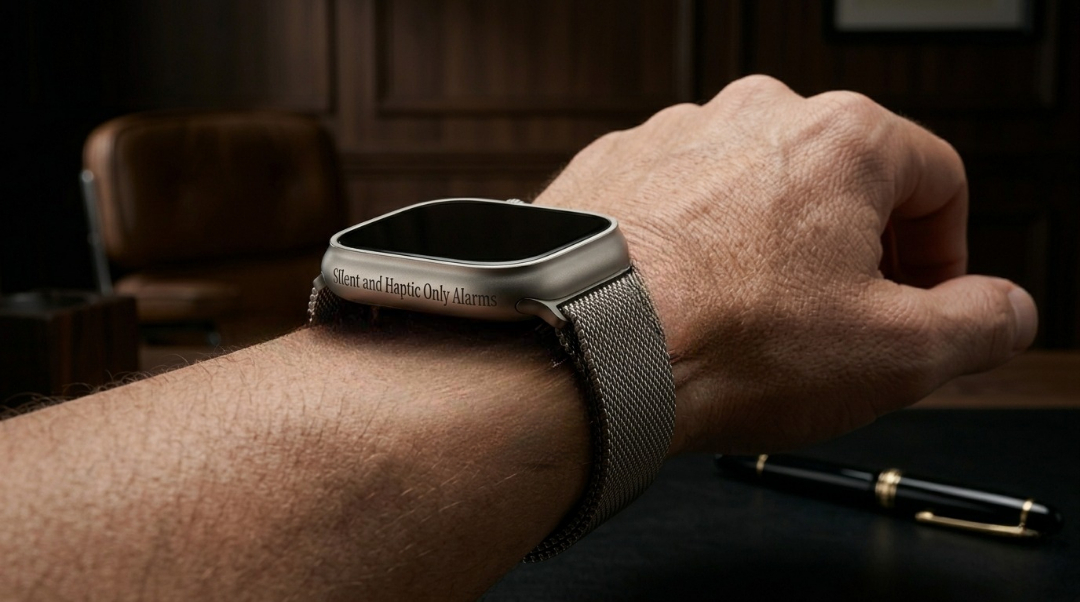
Once you master the basics of how to set an alarm on Apple Watch, you might want quieter options. Silent alarms exist for people who prefer vibration only wake ups that do not disturb others.
Setting a Vibrate Only Alarm Without Sound

Setting up a noise free vibration alert is straightforward. Program your schedule via the native time manager, click your device’s physical side utility key, and strike the bell notification logo to toggle on complete audio muting.
The hardware will automatically convert your sound alerts into physical rhythmic taps and lower it completely. Your watch will vibrate silently instead of ringing.
This is perfect for light sleepers or anyone sleeping next to someone. The haptic pulse wakes you effectively without any audio disturbance.
Optimizing Nightstand Mode While Charging

When your watch charges at night, enable Nightstand Mode to see the time in a bright display without full screen brightness. This works perfectly with silent alarms. Just tap your watch when the silent alarm vibrates and you wake up smoothly.
Troubleshooting: Common Apple Watch Alarm Issues

Even though learning how to set an alarm on Apple Watch is straightforward, occasional problems happen. If your wrist clock isn’t behaving properly, let’s resolve the three frequent system glitches keeping you from waking up on time.
Fix 1: Apple Watch Alarm Only Vibrates With No Sound

If your alarm vibrates but produces no sound, check Settings > Sounds & Haptics > Alarm Volume and ensure it is not muted. Sometimes Do Not Disturb mode silences alarms unexpectedly. Go to Settings > Do Not Disturb and turn it off.
Fix 2: Siri Sets Alarm on iPhone Instead of Apple Watch

When using voice commands to learn how to set an alarm on Apple Watch, Siri sometimes defaults to your iPhone instead. To fix this, press the digital crown and wait for Siri to fully activate on your watch before speaking. Be very clear: ‘Set an alarm on my Apple Watch for 6 AM.’
Fix 3: Snooze Button Unresponsive or Delayed

If tapping snooze during an alarm does not work, your watch might need a restart. Press and hold the side button and digital crown for 10 seconds until your watch restarts. After restart, your snooze function works normally again.
Frequently Asked Questions
Can I set an alarm if my iPhone is off?
Yes, how to set an alarm on Apple Watch works completely independently. Your watch has its own processor and does not need your iPhone to function. The alarm rings on the watch alone.
How many alarms can I set?
There is technically no limit, but practical use suggests keeping 10 or fewer alarms. Too many alarms on your watch creates confusion. Organize them logically by time and purpose.
Do alarms work when the watch is in Low Power Mode?
Yes, alarms function normally even in Low Power Mode. Your watch prioritizes essential features like alarms and emergency calls even when battery saving is enabled.
Can I customize alarm sounds?
Apple Watch comes with preset alarm sounds. You cannot use custom audio files like you can on iPhone, but the built in sounds are effective and clear. Silent and haptic modes are your main customization options.
Will my alarm work when my watch is charging?
Absolutely. Alarms function while the watch charges. This is why Nightstand Mode exists, to make your watch useful as a bedside clock while charging overnight.
Learn More About Your Apple Watch Features
Now that you know how to set an alarm on Apple Watch, explore other important features. Understanding the digital crown is equally valuable for navigation and health features.
Check out our detailed guide on how to use the digital crown on Apple Watch to master another crucial watch feature. These two skills combined make you a complete Apple Watch expert.