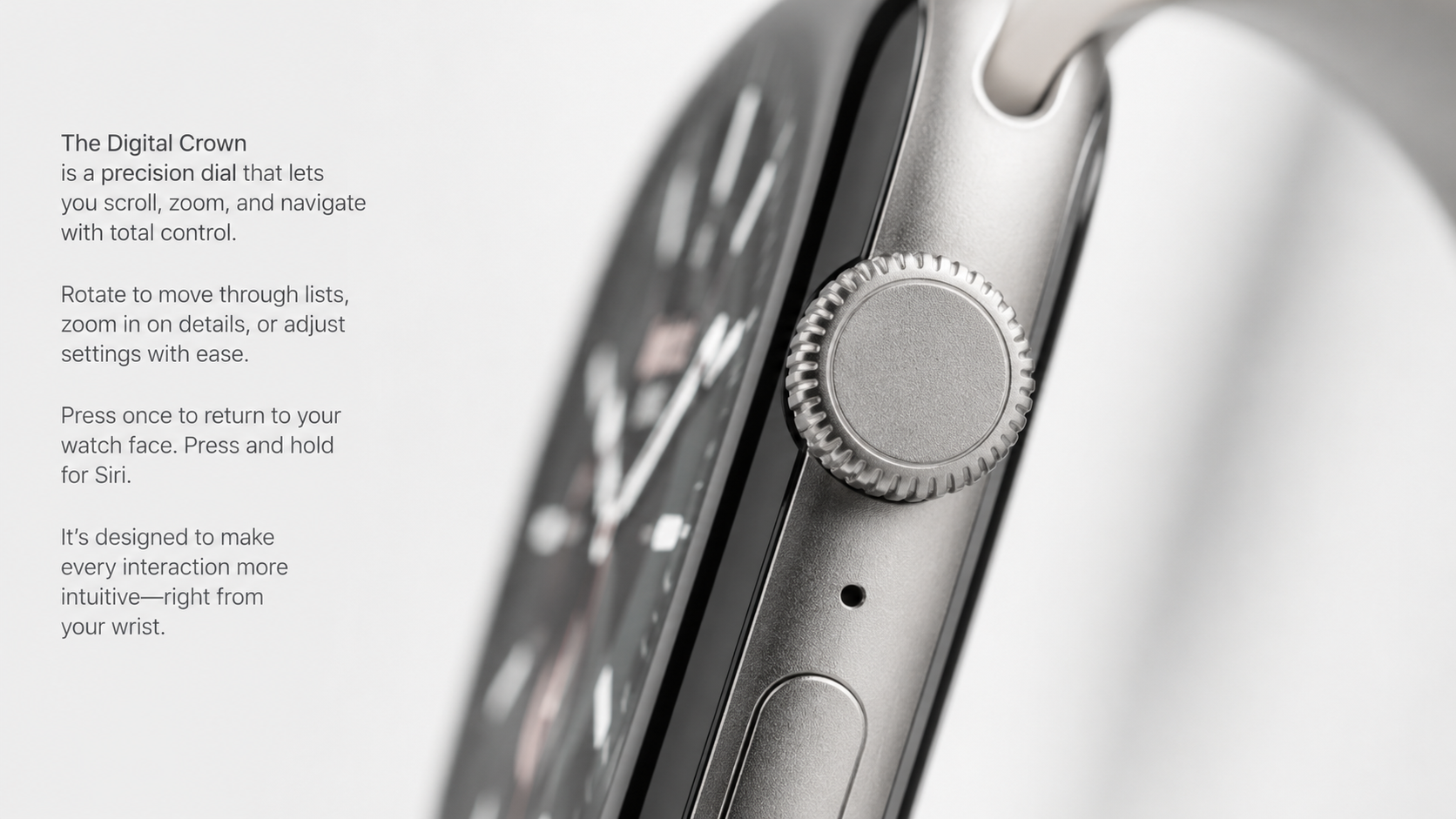
Here is quick answer for What is Digital Crown on Apple Watch?
Quick Answer: The digital crown on Apple Watch is a clickable wheel that you rotate to scroll through menus and press to activate features like Siri. It works like a mouse for your watch, making it easy to navigate without using the touchscreen.
If you just got your Apple Watch, you might be wondering about that small wheel on the side. That is the digital crown on Apple Watch. It is one of the most important parts of your watch, and once you learn how to use it, your watch becomes much easier to control.
This guide explains everything about the digital crown on Apple Watch, from what it does to how to fix problems. By the conclusion of this guide, you will possess specialist knowledge.
What is the Digital Crown? Overview & History

The digital crown on Apple Watch is a rotating wheel located on the right side of your watch (or left if you are left handed). Think of it like a tiny scroll wheel that you turn with your finger. Apple chose this design because it works better than just touching the screen on such a small device.
The name comes from traditional watch crowns, which are the knobs you used to wind mechanical watches. Apple named it the ‘digital’ crown because it works digitally through software instead of mechanics.
Your digital crown on Apple Watch also does more than just scroll. You can press it, hold it, and rotate it in different ways to perform different tasks. This makes your watch more intuitive and enjoyable to use.
Evolution: From Series 1 to Series 10

The first Apple Watch in 2015 introduced the digital crown on Apple Watch with basic rotation and pressing. Series 4 improved it with better haptic feedback. Series 10 continues making the crown more responsive and accurate.
Each generation improves the digital crown on Apple Watch based on user feedback. The current version is not only significantly faster but also boasts a wider range of features than its predecessor.
Check Your Apple Watch Battery Health
Before learning about the digital crown on Apple Watch features, it is helpful to know your watch battery status. We created a simple diagnostic tool that shows you exactly how healthy your battery is right now.
This tool tells you the battery percentage, current condition, and whether your watch is performing at peak efficiency. Check it regularly to make sure your digital crown on Apple Watch gets good battery life for all its features.
Core Functionality: What Does the Digital Crown Do?

The digital crown on Apple Watch has five main functions. Learning these five things will help you master your watch.
| Feature | What It Does | How to Use |
| Scrolling & Navigation | Move through lists and menus | Rotate the crown clockwise or counterclockwise |
| Water Ejection | Remove water from the speaker | Hold the crown down and rotate fully |
| ECG Reading | Check your heart rhythm | Press and hold the crown for 30 seconds |
| Siri Activation | Talk to your watch | Press and hold the crown to activate Siri |
| App Switcher | Switch between open apps | Press the crown quickly to see all apps |
1. Navigation and Scrolling

The main use of the digital crown on Apple Watch is scrolling through lists. To lower it, rotate to the right; to raise it, turn to the left. This is easier and more precise than swiping on the tiny screen.
2. Health Features: The ECG Electrodes

Some newer Apple Watch models have titanium electrodes in the digital crown on Apple Watch that measure your heart rhythm using ECG. Press and hold the crown for 30 seconds to take a reading. This powerful health feature can detect irregular heart rhythms.
3. Water Ejection Mode

After swimming, hold down the digital crown on Apple Watch while rotating it fully to eject water from the speaker. By triggering a distinct audio frequency and vibration, the smartwatch forces trapped water out of the speaker cavity to prevent damage.
4. Siri Activation

You can trigger Siri at any time by holding down the Digital Crown on your Apple Watch. Ask your watch questions and control it with voice commands without screen taps.
How to Customize Your Digital Crown Settings

You can personalize how your digital crown on Apple Watch feels and works. Apple provides several customization options to make the crown work exactly how you like it.
Adjusting Haptic Feedback: The Clicky Feeling

Haptic feedback is the vibration or ‘clicky’ feeling you get when you rotate the digital crown on Apple Watch. Some people love this feedback, while others find it annoying.
To change haptic feedback, go to Settings on your watch, then scroll using the digital crown on Apple Watch to find ‘Sounds & Haptics.’ You can turn the feedback off completely or adjust its strength.
This simple change makes using your digital crown on Apple Watch feel completely different. Play around with the options to see what works best for you.
Changing Crown Orientation for Left Handed Users

By default, the digital crown on Apple Watch sits on the right side. But if you are left handed, you can move it to the left side in settings.
Go to Settings on your watch and find ‘General.’ Look for ‘Watch Orientation’ and select ‘Left Wrist.’ Now your digital crown on Apple Watch appears on the opposite side, making everything more comfortable.
This accessibility feature makes Apple watches work for everyone. The digital crown on Apple Watch is equally useful whether you are left or right handed.
Troubleshooting: Common Digital Crown Problems & Solutions

Sometimes the digital crown on Apple Watch can develop problems. Check out these widespread glitches and the effortless ways to get things working again
Problem 1: Sticky or Stiff Crown

If your digital crown on Apple Watch feels sticky, hold it under warm running water and rotate it gently for 10 to 15 seconds. Dry it completely. Your watch is waterproof, so do not worry about water damage.
Problem 2: Non Responsive Crown

If the digital crown on Apple Watch is not responding, press and hold the side button and crown together for 10 seconds to restart your watch. This fixes most software lag issues.
Problem 3: Accidental Presses During Workouts

Change watch orientation in Settings so the digital crown on Apple Watch is on the inside of your wrist. This prevents accidental presses during exercise.
Summary: Mastering the Digital Crown

The digital crown on Apple Watch is your main tool for controlling the watch. Understanding how it works makes everything easier and faster.
From scrolling through lists to measuring your heart health, the digital crown on Apple Watch is incredibly powerful. Take time to learn all five main functions, customize the settings to your preference, and you will wonder how you ever used a watch without it.
If you ever have problems, the troubleshooting steps above will solve most common issues with the digital crown on Apple Watch. Your watch is built to last, and the crown is built to work reliably for years.
Frequently Asked Questions
Can water damage the digital crown on Apple Watch?
No, your digital crown on Apple Watch is waterproof just like the rest of the watch. In fact, you are supposed to run water over it to clean it Standard Apple Watch hardware is built to endure water pressure equivalent to a depth of 50 meters.
Why does the digital crown on Apple Watch have a textured surface?
The textured design on the digital crown on Apple Watch helps you grip it better and rotate it more precisely. For health features like ECG, the metal makes good contact with your skin.
What happens if my digital crown on Apple Watch breaks?
If the digital crown on Apple Watch stops working completely, you can still use your watch by touching the screen and using voice commands. But you should visit an Apple Store to get it repaired or replaced.
Can I use any Apple Watch with a digital crown on Apple Watch?
Yes, every Apple Watch model comes with a digital crown on Apple Watch. Even the oldest Series 1 from 2015 has it. The crown has improved over time but exists in all models.
Is the digital crown on Apple Watch necessary for all tasks?
No, you can control your digital crown on Apple Watch using just the touchscreen and side button if needed. But the crown makes everything much faster and easier.
Want to Learn More About Your Apple Watch?
Understanding your digital crown on Apple Watch is just the beginning. We have more guides that help you use every feature of your watch.
Check out our complete guide on Theater Mode on Apple Watch to learn another important feature that pairs well with digital crown on Apple Watch knowledge.