7 Proven Fixes for watchOS (2026 Updated Guide)
Topic: What to do when watchOS update stays stuck at verifying
| Quick Answer: Weak WiFi, low battery, or a broken server handshake causes nearly every stuck ‘Verifying’ screen. Restart both devices, switch to a 2.4GHz network, and confirm your Apple Watch is above 50% battery. Most cases clear in under 15 minutes. |
Why Is Your Apple Watch Stuck on “Verifying”?

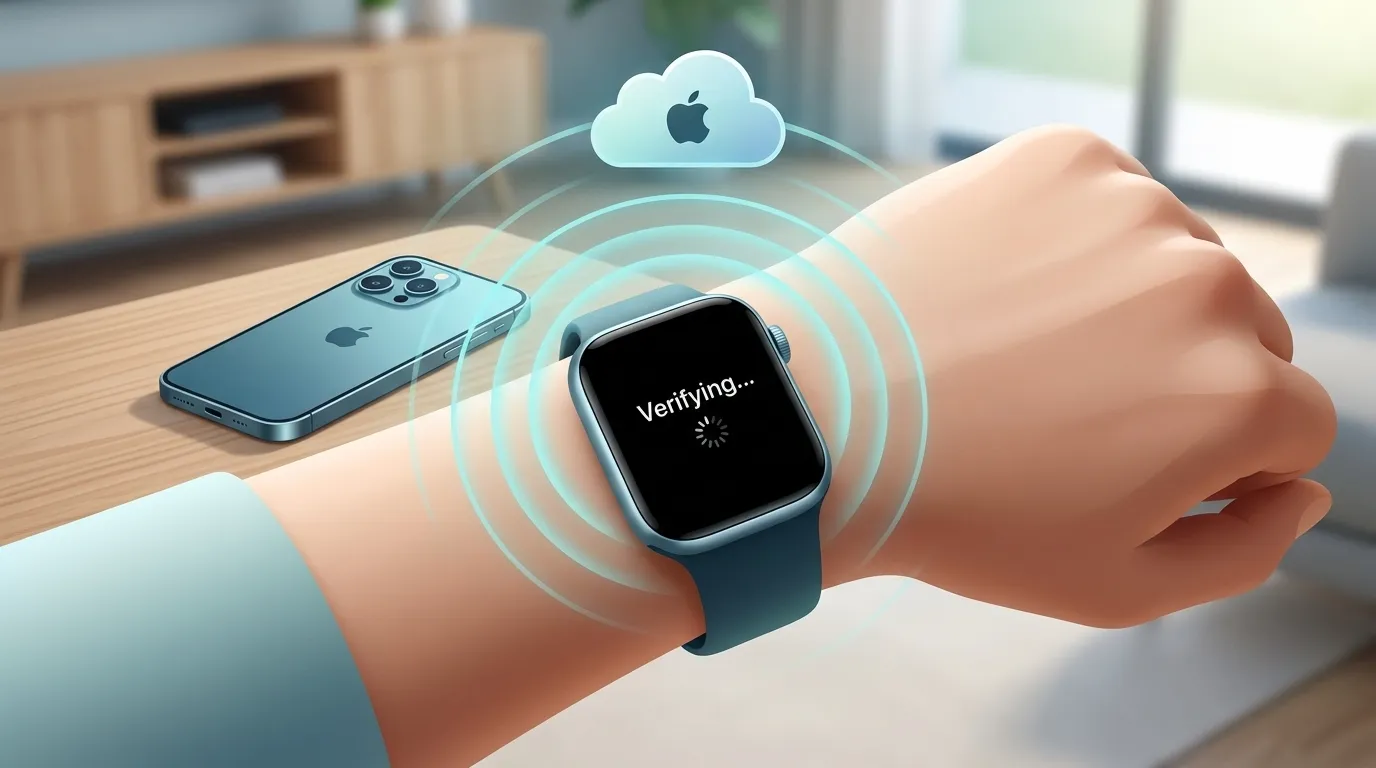
The Verifying stage is a digital handshake , your iPhone confirms the update file with Apple’s servers before installation begins. This normally takes 2 to 5 minutes. When the handshake times out or fails, the screen freezes. The three causes, in order of frequency:
- Unstable WiFi connection dropped mid verification
- Apple Watch battery fell below 50% during the process
- Apple’s update servers were temporarily congested
None of these cause permanent damage. The update file is paused, not corrupted. Follow the steps below in order , most users are done by Step 3.
Check battery health on battery diagnostic tool made by iboltwatch.com by click the button given below.
Quick Diagnosis Table
| Problem | Quick Status | Recommended Action |
| Stuck on ‘Verifying’ > 20 min | 🔴 Action Needed | Restart both devices, retry update |
| Stuck but iPhone shows progress | 🟡 Wait & Watch | Give it 30 min on charger + stable WiFi |
| ‘Update Required to Pair’ loop | 🔴 Critical | Unpair, reset, re pair Apple Watch |
| Verifying fails on every attempt | 🔴 Persistent | Switch to 2.4GHz WiFi, free storage |
| Stuck after watchOS update started | 🟡 Likely Safe | Keep charger on, do not force quit yet |
Step 1: The Pre Flight Checklist

Two checks that solve 40% of cases on their own , run these before anything else.
Switch to 2.4GHz WiFi

Apple Watch update verification is unstable on 5GHz networks. The shorter range and higher packet drop rate of 5GHz is the single most common hidden cause of a frozen verification screen.
Go to your iPhone’s WiFi settings, find your router’s 2.4GHz network (labeled ‘2.4G’ or a separate SSID), and connect before retrying. If your router only broadcasts one network name, log into its admin panel and split the bands.
| Pro Tip: No band split option? Use your iPhone’s mobile hotspot set to 2.4GHz as a temporary workaround, then run the update through it. |
Confirm Battery Is Above 50%

Apple Watch silently pauses updates below 50% battery , showing you exactly the stuck screen you’re seeing now. Place your Apple Watch on its original magnetic charger, wait until it reaches at least 50%, and retry. Clean the charger contacts and the back of the watch with a dry cloth if you suspect a dirty connection.
Step 2: Clear Storage on Both Devices

A nearly full iPhone cannot stage the update file for verification. Go to Settings → General → iPhone Storage and remove any app using over 1GB. On Apple Watch, go to Settings → General → Storage and remove unused third party apps fitness apps and watch faces accumulate large caches. Aim for at least 1GB free on both devices before retrying.
Explore more on Can My Apple Watch Take My Temperature?
Step 3: The Airplane Mode Reset

This forces your iPhone to drop a timed out server connection and rebuild it cleanly , the most reliable quick fix for a frozen verification screen.
- Enable Airplane Mode on iPhone : swipe down, tap the airplane icon
- Wait 30 seconds to fully clear the old server connection
- Turn Airplane Mode off : wait for full WiFi reconnection
- To navigate to the software update section, launch the Watch app, select General, and then tap Software Update.
- Tap Download and Install : verification restarts fresh
| Note: If you have a VPN active, disable it completely before this step , VPNs redirect the verification request to a server Apple doesn’t recognise as a valid update source. |
Step 4: Fix the ‘Update Required to Pair’ Loop

| Critical, The Fix Apple’s Own Support Page Skips: If you unpaired your watch during a failed update, you may be locked in a loop: the Watch says ‘Update Required to Pair’ but can’t update because it’s not paired. This is the scenario most guides , including Apple’s generic support article , fail to address directly. |
This loop happens because your Apple Watch is running an older watchOS version that your updated iPhone no longer supports for pairing. The watch cannot pair without updating, and it cannot update without being paired.
Exact Steps to Break the Loop
- Keep your Apple Watch on its charger for the entire process
- On iPhone, open the Watch app and tap Start Pairing
- Hold Apple Watch close to iPhone and follow the pairing camera screen
- When prompted, tap Restore from Backup , do not choose Set Up as New
- The correct watchOS update will download and install automatically during re pairing
- Once paired, your data, health records, and settings restore from the backup
If the loop repeats after this, your Apple Watch may need a recovery mode update. Proceed to Step 5.
Step 5: Hard Restart Both Devices Simultaneously

A simultaneous hard restart clears RAM and resets the Bluetooth and WiFi stacks on both devices at once , which a normal restart doesn’t do.
- iPhone: Hold Side Button + Volume Down until the power slider appears. Drag to power off, wait 30 seconds, then restart.
- Apple Watch: Hold Side Button + Digital Crown together for 10 seconds until the Apple logo appears.
Once both are fully restarted, open the Watch app and retry the update immediately , before background apps reload.
Step 6: Unpair and Factory Reset

This is the guaranteed fix. Unpairing automatically creates a full backup before wiping, so you lose nothing.
- Open Watch app on iPhone → tap your watch at the top
- Tap the (i) info icon → tap Unpair Apple Watch
- To turn off Activation Lock, please input your Apple ID password.
- Wait 5 to 10 minutes for the backup and unpair to complete
- Set up as new, let the update install, then restore from the backup
All health data, settings, and apps return from the backup. The only thing you lose is the stuck screen.
Step 7: Consult an Expert Technician

When every software fix fails to unfreeze an update, the problem is usually rooted in the hardware. A corrupted system partition or a faulty internal sensor can block the installation process entirely, requiring advanced diagnostic equipment to detect.
You should seek expert technical assistance if your device is stuck on the update screen for over 3 hours, shows a red exclamation error, or is completely dead. A qualified hardware specialist can run deep diagnostics to identify the exact internal failure and safely flash the device’s firmware back to a working state.
Frequently Asked Questions:

Is it safe to force quit the Watch app during verification?
Yes. Force quitting the Watch app on iPhone after 20+ minutes of no progress is safe , it doesn’t cancel or corrupt the update. Reopen the app and try again; the update file is usually cached and verification restarts quickly.
How long should verifying actually take?
Normal verification takes 2 to 8 minutes. At 15 minutes with no progress, something has gone wrong. Past 30 minutes, the verification has silently failed , restart the process.
What if my Apple Watch has very little storage?
Older 8GB or 16GB models need at least 1.5GB free for a watchOS update to stage properly. Delete third party watch apps first. If you still can’t free enough space, the update can sometimes be pushed directly from the Watch app on iPhone without staging a full copy on the watch.
Final Thoughts:

Work through the steps in order. The Pre Flight Checklist and the Airplane Mode reset (Steps 1 and 3) resolve the majority of cases. The ‘Update Required to Pair’ fix in Step 4 handles the scenario that trips up most users who have already tried the basics. If you reach Step 6, the factory reset takes under 15 minutes and has a 100% success rate.
Bookmark this guide , this issue returns with every major watchOS release.