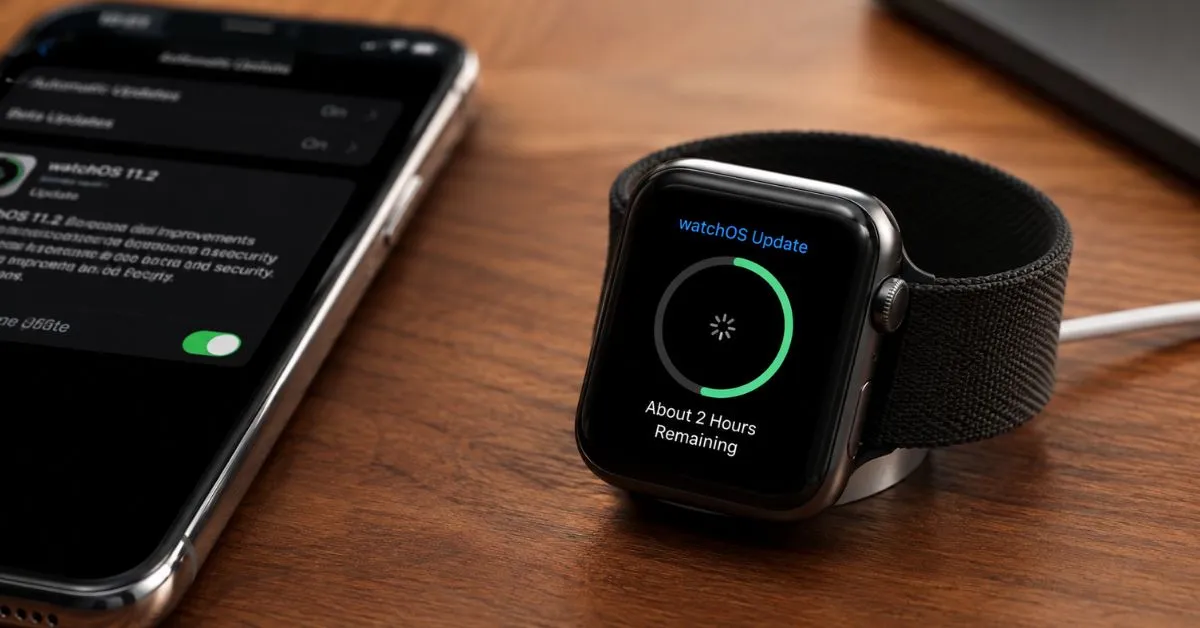
An Apple Watch update stuck during pairing is one of the most common setup problems new users face. The screen freezes on a message like “About 2 Hours Remaining” and nothing seems to happen next. If you’re not a tech expert, this manual will help you fix it quickly and safely, in easy steps.
Quick Answer
Before you attempt to fix an Apple Watch update stuck on pairing, there are three things you should check first: your WiFi signal, your battery level, and the distance between your iPhone and Apple Watch. In most cases, getting closer to your router, charging your watch and restarting both devices will fix the problem in a few minutes.
Not sure what is slowing your watch down? Use our free Apple Watch Battery Diagnostic Tool below to quickly check your battery health and charging status before you try any fix.
What Does “Approximately 2 Hours Left” Mean?

This message is just a rough estimate and not a precise countdown. Your Apple Watch determines this by looking at your current WiFi speed, battery level, and how much of the update file is left to download. That can go up or down depending on the circumstances.
“An estimate of rising time is not always a bad thing. Usually it just means your connection hiccuped for a second, and not that the update has failed. The real warning sign is a screen that has not moved at all for more than an hour.
Why Does an Apple Watch Update Halt When Pairing?
Usually, the reason an Apple Watch update gets stuck on pairing is quite simple. You’ll need a strong WiFi connection, enough battery life, and an iPhone with a compatible version of iOS to finish setting up your watch.
Sometimes the update file is corrupted while downloading. Other times, the Bluetooth connection between your watch and phone drops right in the middle of process and the progress bar just freezes right there.
Compatibility, too, can come into play. Older Apple Watch models can have trouble installing a newer version of watchOS if the paired iPhone hasn’t been updated first, which can cause the pairing screen to appear stuck even if nothing is actually broken.
This problem is very closely. If your device shows that message, our guide on Apple Watch stuck on preparing covers a more specific fix for that exact screen.
Before You Start: Quick Checks

Test Your WiFi Signal
Your Apple Watch gets its update over your iPhone’s WiFi connection. A weak or unstable signal can slow or even stop a download. First, get closer to your router and turn off any VPN.
If you’re on a shared or public WiFi network (such as at work or in a hotel), try switching to your home network instead. Some public networks could prevent the connection your Apple Watch needs to complete a software update download.
Battery Charge Level Check
Both your iPhone and Apple Watch need to have enough charge to safely complete an update. Keep your Apple Watch on its charger throughout the process. If you think there is a charging problem, our guide on why your Apple Watch is not charging can help you check further.
Check Your iPhone’s Software Version
Your iPhone needs to have a version of iOS that works with the model of your Apple Watch. If you attempt to pair and it fails, pop into Settings > General > Software Update and install anything that is available. One of the most overlooked causes of update problems is when you pair an old iPhone with a new watch.
Verify Bluetooth and Aeroplane Mode
Ensure Bluetooth is enabled and Aeroplane Mode is disabled on your iPhone. A simple drop of Bluetooth can break the connection between your watch and phone in the middle of downloading the update.
How to Fix an Apple Watch Update Stuck While Pairing

Follow the steps in order, beginning with the easiest. Most people will solve the problem in the first two or three steps, so there is seldom a need to go straight to a reset.
Step 1: Allow More Time
Sometimes an Apple Watch update that gets stuck during pairing just needs patience. First time updates are often slower than expected because the watch is also installing new features in the background. Next, put the devices next to each other, with the screens on, and wait at least 30 minutes more before trying any other steps.
Step 2: Reboot Both Devices
Turn off your iPhone and Apple Watch completely, then power back on. This clears small software glitches that often cause an update to freeze, and it forces both devices to reconnect from a clean state. Our full guide on how to reboot an Apple Watch walks you through the safest way to do this.
Step 3: Delete the Stuck Update File
Open the Watch app on your iPhone. Tap General. Then tap Usage. If a software update file is listed there swipe. Delete the update. This removes a partly downloaded file that may be damaged, so the watch can request a fresh copy. Restart both devices afterward and try the update again from the start.
Step 4: Stay Close and Turn Off VPN
Keep your iPhone and Apple Watch in the same room for the whole update. A VPN on your iPhone can slow the download. Block the download so turn the VPN off until pairing ends. Distance and network changes are an easy thing to overlook once the update is already running.
Step 5: Unpair and Try Again
If nothing else works, unpair your Apple Watch, from your iPhone and start pairing from scratch. The update forces the Apple Watch to download a copy of the update instead of continuing a stuck update and the update usually resolves problems tied to a bad first attempt.
Step 6: Force Restart, as a Last Resort
Use this only if all other steps fail.. Hold the side button and the Digital Crown together for about ten seconds until the Apple logo appears. The watch will restart at a level and will usually clear a frozen screen without deleting any of the settings you already have.
What Not to Do While Waiting

Some common reactions can actually make the problem worse of fixing it. Keep these safety points in mind while your watch is updating:
- Do not remove the Apple Watch from the charger during an active update
- Do not force restart the watch within the first 30 minutes, since it may still be working normally
- Do not update your iPhone and Apple Watch at the exact same time
- Do not use third party charging accessories you have not tested before
How to Check Your Update Progress Manually
You do not have to rely only on the pairing screen for information. On your iPhone open the Watch app, tap General, then Software Update. This screen shows the download status and checks if your watch is still talking to your phone.
If this screen also stops working or shows no movement for a time that is a bigger sign of a real connection issue and you should go to the restart and reset steps, in this guide instead of waiting any longer
Apple Watch and iPhone Compatibility Basics
Each Apple Watch model only works with versions of watchOS and each watchOS version only works on an iPhone that has a matching or newer iOS version. Using an iPhone with a brand new Apple Watch can sometimes make the update step stop because the software versions do not match yet.
Before you start using an Apple Watch it is a good idea to update your iPhone first. This one step stops pairing and update issues from happening in the first place and it only takes a few minutes over a strong WiFi connection.
Common Mistakes to Avoid
These mistakes can make an Apple Watch update stuck during pairing worse instead of better:
- Turning off your WiFi router in the middle of the update
- Closing the Watch app while it is still updating
- Resetting the watch too early, before giving it enough time
- Ignoring an iPhone software update that your watch also needs
- Using a weak or unofficial charging cable during setup
I have seen many Apple Watch owners rush at the sign of a delay. Most of these mistakes come from impatience not from doing anything technically wrong. Giving Apple Watch a little time before taking action is usually the simplest fix of all.
When to Contact Apple Support
If Apple Watch update stuck during pairing still does not move after trying every step the issue may be hardware related. I recommend contacting Apple Support or booking an appointment at an Apple Store especially if Apple Watch is still, under warranty.
How to Prevent This in the Future
To prevent this keep Apple Watch charged above 50 percent before starting any update. I have seen Apple Watch owners who forget this. The update stops halfway because the battery is low.
Background battery drain can also affect how smoothly your watch updates over time. Our guide on Apple Watch background battery drain explains simple settings that keep your device healthy and ready for future updates.
Following these habits is one of the easiest ways to avoid an Apple Watch update stuck during pairing situation the next time you set up a new device.
Frequently Asked Questions
Why is my Apple Watch update stuck during pairing?
An Apple Watch update stuck during pairing is always caused by a weak WiFi signal, low battery or a corrupted update file. Checking these three things first solves the problem for people.
How long should an Apple Watch update take during pairing?
A normal update usually takes 15 to 30 minutes. First time setups or major software updates can take up to two hours over a slow WiFi connection. If the time shown keeps changing but the progress ring is still moving the update is likely still working normally.
Is it safe to unpair my Apple Watch during a stuck update?
Yes unpairing is safe. Does not damage your watch. It simply erases the setup and lets you start the pairing and update process again from the beginning.
Can a weak WiFi signal really cause this problem?
Yes. Your Apple Watch relies completely on your iPhone’s WiFi to download updates. A weak or unstable connection is one of the common reasons the process freezes.
Should I reset my Apple Watch if the update is stuck?
Only try a reset after you have already tried restarting deleting the update file and unpairing. A reset should always be one of the steps, not the first one since it clears your current setup and makes you start pairing again from zero.
Final Thoughts
An Apple Watch update stuck during pairing can feel stressful especially when you just want to start using your device. In cases checking your WiFi, battery and iPhone software fixes the issue without any advanced tools.
Work through the steps, in this guide in order. Give each one a few minutes before moving to the next. If the problem continues after trying every step Apple Support is always ready to help and getting a hardware check is a normal safe next move.