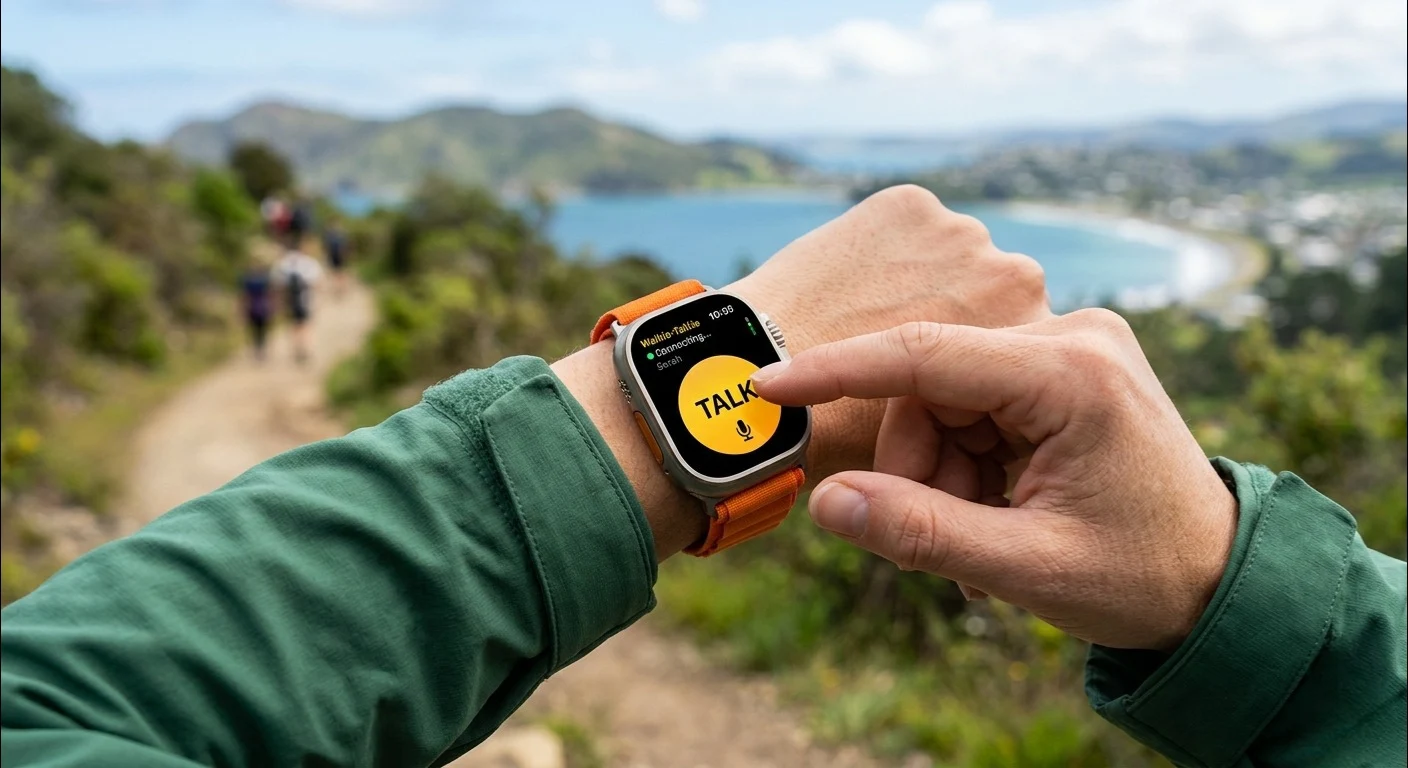
Quick Answer: Walkie Talkie is a built in Apple Watch feature allowing instant, push to talk voice communication between watch users over WiFi or cellular. By holding an on screen button, you can send real time audio messages globally without placing a standard phone call.
Skip the hassle of dialing phone numbers or waiting for a call to connect. With the Walkie Talkie app on Apple Watch, real time voice communication is reduced to a simple, single button action.
If you need to send quick, urgent voice pings to family or team members without fetching your iPhone, this overlooked tool is the ultimate native solution
It is one of the most underused features on the watch, and once you understand how it works, you will wonder why you ever bothered picking up your phone for quick voice messages.
This guide covers everything: how the technology works, what you need to get started, step by step setup, common errors and how to fix them, and advanced mode settings. Everything is explained in plain, simple language.
How Does Walkie Talkie on Apple Watch Work? (The Technology)

What is walkie talkie on apple watch in simple terms? It is a push to talk voice app built into your Apple Watch. You press and hold a yellow button, speak, and your voice reaches another person’s Apple Watch in real time. It uses FaceTime Audio and your internet connection, not radio signals, so it works anywhere in the world with WiFi or cellular data.
| Apple Watch Battery Diagnostic Tool: Before diving into Walkie Talkie settings, make sure your Apple Watch battery is healthy enough to support always on network features. Use the Apple Watch Battery Diagnostic Tool below to check your battery status instantly. A battery below 80% capacity can cause Walkie Talkie connection drops and availability errors. |
FaceTime Audio Protocol: The Engine Behind the App

Understanding what is walkie talkie on apple watch starts with knowing what powers it. Apple built this feature on top of FaceTime Audio, the same technology that runs audio calls in the FaceTime app. When you press the talk button, your Apple Watch sends a compressed voice packet through FaceTime Audio servers to your contact’s watch.
This is why FaceTime must be installed and active on your iPhone for the feature to work. The Apple Watch borrows FaceTime’s audio pipeline completely. If FaceTime is deleted or signed out from your iPhone, the Walkie Talkie app breaks or disappears from your watch face entirely.
Cellular Data vs. WiFi: Does It Have a Distance Limit?

This is the biggest gap most people have when asking what is walkie talkie on apple watch: they assume it works like a traditional radio walkie talkie with a limited physical range. It does not. Traditional walkie talkies have a range of half a mile to five miles depending on obstacles. The Apple Watch version has no physical range limit whatsoever.
As long as both you and your contact have an internet connection, either WiFi at home or cellular data outdoors, you can send voice messages to someone across the street or across the world. The distance is unlimited because every transmission travels through Apple’s global FaceTime Audio servers, not through radio frequencies.
Essential Requirements: What Do You Need to Get Started?
To use what is walkie talkie on apple watch, you need an Apple Watch Series 1 or newer running watchOS 6 or later, an iPhone 6s or newer running iOS 13 or later, the FaceTime app installed and active on the iPhone, a WiFi or cellular connection on both devices, and the same Apple ID signed in on both the watch and the iPhone.
| Requirement | Minimum | Status |
| Apple Watch | Series 1 or newer | ✅ Required |
| watchOS | watchOS 6+ | ✅ Required |
| iPhone | iPhone 6s or newer | ✅ Required |
| iOS | iOS 13+ | ✅ Required |
| FaceTime | Installed & active | ⚠️ Critical |
| Network | WiFi or Cellular | ✅ Required |
| Apple ID | Same ID on both devices | ✅ Required |
Supported Apple Watch Models & watchOS Compatibility

The Walkie Talkie app works on Apple Watch Series 1 and all newer models, including SE and Ultra versions. However, to use it without your iPhone nearby, you need a cellular capable Apple Watch (Series 3 or later with LTE) with an active cellular plan. Without cellular, both your watch and iPhone must be connected to the same WiFi network or your iPhone must be nearby.
Always keep your watchOS updated to the latest version. Apple frequently patches Walkie Talkie bugs in watchOS point updates. Many of the connection errors users experience are already fixed in the latest watchOS release, so checking for updates is always the first troubleshooting step.
The Critical FaceTime App Dependency (The Hidden Block)

This is the most common hidden reason why what is walkie talkie on apple watch stops working for users. Many people delete FaceTime from their iPhone to free up storage space, not realizing it is a system dependency for several watch features. The moment FaceTime is removed from the iPhone, the Walkie Talkie app either disappears from the watch or shows a permanent error.
To verify FaceTime is active, open the Settings app on your iPhone, scroll down to FaceTime, and confirm the toggle is green. Also confirm that your Apple ID email is showing a check mark under the ‘You Can Be Reached by FaceTime At’ section. If FaceTime is missing entirely, re download it from the App Store as a free Apple app.
| Hidden Block: Never delete FaceTime from your iPhone if you use Walkie Talkie on your Apple Watch. FaceTime is a required background dependency, not just a standalone app. |
Step by Step Tutorial: How to Use Walkie Talkie on Apple Watch

To use what is walkie talkie on apple watch: open the app by pressing the Digital Crown and tapping the yellow Walkie Talkie icon, tap a contact to add them, wait for them to accept your invite, then press and hold the yellow talk button to speak. Release to send. The entire setup takes under two minutes once both people are connected.
How to Find and Open the Walkie Talkie App

Click the Digital Crown on the side of your Apple Watch to navigate directly to the application Home Screen. Look for the yellow icon with two circles, that is the Walkie Talkie app. If you cannot find it in the grid, swipe up from the watch face to open Control Center and check if Walkie Talkie availability is visible there. You can also search for it by turning the Digital Crown while the app grid is open.
How to Invite a Friend (Sending Your First Ping)

1. Open the Walkie Talkie app on your Apple Watch.
2. Tap the Add Friends button (the person icon with a plus sign).
3. Scroll through your contacts and tap the person you want to add.
4. Wait for them to receive and accept your invitation on their Apple Watch.
5. Once accepted, their name appears in your Walkie Talkie contact list with a yellow ring.
Your watch uses background data from FaceTime and iMessage alerts to deliver the connection request directly to your friend.
Both you and your contact must have FaceTime active and be signed into iCloud with their Apple ID for the invitation to go through correctly.
How to Accept a Walkie Talkie Invitation

When someone invites you to Walkie Talkie, you receive a notification on your Apple Watch that says ‘So and so wants to talk with you on Walkie Talkie.’ Tap Always Allow to accept the connection. Once accepted, the app opens and you are connected instantly.
If you miss the notification, open the Walkie Talkie app manually. You will see a pending invitation banner at the top. Tap it to accept. Note that both people must accept the invitation before the first conversation can happen. Walkie Talkie is a two way consent system.
Turning Walkie Talkie On and Off (Managing Your Availability)

At the top of the Walkie Talkie app is a switch that shows your current availability. When the switch is yellow and says Available, your contacts can reach you instantly. When it is grey and says Unavailable, incoming voice messages are blocked and no one can connect to you.
To toggle availability without opening the app, swipe up from the watch face to open Control Center and tap the Walkie Talkie icon. This is the fastest way to go offline quickly, for example before entering a meeting or cinema. Your contacts are not notified when you go unavailable.
Related: How to Backup an Apple Watch , Before making major changes to your watch settings or performing resets to fix Walkie Talkie errors, always back up your Apple Watch first so you do not lose your data.
Troubleshooting: How to Fix Common Walkie Talkie Errors

The three most common reasons what is walkie talkie on apple watch stops working are: a stuck ‘Checking Availability’ loop (fix: toggle airplane mode off and on), the app disappearing from the watch (fix: reinstall FaceTime on iPhone), and invitations not being received (fix: sign out and back into iCloud on the iPhone and verify the Apple ID email in FaceTime settings).
Fix 1: How to Solve the Infinite ‘Checking Availability’ Loop

This error appears when the Walkie Talkie app cannot establish a FaceTime Audio session in the background. The most reliable fix is to toggle Airplane Mode on your Apple Watch on for 10 seconds, then back off. This forces the watch to reset its network connection and re establish the FaceTime session from scratch.
- Bring up your Control Center dashboard by executing an upward swipe from the watch interface.
- Activate Airplane Mode by pressing its designated toggle icon, then wait a full 10 seconds for background communication caches to stall.
- Press the same icon again to re engage your network adapters.
- Open the Walkie Talkie interface to verify that the connection status loop is gone.
If this does not work, restart both your Apple Watch and iPhone. Hold the side button on the watch until the Power Off slider appears, drag it, then power it back on. On iPhone, perform a standard restart. This clears the FaceTime session cache on both devices simultaneously.
Fix 2: What to Do If You Don’t See the Walkie Talkie App

A missing Walkie Talkie app is almost always caused by a missing or deactivated FaceTime on the companion iPhone. Open the App Store on your iPhone, search for FaceTime, and check whether it shows an Open button (installed) or a download icon (missing). If missing, download it for free.
1. Download FaceTime from the App Store if it is missing.
2. Open FaceTime on iPhone and sign in with your Apple ID.
3. Go to Settings > FaceTime and confirm the toggle is green.
4. On your Apple Watch, press the Digital Crown and look for the yellow Walkie Talkie icon again.
If the app still does not appear after FaceTime is reinstalled, open the Watch app on your iPhone, go to the App Store section, find Walkie Talkie, and toggle it to install it manually on the watch.
Fix 3: Resolving Invitation Not Received Errors (Resetting Apple ID Sync)

When invitations are sent but never received, the issue is almost always an Apple ID mismatch or an iCloud sync error. Both devices must be signed into the same Apple ID, and the FaceTime reachable email must have an active check mark.
1. On iPhone, go to Settings > [Your Name] > Sign Out. Then sign back in.
2. Go to Settings > FaceTime and confirm your Apple ID email has a blue check mark.
3. On Apple Watch, go to Settings > General > Reset > Reset Sync Data.
4. Re send the Walkie Talkie invitation from the app.
| Pro Tip: Both you and your contact should perform the iCloud sign out/sign in on your iPhones simultaneously for the fastest sync reset. This clears stale session tokens on both ends at the same time. |
Advanced Settings: Hardware and Mode Interactions

What is walkie talkie on apple watch when your watch is in different modes? Silent Mode keeps you available but mutes the audio so incoming messages vibrate only. Theater Mode takes you fully offline and blocks all incoming Walkie Talkie connections. Do Not Disturb mutes audio but keeps you available. The table below shows exactly how each mode affects the feature.
What Happens in Silent Mode vs. Theater Mode?

Silent Mode and Theater Mode behave very differently in the context of what is walkie talkie on apple watch, and most users confuse them. Silent Mode only mutes the speaker. Your watch still receives incoming Walkie Talkie messages and vibrates to alert you, and your contacts can still see you as available. You can still send messages normally.
Theater Mode is far more aggressive. It turns off the display, mutes all audio, and most importantly, it sets your Walkie Talkie status to Unavailable automatically. This means your contacts get no response if they try to reach you, and they have no way of knowing you are in Theater Mode versus genuinely ignoring them. Enable Theater Mode only when you need complete silence.
| Watch Mode | Audio Plays? | Can Receive? | Stays Available? |
| Normal | Yes | Yes | Yes |
| Silent Mode | No (vibrate only) | Yes | Yes |
| Theater Mode | No | No | No , goes offline |
| Do Not Disturb | No | Yes | Yes |
Third Party Hardware and Camera Restrictions (Wristcam Context)

Third party Apple Watch band accessories like Wristcam (a band with a built in camera) interact with watchOS in ways that can occasionally affect audio routing for Walkie Talkie sessions. Apple’s watchOS architecture restricts third party hardware from accessing the FaceTime Audio pipeline directly, which is the same pipeline that what is walkie talkie on apple watch relies on.
If you use a Wristcam or similar accessory and experience audio dropouts during Walkie Talkie sessions, try removing the accessory and testing with the standard Apple band. This isolates whether the audio routing conflict is hardware or software in origin.
Submit a ticket to the brand’s support team; a permanent fix depends on the manufacturer patching their software with the required watchOS system audio privileges.”
Frequently Asked Questions (Optimized for Google AI Overviews)
Can you use Apple Watch Walkie Talkie without an iPhone nearby?
Yes, but only on cellular Apple Watch models (Series 3 LTE and newer) with an active cellular plan. Cellular capable Apple Watch configurations operate with total autonomy, bypassing the iPhone entirely by routing push to talk data packages over an LTE network straight to Apple’s native FaceTime Audio cloud servers. Without cellular, your iPhone must be nearby and connected to the same Wi Fi network.
Why does my Apple Watch Walkie Talkie say connection failed?
A ‘Connection Failed’ error on what is walkie talkie on apple watch means the FaceTime Audio session could not be established between the two watches. The most common causes are: FaceTime is disabled or signed out on the iPhone, both devices are not connected to the internet, or there is an Apple ID mismatch between the watch and iPhone. Toggle Airplane Mode on and off to reset the connection.
Final Thoughts
Now that you understand exactly what is walkie talkie on apple watch, how its unlimited range internet based technology works, and how to fix every common error, you have everything you need to use it confidently. It is a genuinely useful feature for families, couples, and teammates who want instant voice communication without the friction of a full phone call.
Keep FaceTime active on your iPhone, keep watchOS updated, and follow the mode behavior table above to avoid accidental offline moments. What is walkie talkie on apple watch at its best is a seamless, one press voice link that makes your Apple Watch feel like genuine two way communication hardware.