(12 Proven Fixes Guide)
Editor Note
Our editorial team regularly updates technical troubleshooting guides to align with the latest Apple Watch hardware revisions and watchOS software patches. Every step in this article has been vetted for accuracy, safety, and clarity. We continuously re verify these fixes so you receive the most trustworthy advice possible.
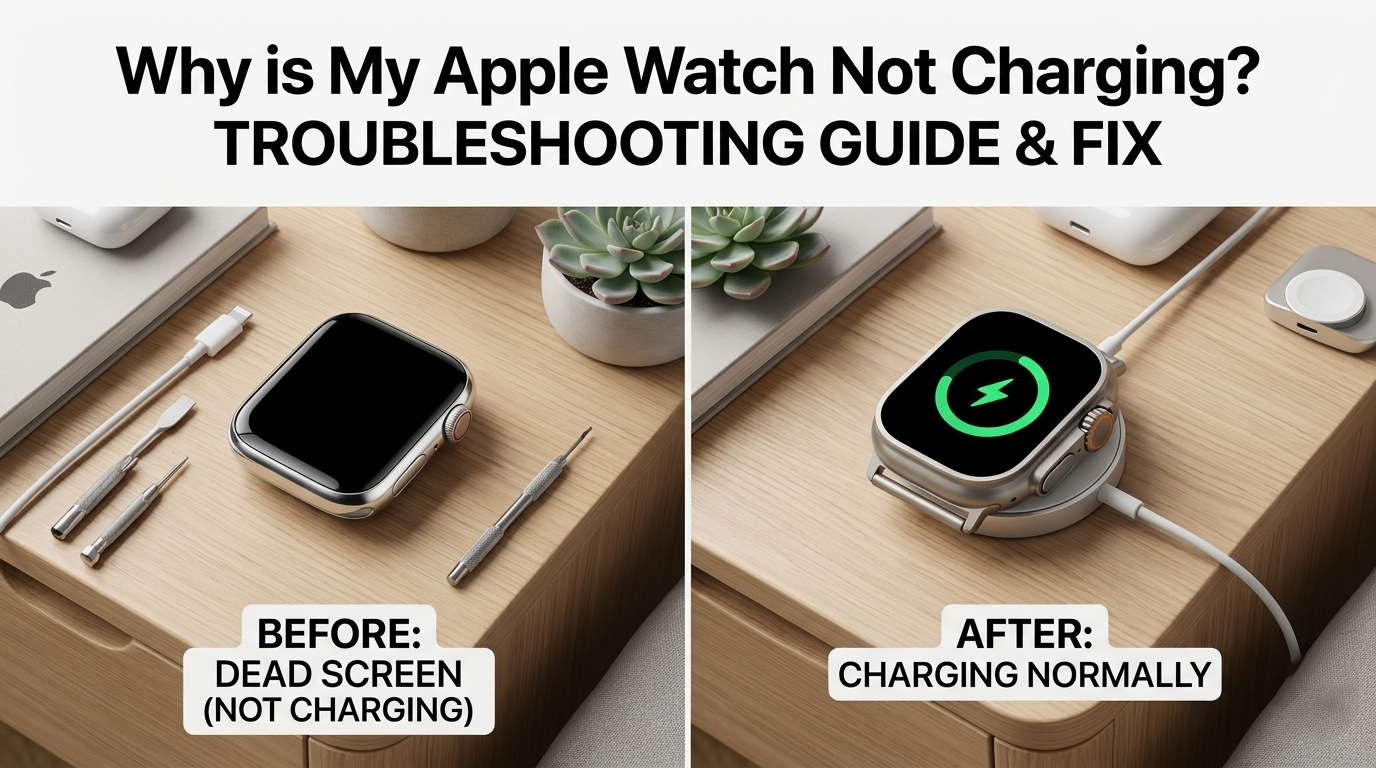
Your Apple Watch is sitting on the charger but nothing is happening. No green lightning bolt. No charging sound. You’re met with nothing but a dark, unresponsive display.Before you panic or drive to the Apple Store, take a breath , most charging problems are quick and easy to fix at home.
This guide walks you through every common cause and fix, from a 10 second clean to advanced watchOS resets. We also cover the tricky situations like the 80% charging stop, red vs. green icons, and water damage ,things most other guides skip entirely.
Quick Answer: The 60 Second Diagnostic
Here is quick answer to know about “Why is My Apple Watch Not Charging”?

Here is the quick way to know about “Why is My Apple Watch Not Charging”?
If your Apple Watch is not charging, the cause is almost always one of these five things. Find your symptom in the table below and jump straight to the fix:
| Your Symptom | Quick Fix |
| Watch not charging at all | Clean the puck, force restart, check wall adapter |
| Stuck at 80% | Optimized Battery Charging is ON , this is normal |
| Stopped charging suddenly | Watch is too hot , let it cool for 10 minutes |
| After swimming/rain | Water Lock may be active , shake wrist to clear it |
| No charging symbol | Charger not aligned , reposition the magnetic puck |
Try Our Free Battery Diagnostic Tool: Not sure what’s wrong with your Apple Watch? Use our interactive Battery Diagnostic Tool below to get a personalized fix in under 60 seconds. Just click the button and answer 3 quick questions.
Understanding the Icons: Red vs. Green Charging Indicators

One thing most guides skip is explaining what the icons on your screen actually mean. These little symbols are Apple’s way of talking to you , and if you know what they mean, you can diagnose the problem in seconds.
| Icon You See | What It Means |
| 🟢 Green Lightning Bolt | Charging normally , everything is fine |
| 🔴 Red Lightning Bolt | Battery is critically low , needs 30 min before it turns on |
| 🔴 Red Bolt in a Ring | Battery too dead to show anything , keep charging |
| No Symbol | No power connection , check alignment and cable |
| 🌡️ Temperature Icon | Watch is too hot or cold , stop charging, let it rest |
The most confusing one is the red lightning bolt inside a ring. It does NOT mean your watch is broken. It just means the battery is so empty that the watch needs to trickle charge for 10 to 30 minutes before it can even turn on. Just leave it on the charger and walk away.
Why Your Apple Watch Stopped at 80% (It’s Not Broken)

This is one of the most common panic moments for Apple Watch owners. You wake up to a frustrating sight: your watch battery is frozen at 80%. Before you assume the worst, this is almost always a feature , not a fault.
Apple introduced a feature called Optimized Battery Charging. It learns your daily charging routine and intentionally pauses charging at 80% to reduce battery wear over time. The watch then finishes charging to 100% just before you normally wake up or remove it from the charger.
To charge to 100% right now:
- Tap the watch screen while it sits on the charger
- Tap the charging circle icon that appears
- Select “Charge to Full Now”
To turn off Optimized Battery Charging completely:
- Open Settings on your Apple Watch
- Tap Battery → Battery Health
- Toggle off Optimized Battery Charging
Important Note: On Apple Watch Series 9, Ultra, and newer models, Optimized Battery Charging cannot be fully disabled this is by design to protect battery lifespan. If charging stops at 80%, this is normal behavior on those models.
There is a second reason your watch can stop at 80% , thermal throttling. If the watch or the room is too warm, watchOS automatically pauses charging to prevent battery damage from heat. This is different from Optimized Charging. Simply move your watch to a cooler spot and charging will resume.
Step by Step Troubleshooting (From Easiest to Advanced)

Work through these steps in order. Most people fix the problem at Step 1 or 2 without going any further.
Step 1: Thermal Check , Is Your Watch Too Hot?
Before you do anything else, feel the back of your watch and the charging puck. If either one feels warm, that is your problem right there. Apple Watch automatically stops charging when the temperature rises above a safe threshold.
Simply unplug the charger, move your watch to a cool, shaded area, and wait 10 minutes. Then try charging again. This fix works 100% of the time for heat related charging failures.
Pro Tip: Never charge your Apple Watch in direct sunlight, on a car dashboard, or near a hot laptop. These environments cause thermal shutdowns every time.
Step 2: Deep Cleaning the Puck and Sensor (The Alcohol Method)
Sweat, sunscreen, lotion, and skin oils build up on the back of your watch over time. Even a thin invisible film can block the inductive charging coil from making a proper connection. This is the #1 cause of sudden charging failures in watches that were working fine before.
How to clean properly:
- Dampen a microfiber cloth or cotton ball with 70% isopropyl alcohol
- Gently wipe the back of your watch in a circular motion
- Wipe the magnetic face of the charging puck the same way
- Let both dry completely for 60 seconds before placing the watch on the charger
Do not use wet wipes, paper towels, or plain water. These can leave residue that makes the problem worse. Isopropyl alcohol is safe for Apple Watch sensors and evaporates cleanly.
Step 3: Force Restart & watchOS Glitch Fixes
Sometimes watchOS crashes a background process that handles the charging handshake. The watch looks normal but it simply will not accept a charge. A force restart clears this instantly , and it takes about 15 seconds.
How to Force Restart your Apple Watch:
- Hold the Side Button AND the Digital Crown at the same time
- Keep holding both buttons for at least 10 seconds
- Release when the Apple logo appears on screen
- Place the watch on the charger immediately after it restarts
After the restart, you should see the green lightning bolt appear within 30 seconds. If you do, a software glitch was the culprit. If not, move to Step 4.
Step 4: Testing the Power Chain (Wall Plug to Cable)
Think of your charging setup as a chain: Wall Outlet → USB Adapter → Cable → Charging Puck → Watch. Any single weak link breaks the whole chain. Test each part separately.
Test checklist:
- Try a different wall outlet , the current one may have tripped a breaker
- Swap to a 20W USB C adapter (low wattage laptop ports often fail to charge the watch)
- Check the cable for kinks, fraying, or micro cracks near the puck base
- Wiggle the cable gently , if charging briefly starts, the cable is dying
- If possible, borrow a friend’s Apple Watch charger to test
Tech Fact: Apple Watch requires at least 5W of clean power for normal charging. Fast charging on Series 7 and newer requires a 20W USB C adapter. Laptop USB ports often provide only 2.5W , not enough to charge the watch reliably.
Hardware Secrets: Third Party Chargers & Wattage Needs

Not all Apple Watch chargers are the same, and this is where many people waste hours troubleshooting. Here is what you need to know about wattage requirements for each watch series.
| Apple Watch Model | Min. Wattage | Fast Charge? |
| Series 4, 5, 6, SE | 5W USB A or USB C | No |
| Series 7, 8, 9 | 5W minimum / 20W for fast charge | Yes (20W USB C) |
| Ultra, Ultra 2 | 5W minimum / 20W for fast charge | Yes (20W USB C) |
| Series 10 & newer | 5W minimum / 20W for fast charge | Yes (20W USB C) |
Third party chargers that are MFi certified (Made for iPhone/Apple Watch) work perfectly fine. The ones to avoid are cheap knockoffs without MFi certification. These chargers can provide unstable current that causes your watch to charge erratically or not at all and in rare cases, they can damage the battery.
Liquid Damage & Water Lock: The Silent Charging Killers

Apple Watch is water resistant , but water trapped inside the speaker housing can fool the internal sensors into thinking the watch is still wet. When this happens, the watch may refuse to charge or show erratic behavior.
How to clear Water Lock and trapped water:
- Swipe up on the watch face to open Control Center
- Tap the water droplet icon to activate Water Lock
- Rotate the Digital Crown to expel water through the speakers
- Dry the back of the watch and the charging puck with a lint free cloth
- Wait 5 minutes before placing on the charger
If your watch has been submerged in salt water, chlorinated pool water, or soapy water, rinse it gently with fresh water first. Salt and chlorine residue can corrode the charging contacts over time, causing permanent charging failures.
Diagnostic Mode: How to Check Your Battery Health Locally

Before you visit an Apple Store or spend money on a repair, check your battery health yourself. This takes under 2 minutes and tells you whether the problem is a software glitch or a worn out battery.
Enter the Battery Health dashboard.
- Open the Settings app on your Apple Watch
- Scroll down and tap Battery
- Tap Battery Health
- Look at the Maximum Capacity percentage
| Battery Health | What to Do |
| 100% to 80% | Battery is healthy. The problem is likely software or charger related. Follow Steps 1 to 4. |
| 79% to 60% | Battery is aging. Try all fixes above. Consider a battery replacement if problems persist. |
| Below 60% | Battery is worn out and needs replacement. Visit Apple Support or an authorized service center. |
Updated watchOS 10.5+ Fast Charge Thermal Protocols

Modern watchOS releases automatically pause fast charging if environmental temperatures exceed 86°F (30°C) to prevent lithium ion degradation. This software lock displays a silent thermal pause notification directly on your charging screen dial. Simply cooling the room or removing protective watch cases instantly unlocks full charging speeds again.
MagSafe Duo & Qi2 Universal Charger Compatibility

With recent updates to wireless power standards, older third party Qi chargers may drop connection or cycle power continuously on Apple Watch Series 9 and Ultra 2. Using certified MagSafe Duo or official MFi Qi2 pucks prevents unexpected charging disconnections. Always verify charger firmware compatibility when experiencing intermittent overnight drops.
Smart Battery Health Limits in watchOS 10+

On Apple Watch SE 2, Series 9, and Ultra models, watchOS enforces dynamic limits based on daily usage habits and ambient temperatures. The watch may hold at 80% charge throughout the day until it predicts off charger usage. This is managed dynamically by system machine learning rather than a hard static timer.
Force Restart Timing for watchOS 10+ Systems

The button timing for clearing deep background system deadlocks on newer watchOS versions now requires holding both buttons until the screen fully turns off and back on. You must maintain pressure for at least 15 continuous seconds until the Apple logo appears. Releasing the side buttons prematurely only puts the watch into low power mode.
Diagnostic Port Removal and Sensor Calibration

Recent Apple Watch generations have completely removed physical diagnostic ports, relying entirely on 60GHz wireless data recovery at service centers. If your sensor glass shows micro scratches over the inductive coil, clean the glass with a optical grade lens solution to restore optimal magnetic alignment and power transfer efficiency.
FAQs: Common Apple Watch Charging Glitches
Q: Why does my Apple Watch charge to 80% and stop?
This is Optimized Battery Charging. Your watch learned your schedule and is pausing at 80% to protect battery life. Tap the charging circle on screen and select “Charge to Full Now” if you need 100% right away. To permanently disable it, go to Settings → Battery → Battery Health → Optimized Battery Charging.
Q: My Apple Watch shows a red snake when charging , is it broken?
No, the red lightning bolt means your battery is critically low. If it is inside a ring, the battery is so empty the watch cannot even power on yet. Leave it on the charger for at least 30 minutes without touching it. The icon will change to green when it has enough charge to boot.
Q: Why is my Apple Watch charging very slowly?
The most common cause is a low wattage power source. Laptop USB ports and old USB A phone chargers often deliver too little power. Switch to a 20W USB C wall adapter. Also make sure the charging puck is clean and properly aligned , misalignment reduces charging efficiency dramatically.
Q: Can I use any USB C charger with my Apple Watch?
You can use any USB C adapter that provides at least 5W. For fast charging on Series 7 and newer, you need a 20W USB C adapter. Avoid cheap, uncertified chargers , unstable power output can damage your battery over time.
Q: My watch was in water and now it won’t charge , what do I do?
First, use Water Lock (Digital Crown rotation) to expel trapped water from the speakers. Then dry the back of the watch and the charger thoroughly. Wait at least 5 minutes before attempting to charge. If charging still fails after drying, visit an Apple Store , water may have reached the internal sensors.
Q: My Apple Watch is completely dead and won’t respond at all. Is it broken?
Probably not. A completely dead Apple Watch can take up to 30 minutes of charging before anything appears on screen. Place it on the charger and leave it alone for 30 minutes. Do not keep tapping the screen or removing it from the charger. The green lightning bolt will appear once it has enough power.
Still not fixed? If you have tried every step above and your Apple Watch still refuses to charge, the issue is most likely a hardware fault , either a worn out battery below 60% capacity, a damaged charging port, or internal liquid damage. At this point, contact Apple Support at support.apple.com or visit an Apple Authorized Service Provider. Battery replacements for Apple Watch typically cost $79 to $99 USD and can be done same day at most Apple Stores.
Author Note
As a smartwatch diagnostic developer, I personally test every troubleshooting method on real hardware across multiple watchOS versions. This guide reflects verified technical data to help you safely fix charging issues without unnecessary repairs. My goal is to ensure your wearable tech remains reliable and operational every day.