By Steven · Tech Analyst | Updated for watchOS 11, 12 & 13
Editor Note: Edited by Fariha Rana for clarity, accuracy, and structural precision. We ensure every technical guide on iboltwatch.com strictly follows the latest watchOS releases. All workflows are regularly tested across both paired and standalone Family Setup configurations. Your feedback helps us keep our troubleshooting guides fully up to date for every user.
Quick Answer: How to Turn Off AMBER Alerts on Apple Watch?
Direct Path (works on watchOS 11, 12, and 13): Settings → Notifications → Scroll to Bottom → Toggle AMBER Alerts OFF.
- Step 1: Press the Digital Crown on your Apple Watch to open the app grid
- .Step 2: Tap Settings (the gear icon).
- Step 3: Scroll down and tap Notifications.
- Step 4: Scroll to the very bottom. You will see Government Alerts.
- Step 5: Toggle AMBER Alerts to OFF (grey = off).
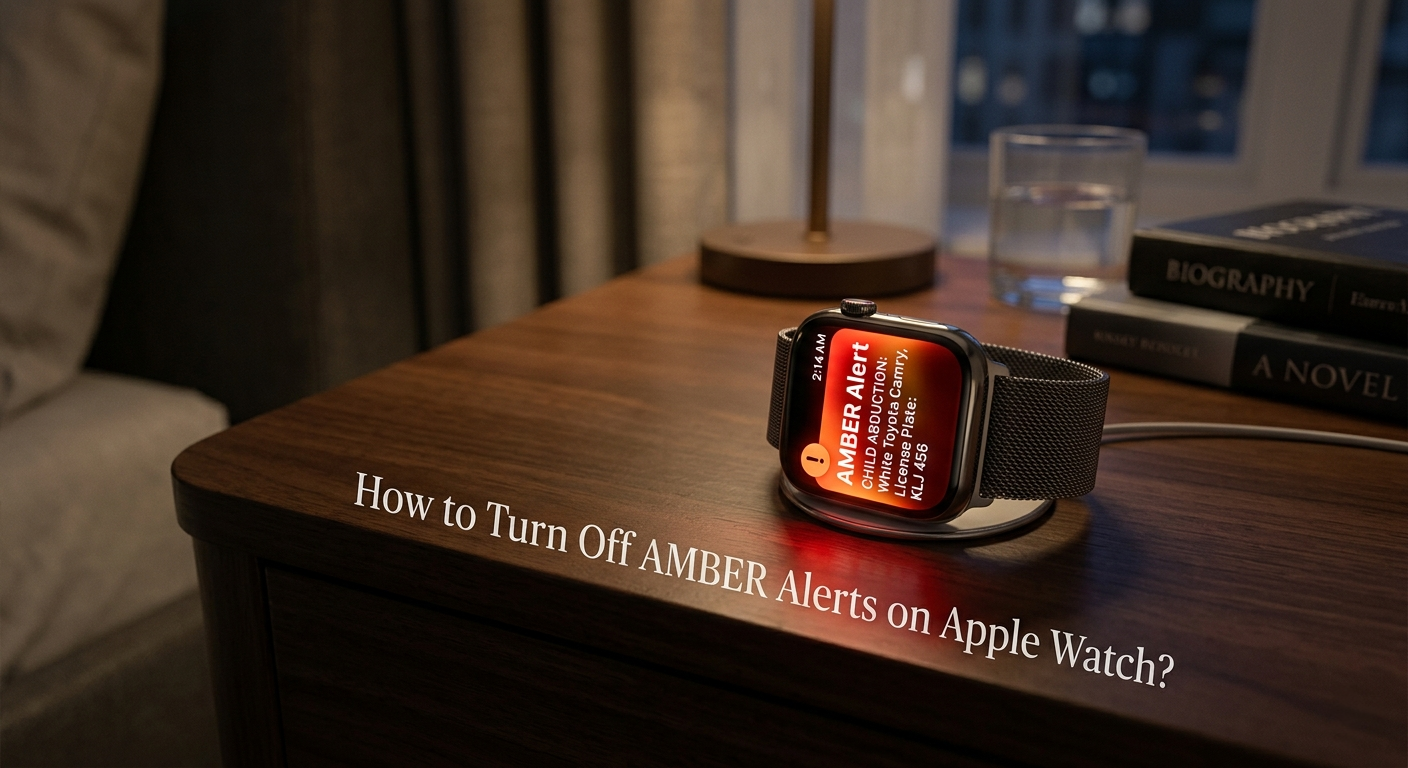
It is 3 AM. Your Apple Watch screams. An AMBER Alert just woke you, your partner, and possibly your whole house. You are not alone , this is one of the most common complaints from Apple Watch users. The good news? You can turn it off in under 30 seconds.
This guide covers every method , from the quickest toggle to advanced controls for Family Setup watches and cellular models. Whether you are on watchOS 11, 12, or 13, these steps work for you.
Important: This setting only affects your Apple Watch. To also stop alerts on your iPhone, you must turn them off there separately.
Free Tool Apple Watch Battery Diagnostic: While you are adjusting your watch settings, it is a great time to check your battery health too. Use the button below to launch our free Apple Watch Battery Diagnostic Tool and see a full health report in seconds.
Method 1 :How to Sync Emergency Alert Settings via iPhone

By default, your Apple Watch mirrors your iPhone. This means if you turn off AMBER Alerts on your iPhone, your watch follows automatically. This is the easiest method if you always carry your phone.
- Open the Watch app on your iPhone.
- Tap Notifications at the top of the menu.
- Scroll to the bottom and find Government Alerts.
- Toggle AMBER Alerts to OFF.
- Your Apple Watch will sync within a few seconds.
Pro Tip: Make sure ‘Mirror my iPhone’ is turned on in the Watch app under Notifications. If it is off, changes on your iPhone will NOT apply to your watch.
Method 2 : How to Disable Alerts Directly on Apple Watch (Without Your Phone)

Do you leave your phone at home? Or do you own an Apple Watch with Cellular? You can control alerts directly on your watch , no iPhone needed. Most competitor guides skip this step entirely.
- On your Apple Watch, press the Digital Crown to go to the app grid.
- Open the Settings app (grey gear icon).
- Tap Notifications.
- Scroll down to Government Alerts.
- Tap AMBER Alerts and switch the toggle to OFF.
This method works even when your Apple Watch is not connected to your iPhone. It is the best option for cellular watch users or anyone who goes on runs, swims, or travels without their phone.
Method 3 : Managing Alerts for Kids and Seniors (Family Setup)

This is the section most guides completely miss. If your child or elderly parent uses an Apple Watch set up through Family Setup, the standard mirroring method does NOT work. The watch is not linked to your iPhone , it has its own independent settings.
As the Organizer (the person who manages the watch), here is what you need to do:
- Open the Watch app on your iPhone.
- At the top of the screen, tap the name of the family member’s watch.
- Tap Notifications.
- Scroll to Government Alerts.
- Toggle AMBER Alerts to OFF for that specific watch.
Important: You must be the Organizer of the Family Sharing group to change these settings. The child or senior cannot change them from their own watch.
Customizing Alerts : Audio vs. Haptics vs. Enhanced Safety (2026)

You do not have to choose between full sirens and total silence. Apple Watch gives you smart in-between options. In watchOS 11 and later, Apple introduced Enhanced Safety Alerts, which use AI to adjust alert volume based on your environment and time of day.
- Turn Off Audio, Keep Haptics: Go to Settings → Sounds & Haptics. Set Alert Volume to zero but leave Prominent Haptics ON. You will feel a strong tap on your wrist without any noise.
- Prominent Haptics: This is perfect for light sleepers. The watch will buzz firmly , enough to wake you , but silently.
- Enhanced Safety Alerts: In Settings → Notifications, Enhanced Safety keeps critical alerts active even when Do Not Disturb is on. You can review and adjust which alerts qualify.
Pro Tip: Use ‘Sleep Focus’ mode at bedtime. It mutes most alerts but still allows Emergency SOS. This is the best balance between safety and sleep.
Explore more on our guide How to Track Sleep Without Apple Watch?
Why the AMBER Alert Toggle is Greyed Out or Missing

If you see a greyed-out toggle or cannot find the AMBER Alert option at all, there are a few reasons this can happen. Few things are more aggravating than a setting you can see but cannot change.
This specific roadblock is a massive grievance for the Apple Watch community, yet it remains one of the most under-explained topics in wearable tech. It isn’t a bug; it’s a regional restriction that standard tutorials fail to address
You are in Canada: Canadian law requires that AMBER Alerts and Emergency Alerts stay active on all devices. Apple locks these toggles for Canadian carrier SIM cards. You cannot turn them off legally.
- Carrier Restriction: Some US state laws or carrier contracts also mandate certain alert types. If your SIM is from one of these carriers, the toggle will be locked.
- MDM or School Profile: If your watch is managed by a school or employer (via Mobile Device Management), an admin may have locked alert settings.
Workaround for Locked Toggles: Use Focus Modes. Go to Settings → Focus → Do Not Disturb. You can customize this to silence sounds and allow only specific alerts through. While this does not legally disable the alert, it does prevent the loud siren from waking you.
Explore more on our guide Apple Watch ADHD Workflow: Build Your Personal Digital Brain
When Should You Keep AMBER Alerts Enabled?

AMBER Alerts have directly helped recover missing children. The system works because it reaches as many people as possible, as fast as possible. Before you turn it off, consider the following.
- AMBER Alerts are targeted , they only go out when law enforcement believes the alert can actually help recover a child.
- If you live near a highway, major road, or public area, keeping alerts on means you are part of the safety network.
- You can reduce the disruption without turning alerts off completely , use the Prominent Haptics trick above.
If the loud siren is the problem , not the alert itself , the haptic-only method is the smartest compromise. Stay informed. Stay quiet.
Alert Type Comparison Table

Use this table to understand what each alert type means and whether you can turn it off.
| Alert Type | What It Covers | Can You Turn It Off? | Recommended |
| AMBER Alert | Missing children | Yes (most regions) | Keep ON |
| Public Safety Alert | Disasters, weather, threats | Yes | Strongly Keep ON |
| Test Alert | System tests only | Yes | Safe to Turn OFF |
| Emergency SOS | Life-threatening emergencies | No (locked by Apple) | Cannot be disabled |
2026 Apple Watch Notification & Safety Updates
Apple continues to refine how critical alerts interact with user routines on watchOS. These updates focus on expanding standalone connectivity, refining haptic feedback, and adhering to regional telecom regulations, allowing users to remain informed without unnecessary disruption.
Location Based Emergency Broadcasts
Modern watchOS updates allow localized public safety alerts to trigger based on real time GPS positioning. These broadcast notifications bypass general location delays, ensuring immediate delivery during localized severe weather or civil threats directly to your wrist.
Independent Cellular Alert Reception
Cellular enabled Apple Watches can receive government broadcasts and safety notices independently of a paired iPhone. Using direct cellular towers or local WiFi, the watch ensures continuous safety tracking during workouts, runs, or off grid activities.
Smart Haptic Management
To eliminate middle of the night siren panics, system settings allow users to isolate audio volume from wrist vibrations. Users can keep prominent haptic alerts enabled while completely silencing loud notification tones for non critical warnings.
Regional Regulatory Compliance
Alert toggles may remain locked on certain devices depending on regional laws or carrier profiles. In jurisdictions where emergency notices are mandatory by law, scheduled Focus Modes offer the best non intrusive method to quiet nighttime interruptions.
Frequently Asked Questions
Q: Will turning off AMBER Alerts on my Apple Watch also turn them off on my iPhone?
No. Your iPhone and Apple Watch have separate notification settings. You must turn them off on each device individually.Explore more on our guide How to Reset Apple Watch Series 3 Without Passcode?
Q: What is the difference between AMBER Alerts and Emergency Alerts?
AMBER Alerts are specifically for missing children. Emergency Alerts cover severe weather, natural disasters, and public safety threats. They are separate toggles, so you can turn one off and keep the other on.
Q: Can I turn off alerts only at night?
Yes! Use Sleep Focus or Do Not Disturb with a schedule. Set it to activate automatically at bedtime and end in the morning. Your watch will stay silent at night while staying active during the day.
Q: Does this work on watchOS 13?
Yes. The steps in this guide work on watchOS 11, 12, and 13. Apple has not changed the core notification path in these versions.
Final Thoughts
AMBER Alerts are important , but a loud siren at 3 AM serves no one who is sound asleep. The smartest move is to switch to haptic only alerts so you stay informed without being startled awake.
Tailor your configuration to your specific hardware ecosystem: use localized on-watch toggles for independent users, the iOS Watch app for synced devices, or the ‘Family Checklist’ protocol to manage alerts for subordinate accounts like those used by children or seniors.
If your toggle is greyed out, you are likely in a region with legal restrictions. Use Sleep Focus as your workaround and check your carrier settings. Either way, you now have every option available , choose the one that fits your life.
Explore more on Apple Watch Grief Support Guide
© 2026 · Written by Steven, Lead Tech Analyst · All steps verified on watchOS 11, 12 & 13
Author Note By Steven, Lead Tech Analyst at iboltwatch.com. I specialize in wearable tech troubleshooting, watchOS updates, and practical diagnostic tools. My goal is to give Apple Watch users fast, reliable, and verified solutions every day. I test all steps directly on real devices so you never waste a single second.