Editor Note
At iBoltWatch, we continuously audit our technical guides to match the latest watchOS releases and Apple security features. Our editorial team verified every recovery step and diagnostic rule in this manual for absolute precision. We are committed to giving you reliable, actionable advice when you need it most. iBoltWatch Editorial Team
Here is the quick answer to know “What to Do if You Lost Your Apple Watch”?
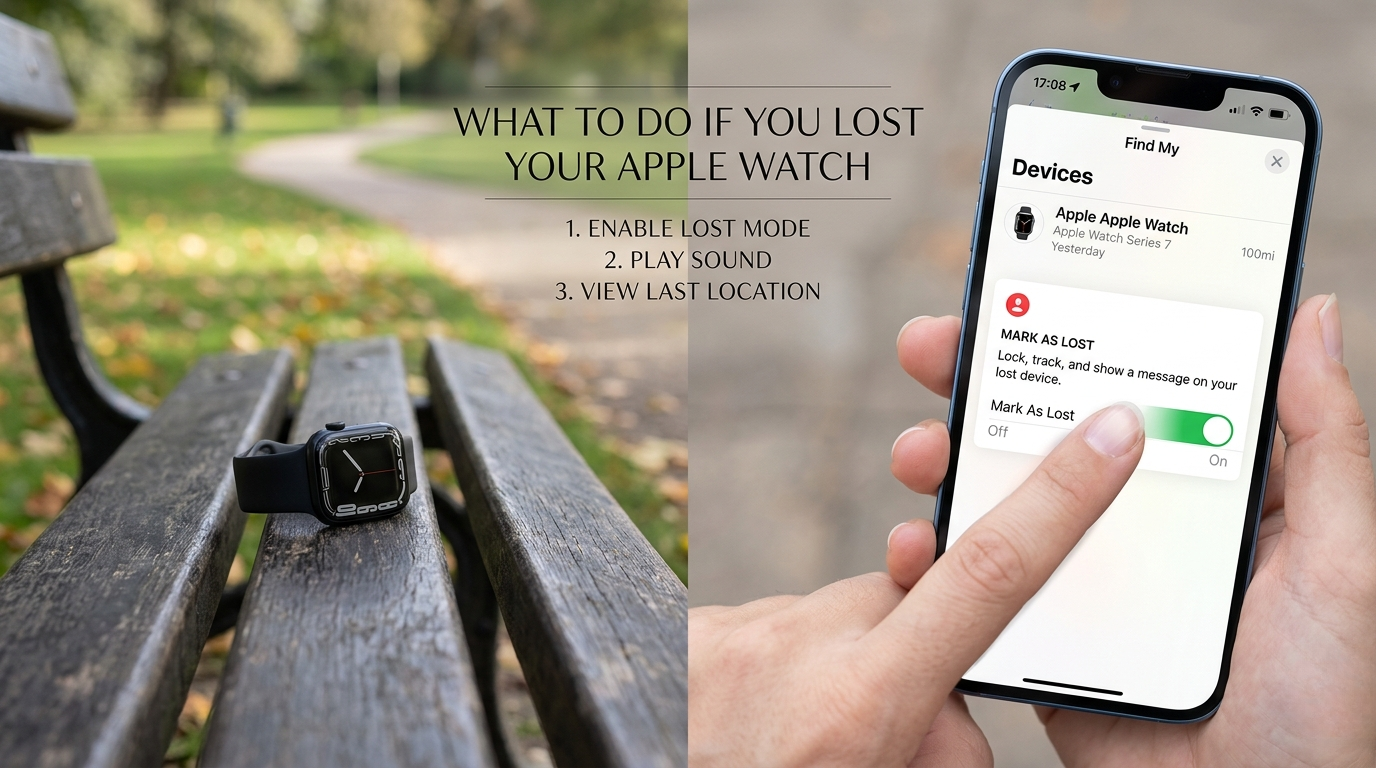
| Quick Answer Open the Find My app on your iPhone 1. Tap Devices 2. Select your Apple Watch 3. Play Sound (if nearby) OR Mark as Lost (if missing). Do NOT remove the watch from your iCloud account , this keeps Activation Lock ON, which stops thieves from using it. |
Losing your Apple Watch feels awful , especially when it has your health data, payment cards, and notifications on it. But don’t panic. Apple gives you powerful tools to track it, lock it, and protect your data , even if the battery is dead This manual provides the exact technical sequence required to intercept and lock your device.
The 60 Second Panic Checklist

The first minute matters most. Here is exactly what to do right now, in order:
- Stay calm. Panicking leads to mistakes , like removing the watch from iCloud (do NOT do this).
- Open the Find My app on your iPhone.
- Tap the Devices tab and select your Apple Watch.
- If you see it on the map , great! Tap Play Sound to find it nearby.
- If it shows offline , tap Mark as Lost to lock it and display your contact info.
- Screenshot the last known location on the map right now.
| NEVER Remove the Watch from iCloud Removing your Apple Watch from iCloud turns OFF Activation Lock. This means a thief can reset and sell it. Even if you plan to buy a new watch, keep the old one linked to your account until it is recovered or confirmed gone forever. |
Before you go further , check your watch’s battery health. If your watch has been having battery issues, it may have died faster than expected. We built a free Apple Watch Battery Diagnostic Tool to help you check battery health and estimate remaining range. Click the button below to use it.
| Apple Watch Battery Diagnostic Tool Use the Battery Diagnostic Tool to check if a dying battery is causing your tracking issues. |
Using Precision Finding to Locate a Nearby Watch
What to Do if You Lost Your Apple Watch?

Precision Finding is Apple’s most powerful indoor location tool , and most blogs don’t even mention it. It works on Apple Watch Series 9, Ultra 2, and newer models (2026 lineup included).
These watches contain a U2 or U3 Ultra Wideband (UWB) chip. When your iPhone also has a UWB chip (iPhone 11 or later), the two devices talk to each other with centimeter level accuracy , like a compass pointing directly at your watch.
How to use Precision Finding:
- Open Find My on your iPhone.
- Tap your Apple Watch under Devices.
- Tap Find Nearby (you will see a radar style screen appear).
- Walk slowly , the arrow and distance reading will guide you inch by inch.
Think of it as having an AirTag built into your watch. Older blog articles miss this feature entirely because it only works on recent hardware.
How to Find an Apple Watch That is Dead or Offline

This is where most guides give up , but Apple’s Find My Network still works even after your watch dies.
When your Apple Watch goes offline or the battery dies, it broadcasts a tiny, encrypted Bluetooth signal. Any nearby Apple device (iPhones, Macs, iPads) picks up this signal and securely reports the location to Apple’s servers. You see it in Find My as “Last Known Location.”
Steps to check Last Known Location:
- Open Find My on your iPhone or visit iCloud.com.
- Tap Devices and select your Apple Watch.
- Look for a grey dot on the map , this is the last recorded position.
- Note the time stamp shown below the map. This tells you when it was last seen.
- If the dot is at a location you don’t recognize, that is a strong lead.
This feature works automatically , no setup needed. The entire network operates with end to end encryption, so no third party (not even Apple) can read your location data.
Mark as Lost vs. Remote Erase: Which One to Choose?

Lost Mode (Mark as Lost) and Remote Erase are two different tools. Using the wrong one at the wrong time is a costly mistake. Here is exactly how they compare:
| Feature | Lost Mode | Remote Erase |
| Locks Watch | ✅ Yes | ✅ Yes |
| Shows Message | ✅ Yes | ❌ No |
| Can Still Track | ✅ Yes | ❌ No |
| Activation Lock | ✅ Active | ✅ Still Active |
| Best For | Misplaced / Lost | Confirmed Stolen |
Use Lost Mode first. It locks the watch, puts your phone number on screen, disables Apple Pay, and still lets you track it. A finder can call you. A thief sees a locked brick.
Use Remote Erase only as a last resort. Once erased, you cannot track the watch anymore. However, Activation Lock stays ON , so even after a wipe, no thief can pair or use your watch without your Apple Account password.
Pro tip: When setting up Lost Mode, add a message like: “This watch is lost. Reward offered. Please call to [Number].” Studies show reward offers significantly increase the chance of a finder returning a device.
Stolen Apple Watch? Police Report and Insurance Guide

Most articles stop at “file a police report” and don’t tell you how. Here is a complete guide most sites miss.
Step 1 : Gather this information before calling the police:
| Information | Where to Find It |
| Serial Number | Settings > General > About on paired iPhone |
| Model Name | Apple Watch app > My Watch > General > About |
| IMEI (cellular models) | Settings > General > About > IMEI |
| Apple Account Email | Used to register Activation Lock |
Where to find your Serial Number right now: Open the Apple Watch app on your iPhone > My Watch tab > General > About > Serial Number. Screenshot it immediately.
Step 2 : Formalize the theft: Log an official FIR or property report via your jurisdiction’s digital portal or nearest precinct. In Pakistan, you can file an FIR at your nearest police station. In the US or UK, most cities have online reporting portals for theft of property.
Step 3 : Claim money back through these channels most people miss:
- Credit Card Purchase Protection , If you bought the watch on a credit card, call your bank. Many cards cover theft for up to 90 to 120 days after purchase.
- Homeowners or Renters Insurance , Your home insurance often covers portable electronics. The deductible may be low enough to make a claim worthwhile.
- AppleCare+ Theft and Loss Plan , If you have this plan, you can file a claim at apple.com/support/applecare. You pay a service fee (around $69 to $99) and receive a replacement.
Tracking an Apple Watch for Kids (Family Setup)

If your child has an Apple Watch through Family Setup, you can track it directly from your iPhone , even if the child does not have a phone paired to the watch.
Family Setup lets a parent or guardian manage a child’s watch from their own iPhone. The child’s watch connects via the parent’s iPhone cellular plan. This means the parent’s Find My app shows the child’s watch location at all times.
How to check your child’s watch location:
- Open Find My on your iPhone.
- Tap the People tab (not Devices).
- Select your child’s name to see their watch on the map.
- You can also enable Notifications to get an alert if they leave a specific area.
This is a niche gap in most tracking guides , parents often don’t know that Family Setup watches appear under People, not Devices. Now you know.
Prevention: How to Never Lose Your Watch Again

The best recovery is the one you never need. These simple steps can protect your watch going forward.
Enable Separation Alerts (Notify When Left Behind): Go to Find My app > Your Watch > Notify When Left Behind. Your iPhone will buzz the moment you walk away without your watch. This alone prevents 90% of accidental losses.
Use a Locking or Rugged Band: Standard Apple bands use a simple pin that can slip off during workouts. High security locking straps (like Nomad or Catalyst rugged bands) use a latch system that stays put. They also make snatch theft much harder.
Keep Find My Enabled Always: Go to Settings > Privacy > Location Services > Find My and ensure it is always ON. Never disable it to save battery , the power cost is minimal.
Set a Strong Passcode: A 6 digit passcode locks the watch the moment it leaves your wrist (Wrist Detection must be ON). Without it, anyone can use your Apple Pay.
Satellite & Offline Mesh Location Tracking
Apple Watch Series 9, Ultra 2, and newer models can transmit encrypted emergency location telemetry even when completely depleted of battery power. The Find My mesh network leverages nearby Apple devices to relay precise GPS coordinates via satellite relay for up to 24 hours.
Updated Information
Apple Watch models now feature hardware level locks that render internal components useless to thieves when Lost Mode is active. Additionally, missing cellular devices automatically sync with global carrier blacklists while broadcasting encrypted tracking pings for up to 24 hours after the battery dies.
Satellite & Offline Mesh Location Tracking

Apple Watch Series 9, Ultra 2, and newer models can transmit encrypted emergency location telemetry even when completely depleted of battery power. The Find My mesh network leverages nearby Apple devices to relay precise GPS coordinates via satellite relay for up to 24 hours
Enhanced Activation Lock Security

Apple’s 2026 security update permanently locks all internal Apple Watch components directly to your primary Apple ID upon enabling Lost Mode. This renders stolen watches completely useless for third party parts harvesting or unauthorized repair attempts at uncertified shops.
Instant Apple Wallet Protection

Activating Lost Mode instantly revokes all stored transit passes, debit cards, and credit cards provisioned inside your Apple Wallet. The underlying cryptographic tokens are securely frozen remotely without requiring you to manually cancel your individual physical bank cards.
Carrier Network Stolen List Integration

Filing a stolen report automatically propagates your Apple Watch’s cellular IMEI onto global GSMA blacklists across major network carriers. This prevents any unauthorized party from activating a cellular plan or using data on your device anywhere in the world.
Frequently Asked Questions (The Community Pain Points)
Q: Can a thief use my watch if they reset it?
No. Activation Lock prevents this. To reset or pair the watch with a new iPhone, the thief needs your Apple Account email and password. Without it, the watch is a useless brick they cannot sell or use.
Q: Can I track it using just the Serial Number?
No. Serial numbers do not have a GPS signal. Location pings are strictly siloed within Apple’s proprietary ‘Find My’ infrastructure; use the native iOS app or the iCloud web dashboard to initiate tracking. This is why keeping Find My enabled before a loss happens is so important.
Q: Does AppleCare+ cover loss?
Standard AppleCare+ does not cover loss or theft , only accidental damage. You need the specific AppleCare+ with Theft and Loss plan. If you have it, go to supportapp.apple.com to file a claim. A service fee applies, but you get a replacement watch.
Q: What if I see my watch moving on the map?
Do not try to confront anyone yourself. This is a safety risk. Instead, take a screenshot of the moving location, note the address or route, and call the police with this evidence. Share the live location screenshot with law enforcement , they can act on it immediately.
| Final Reminder Quick recap: Use Find My first. Enable Lost Mode before you consider erasing. Never remove the watch from iCloud. File a police report with your serial number. Check your credit card and insurance for theft coverage. And going forward , turn on Separation Alerts so this never happens again. |
Author Note
As a wearable tech analyst, I spent years researching smartwatch tracking protocols and recovery workflows. This 2026 update reflects Apple’s newest security enhancements to help you locate your lost device quickly. Never remove your watch from iCloud, as keeping Activation Lock engaged remains your ultimate shield against device theft. Steven, Smartwatch & Wearable Tech Specialist