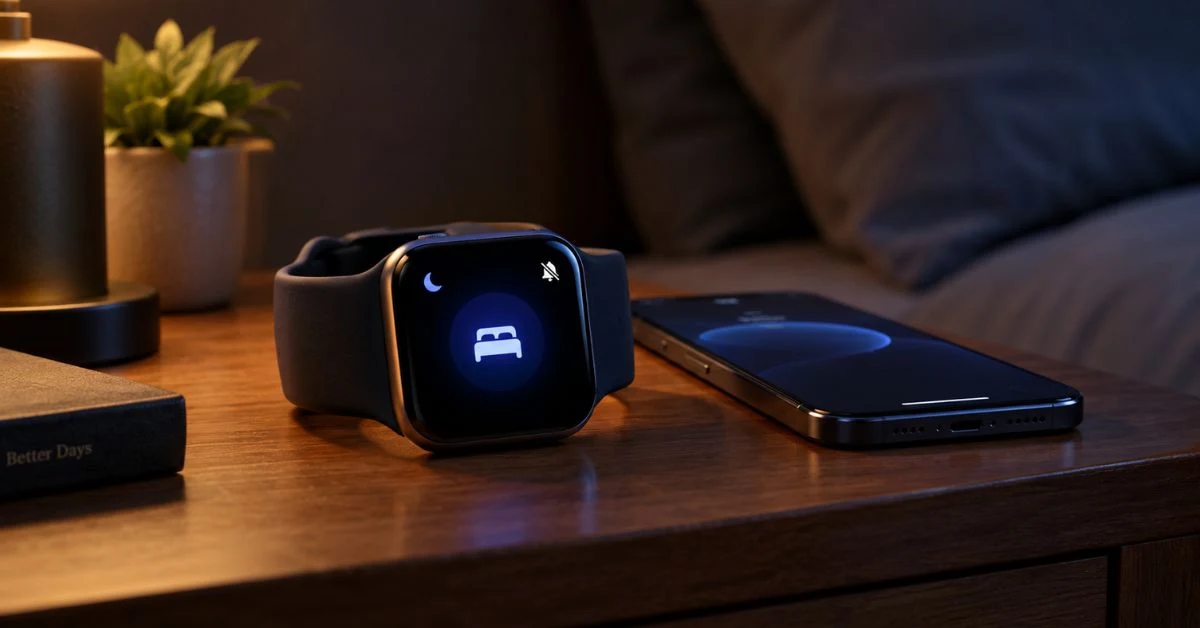
If your Apple Watch misses notifications during Sleep Focus, you’re not imagining it, and you’re not alone. It’s one of the more common complaints Apple Watch owners run into, and in most cases the fix takes a few minutes once you know where to look. This guide walks through the real causes, starting with the simplest one.
Quick Answer
Sleep Focus is built to keep the watch quiet overnight, so silence is often the setting doing exactly what it was told to do. Start by checking which apps and people are allowed through during Sleep Focus, then check Bluetooth, then restart both devices. That order clears up most cases without needing anything more advanced.
There’s also a small Apple Watch Battery Diagnostic Tool on this site. Use the button below to check your watch’s battery health before you go further into the notification fix , a struggling battery can affect how reliably alerts come through too.
Why this happens in the first place
Sleep Focus silences your watch on purpose. So when the Apple Watch misses notifications during Sleep Focus, the feature is often working correctly, not malfunctioning , it’s just following the allowed list you set up for apps and contacts.
But that’s not the only explanation. A shaky Bluetooth connection, an outdated watchOS build, or a Focus schedule that runs longer than your actual sleep window can all cause the same symptom, even hours after Sleep Focus has technically ended for the day.
One related problem worth checking: if your watch buzzes but no alert shows up on the screen, that’s a slightly different issue. Our guide on why Apple Watch vibrates but does not show notifications covers that scenario separately.
Check your Sleep Focus settings first

Open Settings on your iPhone, tap Focus, then Sleep. This is the control center for what actually reaches your watch overnight, and it’s worth a proper look rather than a quick glance.
Inside Sleep Focus, check the People and Apps lists. Anything not added there gets blocked, even if that same app’s notifications are switched on everywhere else in your phone’s settings.
Also glance at the schedule itself. A lot of people set Sleep Focus once and never touch it again, so if your sleep routine has shifted, the schedule may be silencing your watch longer than you intended.
Check notification settings for each app
Sleep Focus isn’t the only gatekeeper here. Every app still needs its own notifications turned on inside Settings, then Notifications, then the app in question.
If an app’s notifications are off entirely, the Apple Watch misses notifications during Sleep Focus and at every other time of day too , this is one of the most common mix ups people run into, since it’s easy to assume Sleep Focus is the culprit when the real cause is sitting somewhere else.
Confirm Allow Notifications is on and the alert style is set to Banners or Alerts rather than None. It’s a small setting, but it’s often the actual answer.
Restart your Apple Watch and iPhone
Restarting sounds too simple to matter, but it clears out background glitches that can quietly interfere with notifications. Turn both devices fully off, wait a few seconds, then turn them back on.
Two minutes, and it solves a surprising number of cases before you need to dig any deeper.
Check the Bluetooth connection

Your watch leans on Bluetooth to talk to your iPhone in real time. When that connection drops, even briefly, the Apple Watch misses notifications during Sleep Focus for the simple reason that it never received them , which looks identical to a settings problem from the watch’s side.
Open Control Center and confirm Bluetooth is on, and keep your phone reasonably close to the watch overnight. Walls, distance, and even where you charge your phone can weaken the signal more than people expect.
If Bluetooth keeps cutting out, toggle it off and back on. Unpairing and repairing the watch is sometimes necessary, but treat it as a later step rather than a first response.
Update watchOS and iOS
Old software carries old bugs, and notification delivery is one of the things Apple tends to quietly patch between versions. Open the Watch app, go to General, then Software Update.
Update your iPhone the same way, through Settings, General, Software Update. Keeping both devices current cuts down on a lot of these odd notification gaps.
Ran into a pairing issue mid update? Our article on Apple Watch stuck during pairing after an update walks through that specific situation.
Check Notification Center on the watch
Sometimes nothing is actually missing , the alert arrived, it just didn’t make noise or vibrate. Swipe down on the watch face to open Notification Center and see if it’s sitting there quietly.
If you find alerts there that you never felt, the likely culprit is silent mode or a low haptic strength rather than Sleep Focus. Head to Settings on the watch, then Sounds and Haptics, and turn the haptic intensity up.
Check Wrist Detection
Wrist Detection plays a bigger role than most people realize. With it off, the watch isn’t always sure it’s being worn, which changes how it handles some alerts.
Go to Settings on the watch, tap Passcode, and make sure Wrist Detection is on. It’s an easy setting to forget about, but it matters more than its name suggests.
Low Power Mode can be a factor too
Low Power Mode trims background activity to stretch battery life, and that includes some of the processes involved in delivering notifications. If it’s on overnight, alerts can slip through the cracks more easily.
Check Settings, then Battery, and switch it off before bed if you depend on alerts through the night , especially if you’re also running a sleep tracking app alongside Sleep Focus.
Common mistakes to avoid

A factory reset is usually the first thing people reach for, and it’s almost never necessary this early. A few things worth avoiding instead:
- Resetting the watch before checking the basics
- Blaming Sleep Focus without checking the allowed apps list
- Letting software updates sit for weeks
- Leaving the iPhone too far from the watch overnight
- Running several Focus modes that end up conflicting with each other
Skipping these saves you time, and keeps you from troubleshooting something that was never actually broken.
When to contact Apple Support
If you’ve been through every setting above and your watch still won’t alert you properly during Sleep Focus, it might genuinely be a hardware issue , rare, but it does happen, especially on older devices or after a failed update.
An authorized service provider can dig into things a normal settings menu can’t show you, so it’s worth booking a visit if the problem persists after a restart, an update, and a Focus check. It helps to mention to the technician that the issue is specific to Sleep Focus hours, rather than notifications failing all day, since that narrows down where they’ll look first.
Frequently Asked Questions
Why does my Apple Watch not buzz during Sleep Focus at all
Usually because Sleep Focus is blocking every alert by design, or the app sending it isn’t on your allowed list inside Sleep settings.
Does turning off Sleep Focus fix missed notifications right away
Generally yes , alerts come back almost immediately, though a quick restart helps if things still feel sluggish afterward.
Can a weak Bluetooth signal really cause this
Yes. The watch needs that live connection to receive anything, so a weak or dropped signal can look exactly like a Sleep Focus issue even when Sleep Focus has nothing to do with it.
Should I reset my watch if nothing else works
Only as a last resort. Work through settings, a restart, Bluetooth, and updates first , a reset should be the final step, not the first one.
Is some delay during Sleep Focus normal
A short delay from background syncing is fairly normal. An alert that never shows up at all usually points to a setting or connection problem instead.
Final thoughts
Most of the time, a watch that goes quiet during Sleep Focus isn’t broken , it’s following instructions that need a small adjustment. Start with the Sleep Focus settings, check individual app permissions, then work through Bluetooth and software updates if the problem sticks around.
Once those are sorted, your alerts should come back to normal, both during the day and right after Sleep Focus switches off each morning.