Lets find out 2 seconds tips for Optimize Apple Watch Series 4 Battery Life.
Quick Answer: To make your Boost Series 4 battery longer and the speed better you should do a few things.
- First turn off the thing that says ‘Mirror iPhone Alerts.
- Next limit the things that refresh in the background.
- Turn on the thing that says ‘Reduce Motion.
These quick settings shifts typically add 2 to 3 hours of daily usage time , switch to Bluetooth when your iPhone is nearby, and keep storage below 80% of the 16GB limit. Most users recover 2 to 3 hours of daily battery after applying these seven changes.These steps are enough to Optimize Apple Watch Series 4 Battery Life.
The Apple Watch Series 4 launched with a faster chip and a larger display than its predecessors , and millions of people still rely on it every day in 2026. The challenge is real: watchOS keeps getting bigger, and the S4 processor was not built to carry the weight of software designed for newer hardware.
This guide gives you every setting, habit, and technique that actually moves the needle , structured by impact level so you can start with the changes that deliver the biggest results.
1. The Series 4 Reality Check: Performance vs. Battery Health
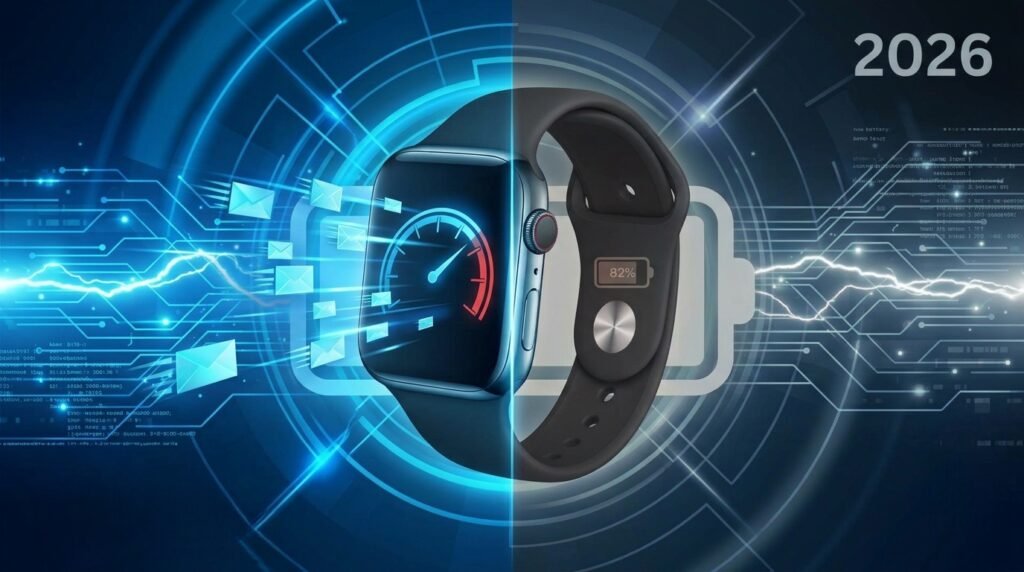
While a Series 4 can still handle daily tasks surprisingly well, its aging processor combined with a degraded battery means you’ll likely notice lag, frequent stutters, and a race against the clock to make it to evening
Is Your Battery Dying or Is It Just Aged?
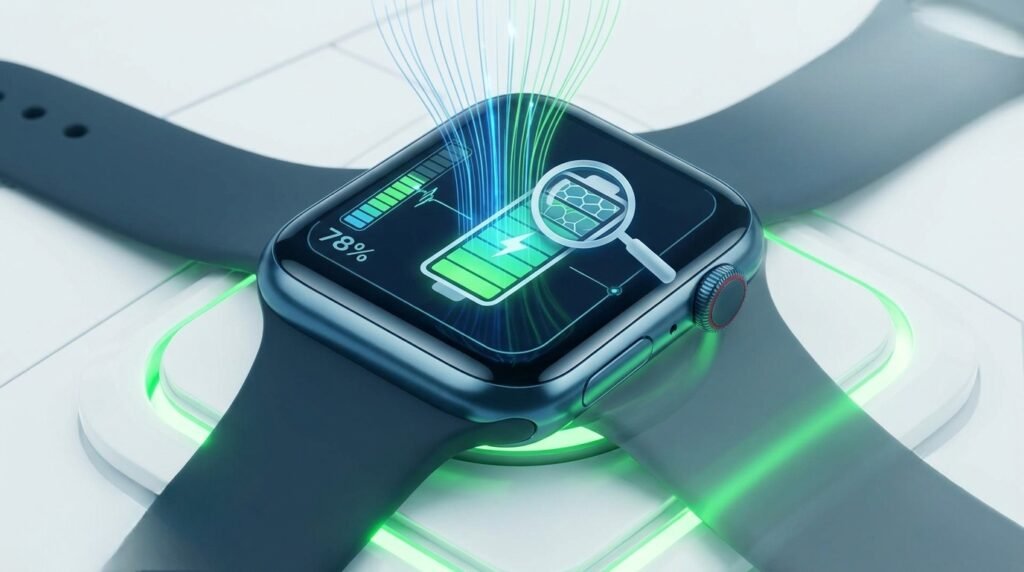
Before making any changes, you need to know whether you are dealing with a software problem or a battery health problem. An aged battery that holds 75% or less of its original capacity cannot be fixed through settings alone , it needs to be replaced. If your battery health exceeds 80%, these optimization techniques will effectively restore your Series 4 performance.
| Check your current battery percentage and health status: How to Check Battery on Apple Watch |
Why watchOS Updates Impact Older S4 Processors

Each watchOS update adds new features that consume CPU and RAM. The Series 4’s S4 chip was powerful in 2018, but running watchOS 11 on it is similar to running a modern operating system on a five year old laptop. The chip does not fail , it just has less headroom. This is exactly why a focused effort to optimize Apple Watch Series 4 battery life makes such a visible difference: you are clearing the overhead the OS cannot manage on its own.
Step by Step: How to Check Your Battery Health
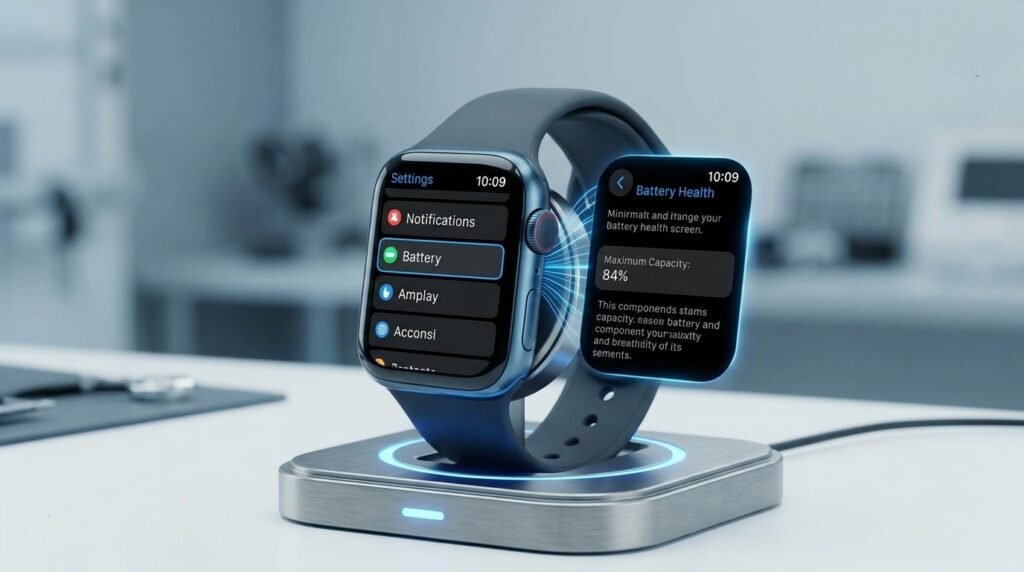
- On your Apple Watch, go to Settings → Battery
- Tap Battery Health: a percentage above 80% means optimization is your best path forward
- If health is below 80%, consider a battery replacement before spending time on software settings
| Battery Diagnostic Tool: Use the Battery Diagnostic Tool on this page (button below) to get a quick help to Optimize Apple Watch Series 4 Battery Life. A degraded battery makes every performance setting feel less effective, confirming your battery health first saves you time. |
2. Speed Up Your Watch: Tackling Performance Bottlenecks

Over time, background app refresh, packed storage, and outdated software build up invisible friction that slows down your user interface and drains your power.
Managing the 16GB Storage Limit
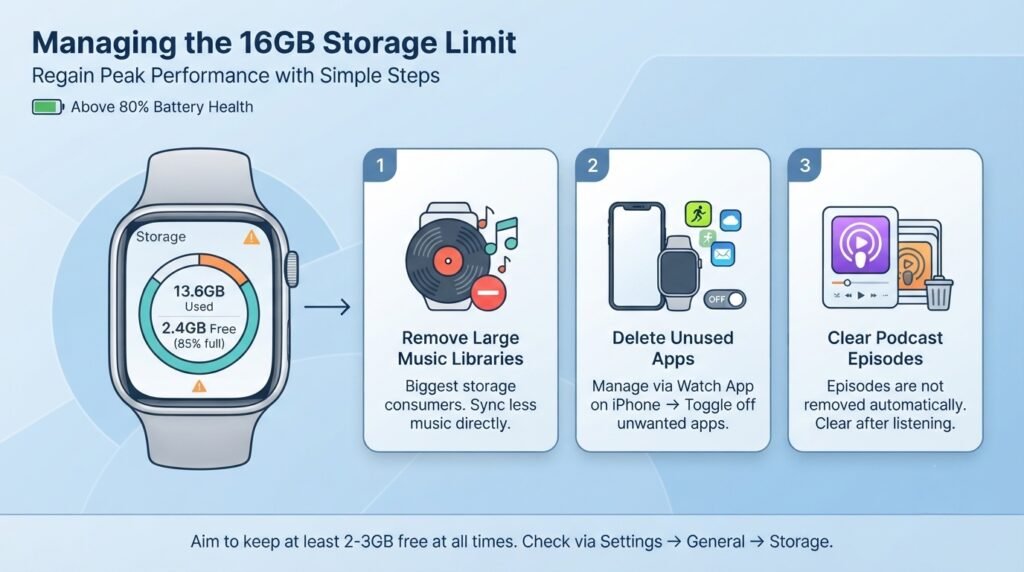
Above 80% battery health? These steps are all you need to regain Optimize Apple Watch Series 4 Battery Life. When your 16GB fills past 85%, the OS starts writing temporary data to slower memory regions, causing app lag and delayed screen responses. Go to Settings → General → Storage on the watch and aim to keep at least 2 to 3GB free at all times.
- Remove music libraries synced directly to the watch , these are the biggest storage consumers
- Delete unused apps through the Watch app on iPhone → scroll to the app → toggle off
- Clear podcast episodes after listening ,they are not removed automatically
Eliminating “Ghost” Apps and Cached Data

Some apps continue running background processes even after you close them. These “ghost” sessions consume CPU cycles and prevent your watch from sleeping fully. To clear them: press the Side Button to open the Dock, swipe left on each app, and tap Remove. This does not uninstall the app , it clears its active session. Performing this daily is the easiest way to improve performance without changing any settings.
Reducing Visual Load: How to Turn Off Motion & Transparency
- On Apple Watch: Settings → Accessibility → Motion → Reduce Motion ON
- On iPhone Watch app: Accessibility → Reduce Transparency ON
- This disables parallax animations and blur effects that continuously use the GPU
The improvement is immediate and visible. App transitions become faster and the watch face responds more crisply.
3. Battery Optimization Strategies (Advanced Tips)

Move beyond basic power saving by auditing background app refresh for specific non essential apps and turning off heavy background features like environmental noise measurements.
The “Low Power Mode” Trade off: When to Use It
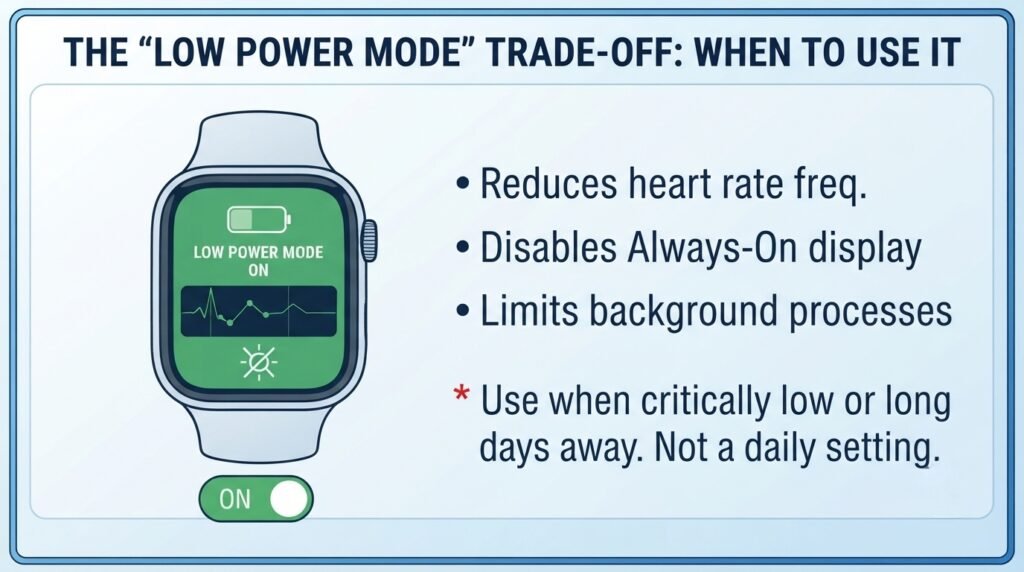
Low Power Mode on watchOS 9+ reduces heart rate monitoring frequency, disables the Always On display, and limits background processes. It is the fastest single toggle way to optimize Apple Watch Series 4 battery life when your battery is critically low. Use it during long days away from a charger, not as a daily setting , it reduces the health tracking data that makes the watch useful.
| Not sure how to charge your watch correctly to preserve battery longevity? When to Charge Apple Watch If You Sleep With It |
Disable Background App Refresh for Non Essential Apps
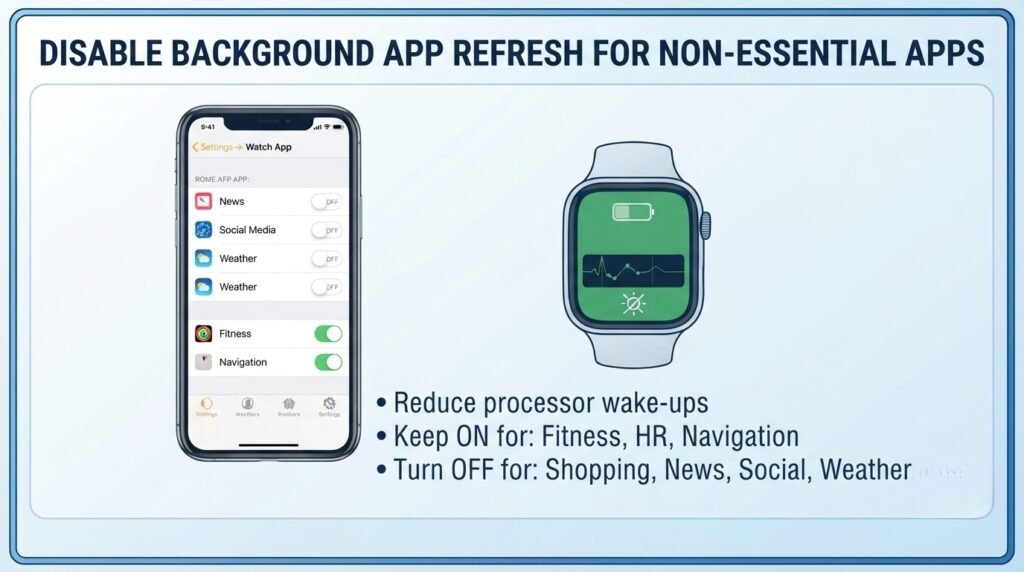
- iPhone Watch app → select an app → toggle Background App Refresh OFF
- Keep it ON only for apps that need live data: fitness, heart rate, and navigation
- Turn it OFF for: shopping, news, social media, and weather apps
Each disabled background refresh reduces the number of times your processor wakes up during a one hour period.
Optimizing Connectivity: WiFi vs. LTE vs. Bluetooth
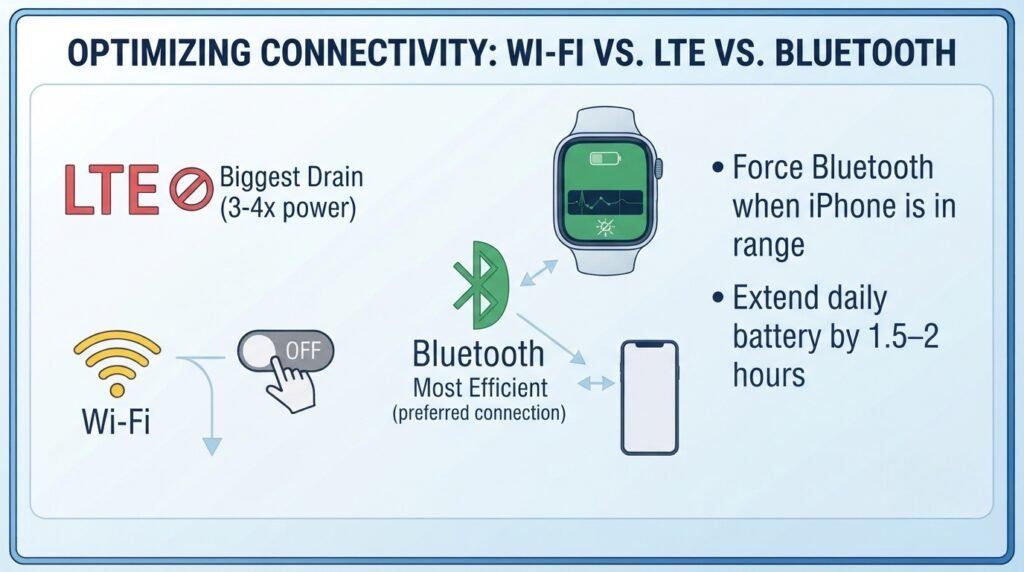
LTE is the single largest drain on Series 4 battery. Every minute your watch runs on LTE instead of Bluetooth costs approximately 3 to 4x more power. When your iPhone is within normal range, force the watch to use Bluetooth: Settings → WiFi (turn OFF) and leave the phone connection active. This one change is enough for most people to extend daily battery life by 1.5 to 2 hours and meaningfully optimize Apple Watch Series 4 battery life without losing any core features.
| If your watch is not charging efficiently, this guide explains the most common reasons: Why Is My Apple Watch Not Charging |
4. Hidden Settings That Drain Your Battery

The settings in this section are the ones most users never check. They run silently in the background and together can account for 20 to 30% of daily battery drain. Addressing them is one of the most effective ways to optimize Apple Watch Series 4 battery life on a device that is several years old.
| Setting | Battery Impact | Recommendation |
| Mirror iPhone Alerts (ON) | High drain , every alert wakes screen | Turn OFF , filter per app |
| Background App Refresh (ON) | Moderate drain , apps poll every cycle | OFF for non essential apps |
| Always On Display (ON) | High drain on AMOLED panel | OFF during low battery days |
| Raise to Wake (ON) | Moderate , fires gyroscope constantly | OFF if not needed all day |
| Haptic Intensity: Heavy (ON) | Motor fires stronger, draws more power | Set to Light or Medium |
| LTE Active All Day | Highest single drain source | Switch to Bluetooth when iPhone nearby |
| Reduce Motion (OFF) | Animations use GPU cycles | Turn ON to save CPU overhead |
Why “Mirror iPhone Alerts” is a Battery Killer
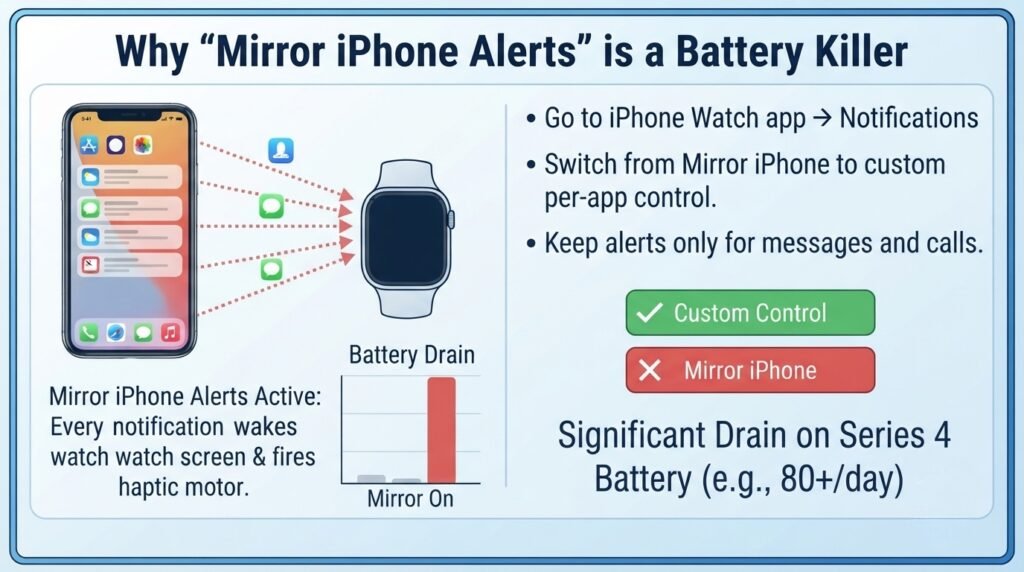
When Mirror iPhone Alerts is active, every notification your iPhone receives also wakes your Apple Watch screen, fires the haptic motor, and logs the event. If you receive 80 notifications per day, that is 80 extra screen wake events.
On a Series 4 battery, this is significant. Go to iPhone Watch app → Notifications and switch from Mirror iPhone to custom per app control. Keep alerts only for messages and calls.
Configuring Haptic Vibrations for Better Efficiency
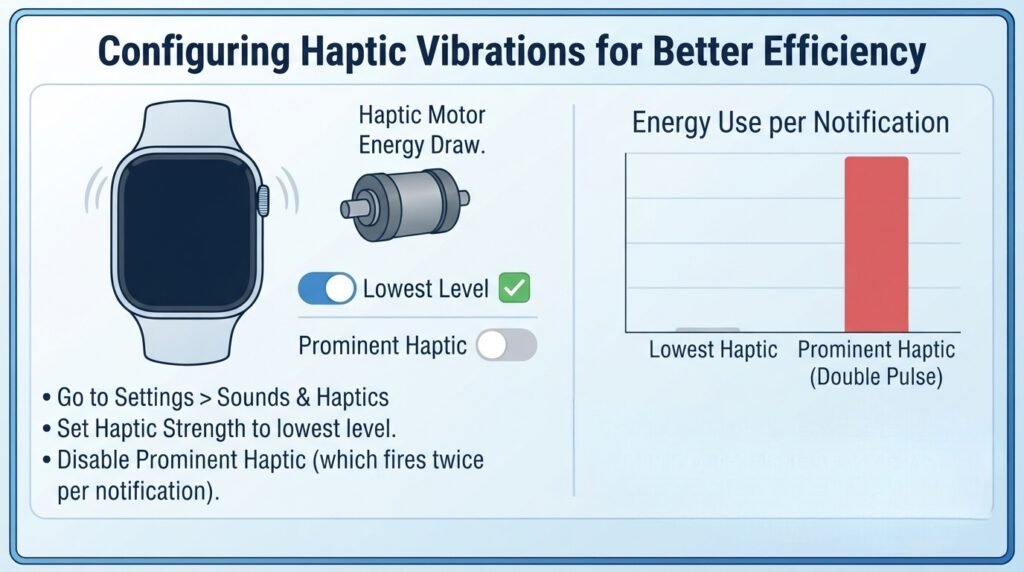
The haptic motor in the Series 4 draws power proportional to intensity. Go to Settings > Sounds & Haptics and set the Haptic Strength to its lowest level.
Also disable Prominent Haptic, which fires the motor twice for each notification. This small change reduces motor energy use noticeably over a full day.
Managing Notifications: The Silent Energy Drain
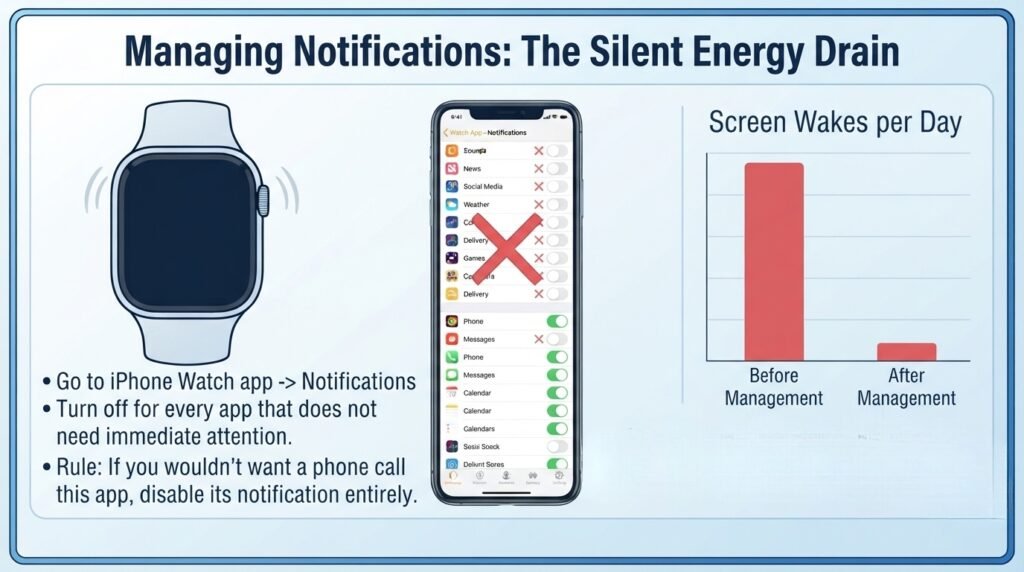
Every notification wakes the display. Go to iPhone Watch app → Notifications and turn off notifications for every app that does not need your immediate attention. A good rule: if you would not want a phone call from this app, disable its watch notification entirely.
5. Long Term Maintenance for Series 4 Longevity

Extending the life of a Series 4 requires protecting the hardware by avoiding extreme heat during charging and keeping the casing clean of sweat and debris that can degrade the sensors over time.
The Golden Rule: Temperature Control and Charging Habits
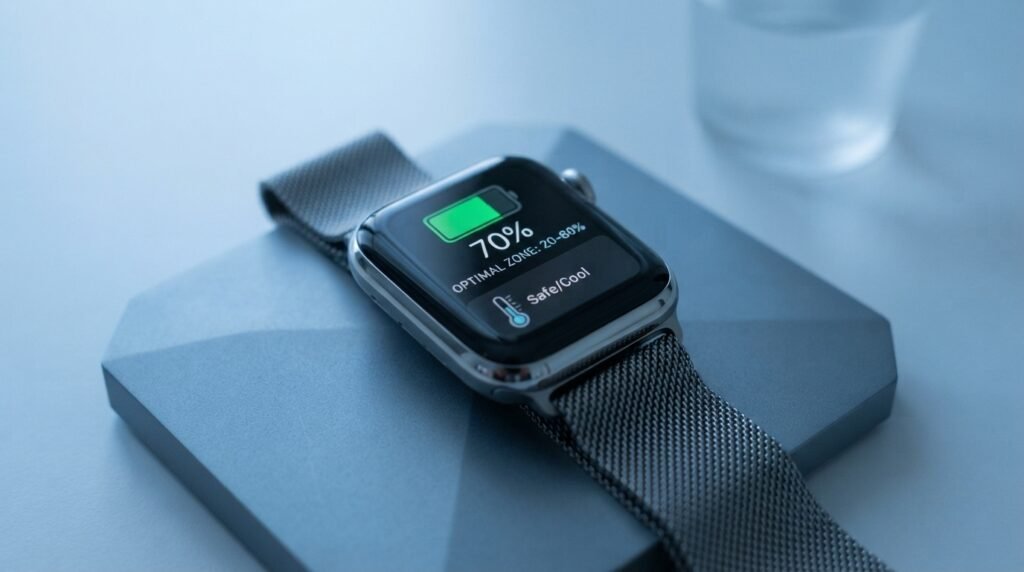
Lithium ion batteries degrade faster when charged in hot conditions. Never charge your Series 4 while it is warm from a workout. Allow it to cool for at least 10 minutes before charging.
Keep daily charging between 20% and 80% when possible , full charge to zero cycles accelerate cell wear faster than partial cycles. These habits directly impact how long you can optimize Apple Watch Series 4 battery life before needing a battery replacement.
| Need an alternative charging method for travel or emergencies? Power Up Apple Watch Without the Magnetic Charger |
Periodic “Soft Reset” and “Re Pair” Techniques
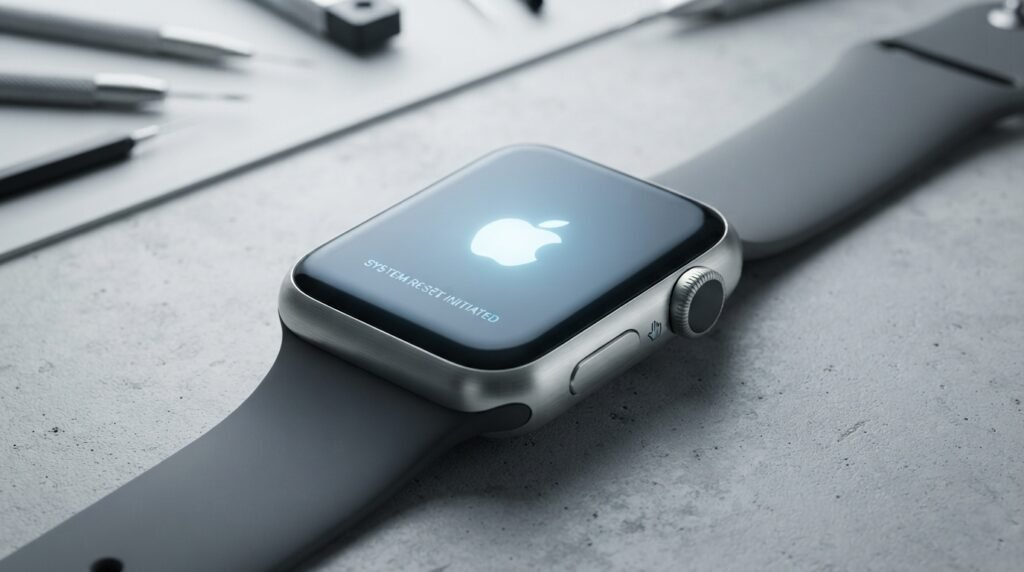
Soft Reset (weekly): Hold Side Button + Digital Crown for 10 seconds until the Apple logo appears. This clears RAM and resets background processes without touching your data.
Re Pair (every 6 to 12 months): Unpairing creates a clean backup and wipes accumulated sync errors between the watch and iPhone. After re pairing and restoring, most users notice a measurable improvement in app launch speed.
When to Consider a Battery Replacement vs. Upgrade
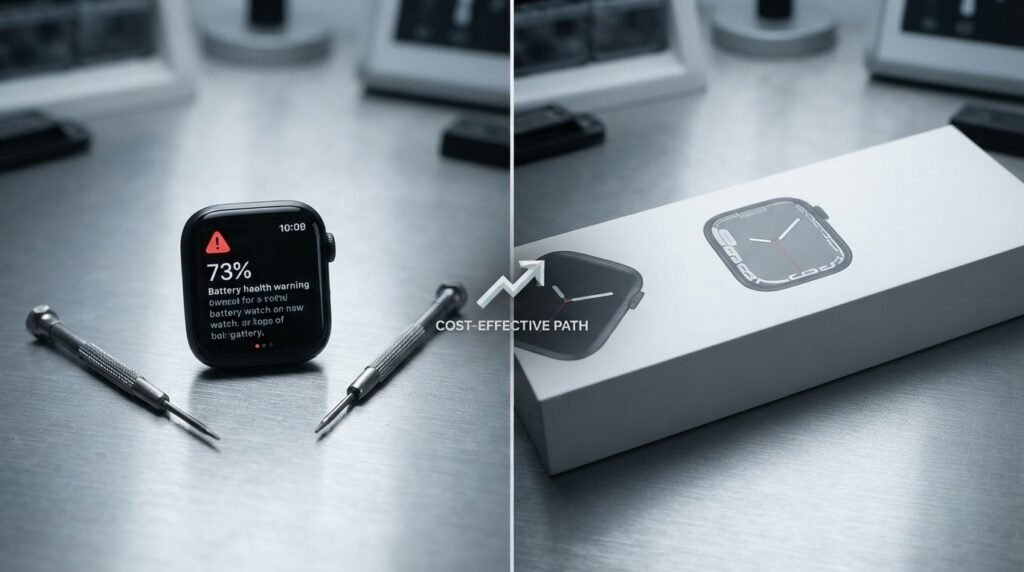
If battery health drops below 75% and you are otherwise happy with the Series 4, a battery replacement is the most cost effective way to optimize Apple Watch Series 4 battery life for another 2 to 3 years. Apple charges a fixed fee for this, and third party services are available at lower cost.
If you need features like blood oxygen monitoring or crash detection, those are hardware level additions the Series 4 cannot support regardless of battery condition.
| Noticed your Apple Watch is acting up with audio or sound issues alongside battery drain? Stop Apple Watch Audio Hijacking Best Fix |
6. Frequently Asked Questions
Does watchOS 10 or 11 make my Series 4 slower?
Yes, in specific ways. Each major watchOS release adds background health data pipelines and UI rendering layers that increase CPU demand. The best way to counter this while running a current watchOS version is to follow the steps in this guide to optimize Apple Watch Series 4 battery life, particularly reducing Background App Refresh and enabling Reduce Motion, which offloads the most CPU intensive visual tasks.
How long should an Apple Watch Series 4 battery last in 2026?
A Series 4 with healthy battery (above 80%) and optimized settings should last a full 18 hour day comfortably. An unoptimized watch with degraded battery may only reach 10 to 12 hours. Applying the settings in this guide , especially disabling LTE when unused and turning off Mirror iPhone Alerts , is typically enough to optimize Apple Watch Series 4 battery life back to near original daily runtime.
Is it worth replacing the battery on an old Series 4?
Yes, if the watch is otherwise functioning well. Battery replacement typically costs a fraction of a new Apple Watch and returns the device to full daily battery life. It is the most practical maintenance step for any Series 4 user whose battery health has dropped below 80%.
Conclusion: Keeping Your “Classic” Watch Running Smoothly
The Apple Watch Series 4 remains a capable and reliable device in 2026 when maintained properly. Every tip in this guide directly targets the bottlenecks that slow down a mature device , from Ghost App cache clearing to LTE management to notification filtering. Used together, these changes optimize Apple Watch Series 4 battery life to a degree that surprises most users who try them for the first time.
Start with the battery health check, apply the settings table changes, and do a soft reset this week. If your battery is already below 80%, pair these software steps with a battery replacement and your Series 4 will run like a different device.