Here is quick 2 second answer for Fixing apple watch compass errors.
| Quick Answer: To fix Apple Watch compass errors, first remove any third party magnetic band and step outside. Then open Settings → Privacy → Location Services → System Services and confirm Compass Calibration is ON. Perform a Figure 8 motion for 30 seconds outdoors. If the red spinning radar persists, force restart the watch. This five minute sequence resolves 90% of compass issues. |
Your Apple Watch compass was working perfectly on your last hike , then it started spinning, pointing the wrong direction, or showing a red radar icon that never clears. The frustration is real, especially when you depend on it for outdoor navigation. Fixing Apple Watch compass errors is usually a two minute process once you know which of the two root causes you are dealing with.
This guide walks through every fix in the right order, from the most common cause to the advanced reset steps most other guides skip entirely. The diagnosis table below helps you identify your specific issue before you start.
Why is My Apple Watch Compass Not Working? (The Common Culprits)

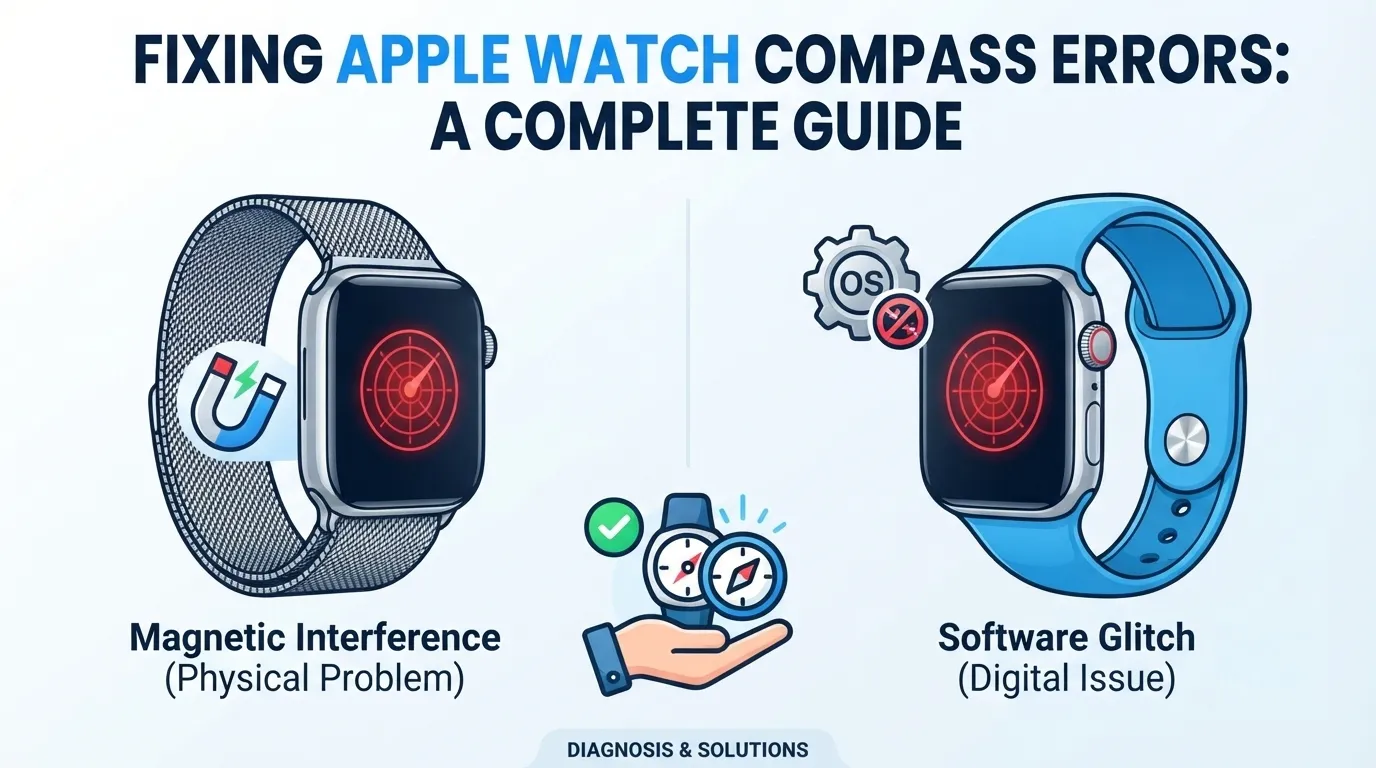
Almost every compass problem falls into one of two categories: magnetic interference or a software glitch. Knowing the difference saves you from running through the wrong fixes. Fixing Apple Watch compass errors starts with this single diagnosis step.
Magnetic Interference vs. Software Glitch : Key Difference

- Magnetic interference is a physical problem. A magnet near the watch sensor actively disrupts the compass reading in real time. The error appears immediately and disappears the moment the magnet is removed.
- Software glitch is a cached or corrupted state inside watchOS. The compass behaves incorrectly even with no magnets nearby, and the problem persists through app closes and screen wakes.
| Symptom | Likely Cause | First Fix |
| Red spinning radar icon | Active magnetic interference | Remove band, move away from metal |
| Compass drifts / spins slowly | Needs recalibration | Do Figure 8 outdoors |
| Compass works then stops | Software glitch / cached state | Force restart the watch |
| Compass always off by same angle | Miscalibrated declination | Re enable Compass Calibration in Privacy |
| Works outdoors, fails indoors | Normal behavior , not an error | Use GPS outdoors for reliable heading |
| Compass fails after watchOS update | Software regression | Unpair and re pair to flush cache |
| Battery Diagnostic Tool: Compass errors can sometimes appear during low battery states when the watch throttles background sensors. Use the Battery Diagnostic Tool on this page (button below) to confirm battery health is not contributing to the issue before proceeding. |
Step 1: Identify and Remove Magnetic Interference (The Hidden Killer)

Magnetic interference is the leading cause of Apple Watch compass errors that most competitor guides fail to diagnose properly. The compass sensor sits near the back of the watch case and is highly sensitive to magnets within a few centimeters. Fixing Apple Watch compass errors caused by interference requires finding and removing the magnetic source before any software fix will work.
Third Party Magnetic Bands vs. Apple Official Bands

Many third party watch bands use a magnetic closure buckle for easy adjustment. This magnet sits almost directly over the compass sensor when the band is fastened. Apple’s official bands are specifically engineered to avoid this problem , even the Milanese Loop uses a non magnetized stainless steel mesh.
| Band Type | Compass Risk | Verdict |
| Apple Sport Band (silicone) | None , no metal clasps | ✅ Safe |
| Apple Milanese Loop | Low , stainless steel, non magnetic | ✅ Generally safe |
| Third party magnetic closure band | High , clasp magnet near sensor | ❌ Avoid for navigation |
| Third party metal link band | Medium , depends on alloy | ⚠️ Test before using |
| Third party leather with magnetic buckle | High , same risk as magnetic closure | ❌ Avoid for navigation |
| 💡 Quick Test: Remove your band entirely and hold the watch in your open hand away from any metal surfaces. Open the Compass app and check if the red spinning icon clears within 10 seconds. If it does, your band is the cause. If the spinning continues with no band attached, the problem is a software glitch or hardware fault. |
Step 2: The Calibration Process (Step by Step for watchOS 10/11)

If your band is not the issue, an uncalibrated compass is the next most likely cause of Apple Watch compass errors. Calibration teaches the magnetometer your local magnetic environment so it can correct for small variations in the Earth’s field.
The Figure 8 Technique

- Step outside into an open area , away from buildings, cars, and power lines
- Open the Compass app on your Apple Watch
- Move your wrist in a smooth Figure 8 pattern , imagine drawing the number 8 in the air slowly, rotating your wrist fully through each loop
- Continue for 20 to 30 seconds until the red spinning icon disappears
- Hold the watch flat and check that the heading is stable
Why This Must Be Done Outdoors

Indoor calibration is unreliable because steel beams, electrical wiring, and reinforced concrete all emit low level magnetic fields that interfere with the calibration baseline. The magnetometer needs to read the Earth’s natural magnetic field without distortion. Fixing Apple Watch compass errors through calibration only works when you have a clear sky above you and no large metal structures within 10 metres.
Step 3: Critical Settings to Toggle for Precision

Two hidden settings inside iOS directly control whether your Apple Watch compass can access the calibration data it needs. Most guides covering fixing Apple Watch compass errors do not mention either of them.
Enable Compass Calibration in Privacy Settings

- On iPhone: Settings → Privacy & Security → Location Services
- Scroll down to System Services → tap it
- Find Compass Calibration → confirm it is toggled ON
If this was OFF, turn it on, then redo the Figure 8 calibration outdoors. The compass cannot self correct its heading without this setting active.
The “Significant Locations” Setting : Its Hidden Role

Significant Locations (Settings → Privacy & Security → Location Services → System Services → Significant Locations) stores your frequently visited places. Apple uses this data to improve location accuracy, including the magnetic declination correction that makes the compass point to true north instead of magnetic north.
If Significant Locations is disabled, your compass may show consistent heading offsets. Fixing Apple Watch compass errors caused by a fixed angle drift almost always requires this setting to be enabled.
| If compass issues are draining your battery faster than normal, see our full guide: How to Optimize Apple Watch Series 4 Battery Life |
Step 4: Advanced Troubleshooting for Persistent Compass Errors

If the band check, calibration, and settings toggles did not resolve the problem, you are dealing with a corrupted software state. These three advanced steps clear what the standard fixes cannot reach and are the most effective methods for fixing Apple Watch compass errors that survive normal restarts.
Force Restart Your Apple Watch

- Hold the Side Button and Digital Crown simultaneously
- Keep holding for 10 seconds until the Apple logo appears
- Release both buttons and wait for the watch to fully restart
- Open the Compass app outdoors and test
A force restart clears the active sensor state, which is different from a normal shutdown. It is the correct first step for any sensor that is frozen or returning incorrect data.
Re Syncing the Compass App Cache

The Compass app stores a calibration cache that can become corrupted after a watchOS update. To flush it: on your iPhone, open the Watch app → scroll down to Compass → toggle Show App on Apple Watch OFF. Wait 10 seconds, then toggle it back ON. This forces a fresh install of the Compass app and clears all cached calibration data without affecting any other watch data.
Unpair and Re Pair Without Losing Data (Pro Tip)

This step causes the most hesitation because users fear data loss. The process is safe when followed correctly ,unpairing creates a full encrypted backup automatically before wiping the watch.
- iPhone Watch app → tap your watch name at the top → tap the (i) icon → tap Unpair Apple Watch
- Enter your Apple ID password to disable Activation Lock
- Wait 5 to 10 minutes for the backup to complete and the watch to unpair
- Set up your watch again → choose Restore from Backup when prompted
- All health data, apps, and settings restore fully , the compass cache is rebuilt from zero
Step 5: Understanding Compass Related Features & Limitations

Some behaviors that look like Apple Watch compass errors are actually the device working exactly as designed. Understanding these limits prevents you from troubleshooting a problem that does not exist.
Elevation Alerts and Waypoints

The Compass app on Series 5 and later includes elevation tracking and waypoint marking. Elevation is measured using the barometric altimeter, not the magnetometer ,so elevation data can be accurate even when your compass heading is off. Waypoints require GPS lock and are not supported indoors.
If your waypoints are not saving or your elevation reads zero, you are likely under cover or in a signal blocked area, not experiencing a compass malfunction.
When to Contact Technical Support (Hardware vs. Software)

The troubleshooting steps outlined on iboltwatch.com resolve the vast majority of compass issues. Please reach out to the official manufacturer support channels if the following signs persist despite your efforts, as they indicate a potential hardware level sensor failure requiring physical inspection:
- The red spinning radar continues even after removing all bands, moving to an open outdoor environment, and completing a force restart.
- The compass heading jumps erratically instead of drifting, which often suggests a failing magnetometer chip.
- The compass functioned temporarily after unpairing but failed again within 24 hours after restoring, indicating possible sensor damage.
- The Compass app remains missing entirely from your supported model even after a successful reinstall attempt.
Frequently Asked Questions (FAQ)
Why does my compass show a red spinning radar?
The red spinning radar means the compass cannot establish a reliable heading reading. It appears when active magnetic interference is present, when the watch has not been calibrated in the current environment, or when the magnetometer sensor has encountered a software error.
Fixing Apple Watch compass errors showing this icon: remove your band, step outdoors, and perform the Figure 8 calibration. The radar should clear within 30 seconds.
Does a screen protector affect the Apple Watch compass?
A standard tempered glass or film screen protector has no effect on the compass because the magnetometer sensor sits in the case back, not under the display. However, metal frame screen protectors with steel bezels can cause minor interference. If you installed a new screen protector shortly before the compass errors began, test the watch with the protector removed.
Can I use the compass indoors?
The Apple Watch compass functions indoors in the sense that it will attempt to display a heading, but the reading is unreliable. Indoor environments contain steel structural elements, electrical cables, and appliances that distort the local magnetic field. Apple designed the compass for outdoor use with clear sky access. For reliable heading data, always use the compass outside.
Conclusion
Most cases of Apple Watch compass errors are solved by one of three things: removing a magnetic band, recalibrating outdoors with the Figure 8 technique, or enabling Compass Calibration in Privacy settings. The diagnosis table at the top of this guide points you to the right fix for your specific symptom, saving you from running through steps that do not apply to your situation.
If all software based methods fail and the red spinning radar persists through a full unpair and re pair, the sensor itself needs hardware assessment. Book a Genius Bar appointment at that point. Everything before that step is solvable at home with no tools and no data loss. Fixing Apple Watch compass errors is almost always a settings and calibration problem , not a hardware failure.